
- Robot vacuums
- Robot vacuum
ERROR-SENSOR-LASER
Dreame robot vacuum ERROR-SENSOR-LASER: LiDAR sensor fault
Risk level
Low
Usually safe to check without specialist tools.
Urgency
Medium
Quick answer
The app displays a Laser sensor error or Ladar Distance Sensor Error when the top turret cannot spin or read surroundings; update the firmware and gently clear any debris from the sensor.
Safety first
Stop and check this first
- Do not use a wet cloth or liquid sprays to clean the Laser Distance Sensor; Dreame's manual warns that moisture can damage sensitive internal elements.
- The laser distance sensor contains a Class 1 laser product: never poke sharp tools into the turret slot or attempt to disassemble the LDS assembly yourself.
Safe checks you can perform
- Check and update the robot firmware in the Dreame app
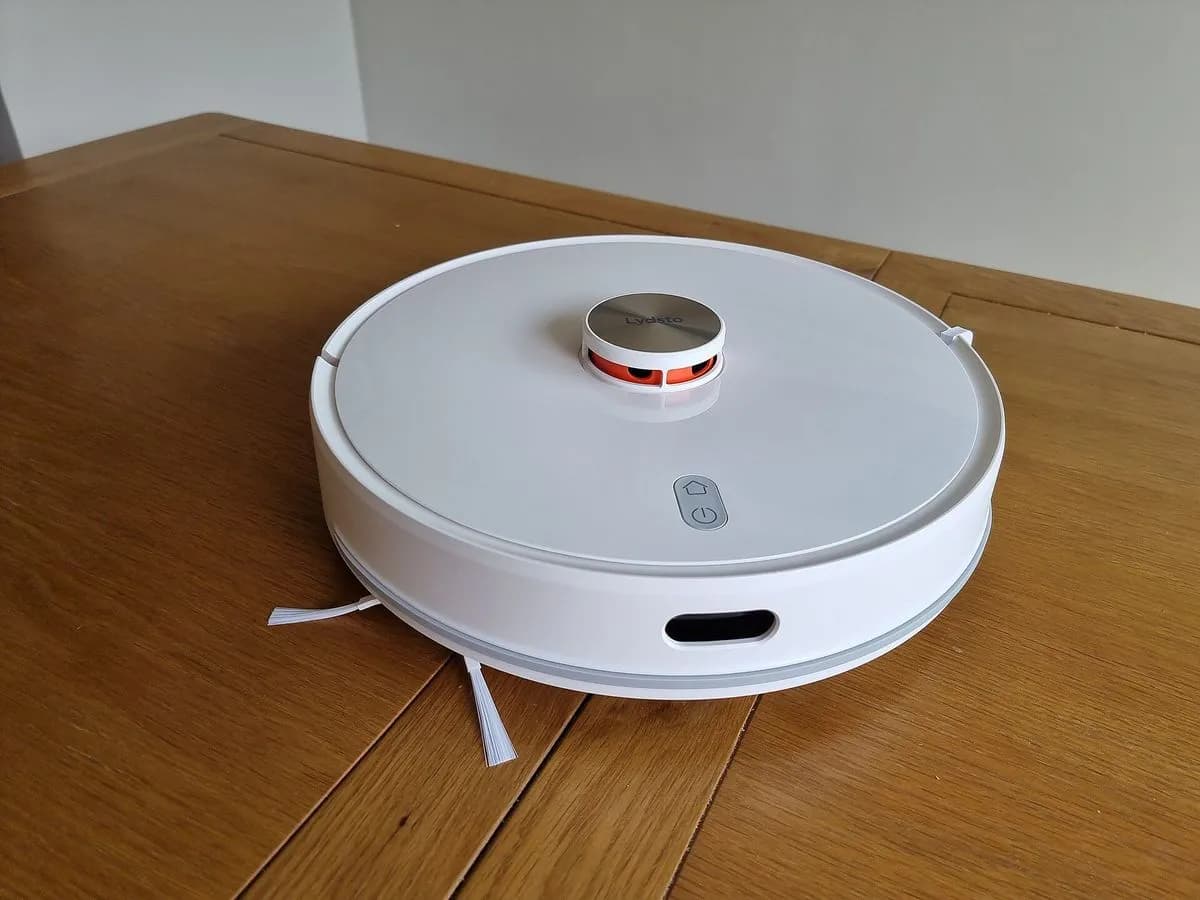
- Check the LDS turret rotation and gently move the top cover
- Wipe the laser emission and receiving holes with a soft dry cloth
Leave these tasks to a qualified professional
- Do not attempt this professional task: Case with Dreame after-sales customer service
- Do not attempt this professional task: Authorized workshop replacement of the Laser Distance Sensor
What a technician must be able to justify
Technician visit
These are the steps they must carry out and show you. Tick them as they work: if steps are skipped, do not accept a part swap.
These are not instructions for opening or handling the equipment yourself. They are the checks that should support a technical conclusion.
Case with Dreame after-sales customer service
What they doSubmit a support request to Dreame after-sales customer service with the app error screenshot, firmware version and video of the LDS turret check.
They must show youthe support ticket reference and remote diagnostic review of the robot's sensor logs.
In writingthe Dreame case number, official diagnosis and warranty repair or shipping instructions.
Authorized workshop replacement of the Laser Distance Sensor
What they doAn authorized technician opens the upper housing, replaces the Laser Distance Sensor (LDS) assembly and calibrates the LiDAR scanning head.
They must show youthe replaced LDS module and a successful live room-mapping scan in the app.
In writingthe authorized service report specifying the replaced LDS unit and repair warranty.
Before accepting a part or repair
Nothing has been shown yet. Do not accept a part swap based on the code alone.
Follow these steps
Note: Follow the documented order. An error code identifies the affected system, but it does not prove by itself which part has failed.
Check and update the robot firmware in the Dreame app
- Who:
- you, using the Dreame mobile app while the robot is online.
- How:
- open the device page in the app, tap the three-dot icon in the top-right corner to enter Settings, scroll to Firmware Update and install any available update.
- Result that matters:
- ruling out a firmware bug affecting laser distance sensor initialization.
- If an update installs and clears the prompt:
- resume normal mapping and cleaning.
- If the firmware is already current and the error remains:
- inspect the top LDS turret physically.
- Evidence to keep:
- screenshot of the Firmware Update screen showing the installed version.
Evidence: How to Solve the Laser Sensor Error on Your Robot Vacuum: A Step-by-Step Guide · Troubleshooting: Prompt 'Ladar Distance Sensor Error' · Dreame D20 Plus Robot Vacuum and Mop with Auto-Empty Base User Manual (EN/FR/ES)
Check the LDS turret rotation and gently move the top cover
- Who:
- you, with the robot powered off on a flat, well-lit surface.
- How:
- check the top LDS slot for dust bunnies, hair or foreign objects and remove them; gently spin the LDS turret to verify smooth rotation, then move the LDS cover front-to-back and left-to-right to ensure it is not stuck.
- Result that matters:
- confirming that neither the spinning sensor head nor the protective cover is mechanically jammed.
- If removing trapped debris restores smooth rotation:
- power the robot back on and start a test run.
- If the turret and cover move freely but the app prompt persists:
- clean the laser openings.
- Evidence to keep:
- short video clip showing the LDS turret spinning and the cover moving freely.
Evidence: How to Solve the Laser Sensor Error on Your Robot Vacuum: A Step-by-Step Guide · Troubleshooting: Prompt 'Ladar Distance Sensor Error' · Dreame D20 Plus Robot Vacuum and Mop with Auto-Empty Base User Manual (EN/FR/ES)
Wipe the laser emission and receiving holes with a soft dry cloth
- Who:
- you, using only a soft dry cloth or small dry brush.
- How:
- gently wipe the laser emission and receiving holes inside the turret opening to clear away fine dust, taking care never to use a wet cloth or liquid spray.
- Result that matters:
- restoring an unobstructed optical path for the Class 1 laser sensor.
- If the orange error blink stops and the robot scans the room in the app:
- issue resolved.
- If the laser sensor error still appears after dry cleaning:
- contact Dreame after-sales customer service.
- Evidence to keep:
- screenshot of the app prompt alongside a photo of the cleaned LDS turret.
Evidence: How to Solve the Laser Sensor Error on Your Robot Vacuum: A Step-by-Step Guide · Troubleshooting: Prompt 'Ladar Distance Sensor Error' · Dreame D20 Plus Robot Vacuum and Mop with Auto-Empty Base User Manual (EN/FR/ES)
Still not solved
If the error persists, stop here. See what the technician must do and show you.
Where this code applies
A code is meaningful only inside the right product and version context.
Primary scope
- System
- Robot vacuums
- Brand
- Dreame
- Product type
- Robot vacuum
Known code variants
- Dreame error del sensor laser
- Dreame laser distance sensor error
- Dreame LDS sensor error
- Error del sensor de distancia laser Dreame
- Ladar Distance Sensor Error
- Ladar Distance Sensor Error Dreame
- Laser distance sensor obstructed Dreame
- Laser sensor error Dreame
- LiDAR sensor error Dreame
- Sensor laser obstruido Dreame
What it means
According to Dreame's official support guides for Laser sensor error, LiDAR sensor error and Ladar Distance Sensor Error, as well as the Dreame D20 Plus user manual, this prompt appears when the top-mounted Laser Distance Sensor (LDS) has blocked emission or receiving holes or cannot rotate smoothly, accompanied by the robot button indicator blinking orange. Exact app wording varies by model series. The prompt alone never proves that the LiDAR unit is permanently broken: dust bunnies, pet hair or a stuck turret bumper cover commonly stall rotation without hardware failure.
Warnings and stop conditions
- Mediumeditorial warning
Do not use a wet cloth or liquid sprays to clean the Laser Distance Sensor; Dreame's manual warns that moisture can damage sensitive internal elements.
Evidence: Dreame D20 Plus Robot Vacuum and Mop with Auto-Empty Base User Manual (EN/FR/ES)
- Higheditorial warning
The laser distance sensor contains a Class 1 laser product: never poke sharp tools into the turret slot or attempt to disassemble the LDS assembly yourself.
Evidence: Dreame D20 Plus Robot Vacuum and Mop with Auto-Empty Base User Manual (EN/FR/ES)
Symptoms and causes
Probable causes · in order
- Dust bunnies, pet hair or foreign objects inside the LDS turretCommon
Clumps of dust or hair work their way into the top laser turret slot and prevent the internal sensor head from rotating freely.
Evidence: How to Solve the Laser Sensor Error on Your Robot Vacuum: A Step-by-Step Guide · Troubleshooting: Prompt 'Ladar Distance Sensor Error' · Dreame D20 Plus Robot Vacuum and Mop with Auto-Empty Base User Manual (EN/FR/ES)
- Stuck LDS bumper cover or dusty laser emission windowsPossible
The top LDS cover gets wedged after brushing under low furniture, or dust coats the laser emission and receiving holes on the spinning head.
Evidence: How to Solve the Laser Sensor Error on Your Robot Vacuum: A Step-by-Step Guide · Troubleshooting: Prompt 'Ladar Distance Sensor Error' · Dreame D20 Plus Robot Vacuum and Mop with Auto-Empty Base User Manual (EN/FR/ES)
- Outdated robot firmware or internal LDS drive faultLess common
An older firmware build or a mechanical fault in the turret drive motor prevents the robot from initializing laser distance readings.
Evidence: How to Solve the Laser Sensor Error on Your Robot Vacuum: A Step-by-Step Guide · Troubleshooting: Prompt 'Ladar Distance Sensor Error' · Dreame D20 Plus Robot Vacuum and Mop with Auto-Empty Base User Manual (EN/FR/ES)
Virtual technician
Does ERROR-SENSOR-LASER still appear after these checks?
Answer a few questions to narrow down the likely cause and the safest next action. Guidance only - it never replaces a professional.
Sources and technical references
- 1
How to Solve the Laser Sensor Error on Your Robot Vacuum: A Step-by-Step Guide
Dreame · 2026 · official_doc
- 2
Troubleshooting: Prompt 'Ladar Distance Sensor Error'
Dreame · 2026 · official_doc
- 3
Dreame D20 Plus Robot Vacuum and Mop with Auto-Empty Base User Manual (EN/FR/ES)
Dreame · 2026 · official_doc
Was this entry useful?