
- Gaming and consoles
- Handheld gaming PCs
Yellow Exclamation Mark
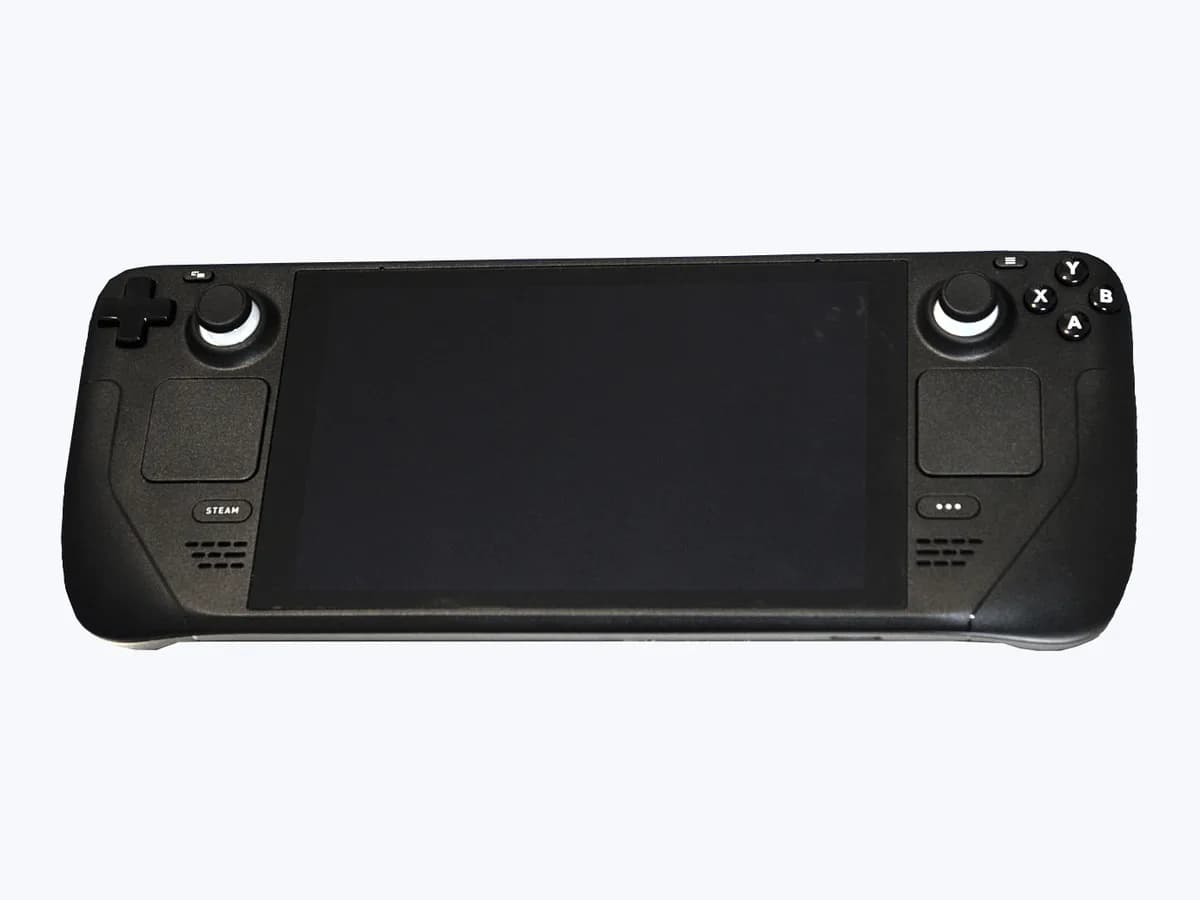
ASUS Yellow Exclamation Mark on handheld PC: AMD eGPU driver
Risk level
Low
Usually safe to check without specialist tools.
Urgency
Medium
Quick answer
In ASUS's official FAQ 1055526, if a yellow exclamation mark appears next to the graphics card in Device Manager after connecting an AMD external GPU to your ROG Ally handheld, you must clean existing AMD drivers and install the ASUS driver.
Safety first
Stop and check this first
- Always download and install the ASUS-certified AMD graphics driver from the official ASUS Support Site first, as drivers from the AMD website may differ in compatibility with your ROG Ally.
Safe checks you can perform
- Disconnect the AMD external GPU from your ROG Ally handheld
- Run the AMD Cleanup Utility to remove existing AMD graphics drivers
- Install the latest ASUS-certified AMD graphics driver and restart
Leave these tasks to a qualified professional
- Do not attempt this professional task: Perform a clean removal with AMD Cleanup Utility and install the ASUS-certified driver
- Do not attempt this professional task: Refer the handheld to an authorized ASUS service center if the issue persists
What a technician must be able to justify
Technician visit
These are the steps they must carry out and show you. Tick them as they work: if steps are skipped, do not accept a part swap.
These are not instructions for opening or handling the equipment yourself. They are the checks that should support a technical conclusion.
Perform a clean removal with AMD Cleanup Utility and install the ASUS-certified driver
What they doDisconnect the AMD external GPU, run the AMD Cleanup Utility to purge existing AMD drivers, install the latest ASUS-certified AMD graphics driver from the ASUS Support Site, and restart the handheld.
They must show youWindows Device Manager showing the graphics card working normally without a yellow exclamation mark and AMD Software: Adrenalin Edition launching cleanly.
In writingthe exact ASUS-certified AMD graphics driver version installed and the clean Device Manager status after rebooting.
Refer the handheld to an authorized ASUS service center if the issue persists
What they doIf the yellow exclamation mark remains next to the graphics card in Device Manager after completing the four steps in ASUS FAQ 1055526, refer the unit to an authorized ASUS service center.
They must show youthe Device Manager adapter status after running AMD Cleanup Utility and installing the ASUS Support Site driver.
In writingthe driver versions tested and cleanup steps completed for the authorized ASUS service center.
Before accepting a part or repair
Nothing has been shown yet. Do not accept a part swap based on the code alone.
Follow these steps
Note: Follow the documented order. An error code identifies the affected system, but it does not prove by itself which part has failed.
Disconnect the AMD external GPU from your ROG Ally handheld
- Who:
- You, no tools
- How:
- Disconnect the AMD external GPU from your ROG Ally gaming handheld before uninstalling or updating any graphics drivers in Windows.
- Result that matters:
- Whether the external GPU is disconnected and whether your ROG Ally variant supports the eGPU model.
- If the AMD external GPU is disconnected:
- proceed to run the AMD Cleanup Utility.
- If you are trying to use an ROG XG Mobile eGPU with an ROG Ally X:
- note that ROG Ally X does not support XG Mobile.
- Evidence to keep:
- Your exact ROG Ally model and the AMD external GPU model that was connected.
Evidence: ROG Ally Series Frequently Asked Questions · [Gaming Handheld] Yellow Exclamation Mark Appears in Device Manager After Connecting AMD External GPU
Run the AMD Cleanup Utility to remove existing AMD graphics drivers
- Who:
- You, no tools
- How:
- Use the official AMD Cleanup Utility to completely uninstall the existing AMD graphics drivers from your ROG Ally handheld.
- Result that matters:
- Whether the AMD Cleanup Utility finishes removing all existing AMD graphics driver packages.
- If the cleanup completes without errors:
- proceed to download and install the ASUS-certified AMD graphics driver.
- If the cleanup utility fails or gets stuck during removal:
- arrange technician help to perform a clean driver purge.
- Evidence to keep:
- Completion status of the AMD Cleanup Utility with the external GPU unplugged.
Evidence: [Gaming Handheld] Yellow Exclamation Mark Appears in Device Manager After Connecting AMD External GPU
Install the latest ASUS-certified AMD graphics driver and restart
- Who:
- You, no tools
- How:
- Visit the official ASUS Support Site for your ROG Ally model, download and install the latest ASUS-certified AMD graphics driver, and restart your gaming handheld.
- Result that matters:
- Whether the yellow exclamation mark next to the graphics card in Device Manager disappears after rebooting.
- If the graphics card shows as functioning normally in Device Manager after restarting:
- the driver mismatch is resolved.
- If the yellow exclamation mark persists after installing the ASUS driver and rebooting:
- visit an authorized ASUS service center.
- Evidence to keep:
- Device Manager display adapters status and the ASUS-certified AMD driver version installed.
Evidence: [Gaming Handheld] Yellow Exclamation Mark Appears in Device Manager After Connecting AMD External GPU
Still not solved
If the error persists, stop here. See what the technician must do and show you.
Where this code applies
A code is meaningful only inside the right product and version context.
Primary scope
- System
- Gaming and consoles
- Brand
- ASUS
- Product type
- Handheld gaming PCs
Known code variants
- AMD External GPU
- AMD External GPU yellow exclamation mark
- signo de exclamación amarillo
- signo de exclamación amarillo en el administrador de dispositivos
- Yellow Exclamation Mark
- Yellow Exclamation Mark in Device Manager
What it means
On ASUS's official support page (FAQ 1055526) and ROG Ally Series FAQ (FAQ 1050046) for ROG Ally gaming handhelds (other models may differ; ROG Ally supports the ROG XG Mobile eGPU series GC31S/GC31R/GC32L/GC33Y, whereas ROG Ally X does not support XG Mobile), a "Yellow Exclamation Mark" may appear next to the graphics card in Windows Device Manager after connecting an AMD external GPU. This happens when generic or mismatched drivers conflict with the ASUS-certified AMD graphics driver tailored for the handheld. The warning icon alone never proves the internal GPU or external GPU hardware is broken.
Warnings and stop conditions
- Mediumsource verified
Always download and install the ASUS-certified AMD graphics driver from the official ASUS Support Site first, as drivers from the AMD website may differ in compatibility with your ROG Ally.
Evidence: [Gaming Handheld] Yellow Exclamation Mark Appears in Device Manager After Connecting AMD External GPU
Symptoms and causes
Probable causes · in order
- Driver compatibility mismatch after connecting an AMD external GPUCommon
Drivers provided on the official ASUS website are ASUS-certified and tailored for ROG Ally handhelds, whereas generic AMD website drivers may differ in compatibility.
Evidence: [Gaming Handheld] Yellow Exclamation Mark Appears in Device Manager After Connecting AMD External GPU
- Residual AMD graphics driver files requiring AMD Cleanup UtilityPossible
Leftover driver components from connecting the AMD external GPU prevent the graphics adapter from initializing cleanly until removed with the AMD Cleanup Utility.
Evidence: [Gaming Handheld] Yellow Exclamation Mark Appears in Device Manager After Connecting AMD External GPU
- Persistent device initialization error or unsupported eGPU pairingLess common
The yellow exclamation mark remains in Device Manager even after installing the latest ASUS-certified AMD driver, or an XG Mobile eGPU is tried on an unsupported model such as ROG Ally X.
Evidence: ROG Ally Series Frequently Asked Questions · [Gaming Handheld] Yellow Exclamation Mark Appears in Device Manager After Connecting AMD External GPU
Virtual technician
Does Yellow Exclamation Mark still appear after these checks?
Answer a few questions to narrow down the likely cause and the safest next action. Guidance only - it never replaces a professional.
Sources and technical references
- 1
ROG Ally Series Frequently Asked Questions
ASUS · 2026 · official_doc
- 2
ROG Ally Series Preguntas Frecuentes
ASUS · 2026 · official_doc
- 3
ASUS · 2026 · official_doc
Was this entry useful?