
- Gaming and consoles
- PlayStation 4
CE-30774-1
PlayStation CE-30774-1 on PS4: system update via USB failed
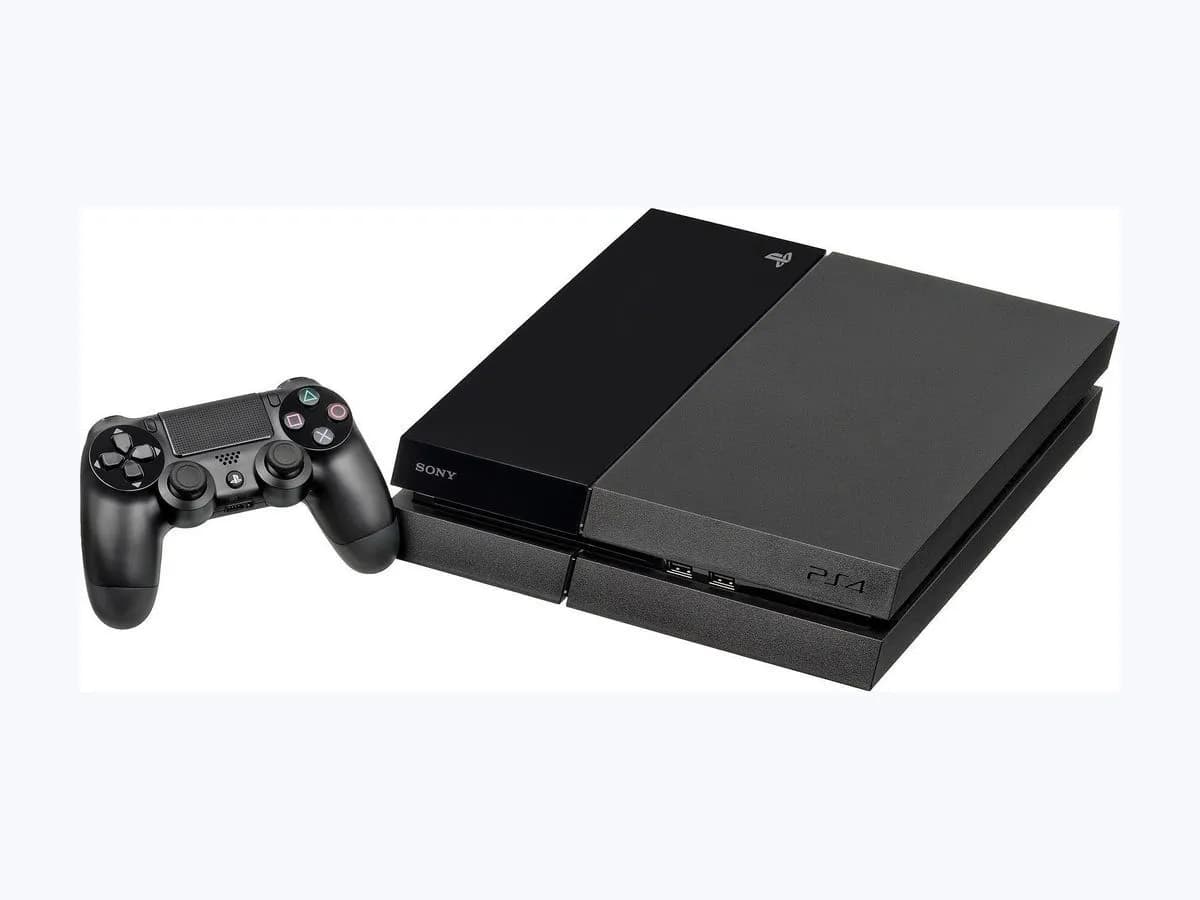
Risk level
Low
Usually safe to check without specialist tools.
Urgency
Medium
Quick answer
Error code CE-30774-1 ('Cannot update') means the PlayStation 4 console could not update the system software using a USB storage device. Update via Settings > System Software Update or verify FAT/exFAT formatting and the PS4/UPDATE/PS4UPDATE.PUP folder path.
Safety first
Stop and check this first
- Back up USB files before formatting and never power off the PS4 during an update. Formatting a USB drive to FAT or exFAT deletes all files on it, and turning off or unplugging the PS4 during a system software update can damage the console; never open the PS4 casing.
Safe checks you can perform
- Try updating directly via Settings > System Software Update on the PS4
- Format the USB storage device as FAT or exFAT on a PC or Mac
- Create the PS4 > UPDATE folder structure and re-download a fresh PS4UPDATE.PUP file
Leave these tasks to a qualified professional
- Do not attempt this professional task: Verified FAT or exFAT USB media preparation with PS4/UPDATE/PS4UPDATE.PUP
- Do not attempt this professional task: Official support escalation via PlayStation Support specialists
What a technician must be able to justify
Technician visit
These are the steps they must carry out and show you. Tick them as they work: if steps are skipped, do not accept a part swap.
These are not instructions for opening or handling the equipment yourself. They are the checks that should support a technical conclusion.
Verified FAT or exFAT USB media preparation with PS4/UPDATE/PS4UPDATE.PUP
What they doRun Settings > System Software Update or format the USB drive as FAT/exFAT and place a freshly downloaded PS4UPDATE.PUP file inside PS4/UPDATE.
They must show youthe FAT or exFAT file system confirmation and the PS4/UPDATE/PS4UPDATE.PUP directory structure.
In writingthe result of running System Software Update from Settings or from the newly prepared USB storage device.
Official support escalation via PlayStation Support specialists
What they doRecord the system menu update attempt and USB re-download test results and contact PlayStation Support specialists.
They must show youthe persistent CE-30774-1 error after deleting and re-downloading the PS4UPDATE.PUP file.
In writingthe documented CE-30774-1 error and USB update steps completed for PlayStation Support.
Before accepting a part or repair
Nothing has been shown yet. Do not accept a part swap based on the code alone.
Follow these steps
Note: Follow the documented order. An error code identifies the affected system, but it does not prove by itself which part has failed.
Try updating directly via Settings > System Software Update on the PS4
- Who:
- You at your PS4.
- How:
- Go to Settings > System Software Update on your PlayStation 4 console to update the system software directly without a USB drive.
- Result that matters:
- Whether the PS4 console can complete the system software update directly from Settings.
- If the update installs from Settings > System Software Update, you do not need the USB drive.
- If updating from Settings is not possible, prepare the USB storage device on a PC or Mac using the steps below.
- Evidence to keep:
- Result shown under Settings > System Software Update on the PS4.
Evidence: CE-30774-1 - PlayStation 4 Error Code
Format the USB storage device as FAT or exFAT on a PC or Mac
- Who:
- You at your PC or Mac.
- How:
- Insert the USB storage device into your PC or Mac USB port, right-click and select Format to open the dialog box, and select FAT or exFAT from the drop-down menu under File system.
- Result that matters:
- Whether the USB storage device formats cleanly with the supported FAT or exFAT file system.
- If the drive formats as FAT or exFAT without errors, proceed to create the PS4 and UPDATE folders.
- If the format operation fails on your computer, use a different healthy USB storage device.
- Evidence to keep:
- Screenshot of the Format dialog box showing FAT or exFAT selected under File system.
Evidence: CE-30774-1 - PlayStation 4 Error Code
Create the PS4 > UPDATE folder structure and re-download a fresh PS4UPDATE.PUP file
- Who:
- You at your PC or Mac.
- How:
- Using a computer, create a folder named 'PS4', create another folder inside it named 'UPDATE', delete any existing update file from the USB drive, and download a fresh copy of 'PS4UPDATE.PUP' into the 'UPDATE' folder.
- Result that matters:
- Whether the PS4 console reads the newly downloaded PS4UPDATE.PUP file and installs the update.
- If the system software update succeeds from the USB drive, the folder path or corrupted file was the cause.
- If error CE-30774-1 still occurs after deleting and re-downloading PS4UPDATE.PUP, contact PlayStation Support.
- Evidence to keep:
- Screenshot of the PS4/UPDATE/PS4UPDATE.PUP folder path on the USB drive.
Evidence: CE-30774-1 - PlayStation 4 Error Code
Still not solved
If the error persists, stop here. See what the technician must do and show you.
Where this code applies
A code is meaningful only inside the right product and version context.
Primary scope
- System
- Gaming and consoles
- Brand
- PlayStation
- Product type
- PlayStation 4
Known code variants
- Cannot update
- CE-30774-1
- No se puede actualizar
- PS4 CE-30774-1
What it means
When code CE-30774-1 ('Cannot update') occurs, the official PlayStation Support page 'PS4 Error Code CE-30774-1' for the PlayStation 4 console family explains that the PS4 console could not update its system software using a USB storage device. Other console generations use different folder paths or update file names. Code CE-30774-1 alone never proves the console or USB drive is faulty before trying a system menu update or verifying FAT/exFAT formatting and a clean PS4UPDATE.PUP file.
Warnings and stop conditions
- Mediumsource verified
Back up USB files before formatting and never power off the PS4 during an update. Formatting a USB drive to FAT or exFAT deletes all files on it, and turning off or unplugging the PS4 during a system software update can damage the console; never open the PS4 casing.
Evidence: CE-30774-1 - PlayStation 4 Error Code
Symptoms and causes
Probable causes · in order
- Incorrect folder structure or file name on the USB storage deviceCommon
If the update file ('PS4UPDATE.PUP') is not stored inside a folder named 'UPDATE' inside a parent folder named 'PS4' on the USB drive, the update fails with CE-30774-1.
Evidence: CE-30774-1 - PlayStation 4 Error Code
- USB storage device is not formatted as FAT or exFATPossible
Using a USB drive that has not been formatted to the FAT or exFAT file system on a PC or Mac prevents the PS4 updater from reading the drive.
Evidence: CE-30774-1 - PlayStation 4 Error Code
- Corrupted PS4UPDATE.PUP download file on the USB driveLess common
A damaged or incomplete download of 'PS4UPDATE.PUP' causes the update check to fail until the file is deleted from the USB device and downloaded again.
Evidence: CE-30774-1 - PlayStation 4 Error Code
Virtual technician
Does CE-30774-1 still appear after these checks?
Answer a few questions to narrow down the likely cause and the safest next action. Guidance only - it never replaces a professional.
Sources and technical references
- 1
CE-30774-1 - PlayStation 4 Error Code
PlayStation Support · 2026 · official_doc
- 2
CE-30774-1 - Código de error de PlayStation 4
Atención al cliente de PlayStation · 2026 · official_doc
Was this entry useful?