
- Solar and energy
- Solar inverter
Flashing Red
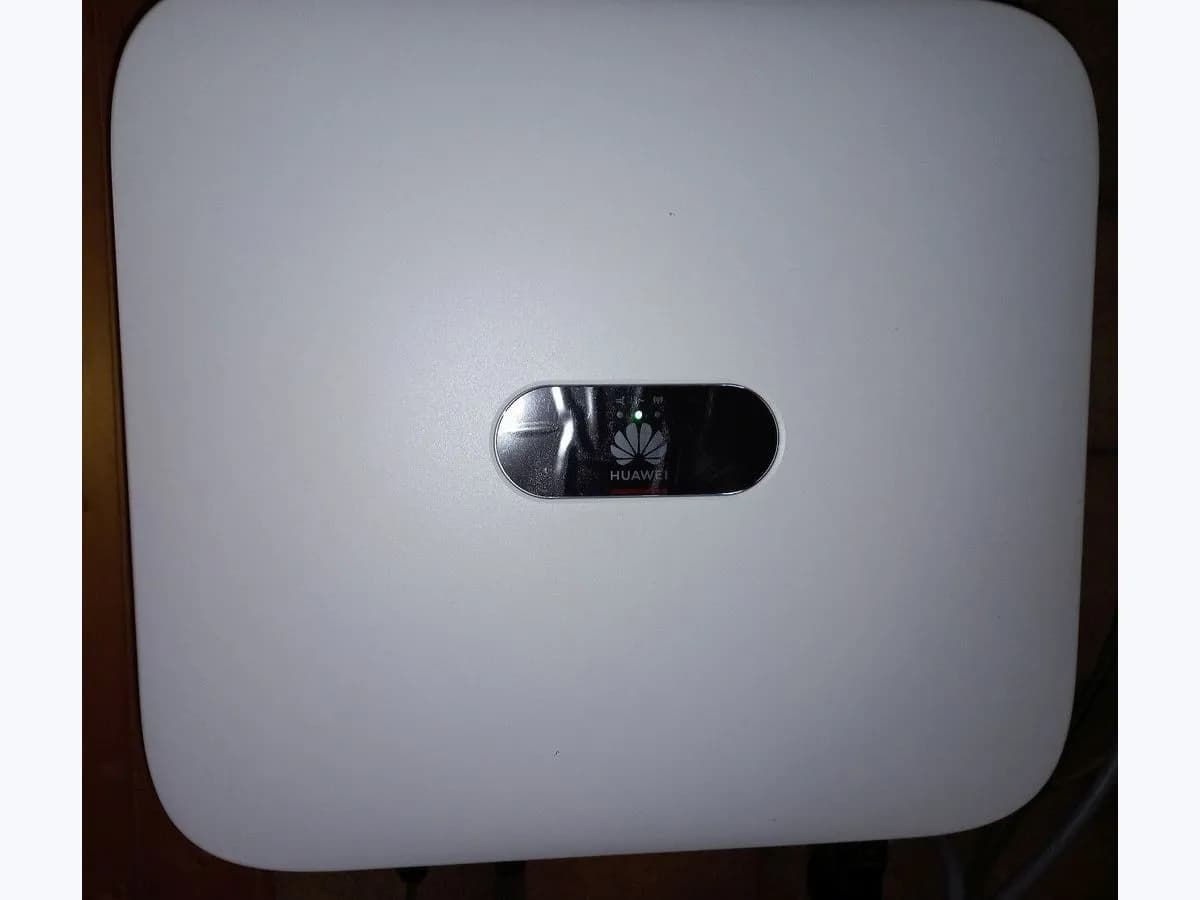
Tesla Powerwall 3 Flashing Red LED: inverter fault on unit
Risk level
High
Professional inspection is recommended.
Urgency
High
Quick answer
A Flashing Red logo LED on a Tesla Powerwall 3 indicates an integrated inverter fault (such as AFCI, GFCI or rapid shutdown RSD). Check the Tesla app, follow the owner's manual power-cycle sequence only if the unit is unresponsive, and contact your certified installer if it stays red.
Safety first
Stop and check this first
- Powerwall 3, Backup Gateway 2, Gateway 3, and Backup Switch are not user-serviceable. Never open the deadfront cover inside the Gateway, as exposed wiring presents a risk of electrical shock.
Safe checks you can perform
- Verify the logo LED and check the Tesla app
- Time the interval between red flashes
- Power-cycle in the proper sequence only if unresponsive
Leave these tasks to a qualified professional
- Do not attempt this professional task: System start check and switch cycle via Tesla One
- Do not attempt this professional task: Fault diagnosis with Tesla Install Support
What a technician must be able to justify
Technician visit
These are the steps they must carry out and show you. Tick them as they work: if steps are skipped, do not accept a part swap.
These are not instructions for opening or handling the equipment yourself. They are the checks that should support a technical conclusion.
System start check and switch cycle via Tesla One
What they doThe certified installer connects to Powerwall 3 in Tesla One, confirms the system is running (selecting Start System if needed), and if data is temporarily available with a 5-second blink, turns the Powerwall 3 switch OFF and back ON to verify over a minute of live data and a solid white LED.
They must show youthe Tesla One interface displaying live data for over a minute and the logo LED lit solid white.
In writingthe initial LED pattern, any alerts shown in Tesla One, and confirmation of normal operation.
Fault diagnosis with Tesla Install Support
What they doIf the logo LED continues to blink red after cycling the switch, the technician troubleshoots the specific AFCI, GFCI or RSD fault with Tesla Install Support.
They must show youthe specific inverter fault alert recorded in Tesla One and the support case reference.
In writingthe root cause identified, the corrective work carried out, and the final self-test or operating status.
Before accepting a part or repair
Nothing has been shown yet. Do not accept a part swap based on the code alone.
Follow these steps
Note: Follow the documented order. An error code identifies the affected system, but it does not prove by itself which part has failed.
Verify the logo LED and check the Tesla app
- Who:
- you, looking at the front of the Powerwall 3 and your phone without opening any enclosure.
- How:
- confirm that the red blinking light is on the main Powerwall 3 unit (Expansion units do not have an illuminated logo) and check the Tesla app; if the app cannot communicate, verify that your home Internet and Wi-Fi are working.
- Result that matters:
- separating an active inverter fault from a lost home Wi-Fi connection.
- If the app connects and displays system status:
- take a screenshot of any active alert and note the time.
- If home Internet works but the app still cannot reach the unit:
- follow Tesla's Wi-Fi update instructions before booking service.
- Evidence to keep:
- a short video of the blinking logo and a screenshot from the Tesla app.
Evidence: Powerwall 3 Owner's Manual: Troubleshooting · Powerwall 3 Device Setup Guide: Powerwall 3 Logo LED Issues
Time the interval between red flashes
- Who:
- you, watching the front logo light from outside.
- How:
- count the seconds between red flashes on the Powerwall 3 logo and note whether it blinks once every 5 seconds or at a different rate.
- Result that matters:
- giving the installer a detail that Tesla's setup guide uses when deciding how to cycle the unit.
- If it blinks every 5 seconds:
- let your certified installer know so they can check data visibility and cycle the switch.
- If it keeps blinking red continuously:
- leave the wiring untouched and arrange a professional inspection.
- Evidence to keep:
- a written note of the flash interval in seconds and when it started.
Evidence: Powerwall 3 Device Setup Guide: Powerwall 3 Logo LED Issues
Power-cycle in the proper sequence only if unresponsive
- Who:
- you, only if Powerwall 3 is unresponsive and the external switches are safely accessible.
- How:
- follow the exact Owner's Manual sequence: set the Powerwall 3 On/Off switch to OFF, turn off the AC breaker to Powerwall 3, turn off the AC breaker to the Gateway (if installed), wait at least one hour, then turn the AC breakers back on and turn on Powerwall 3.
- Result that matters:
- performing the only owner-level reset sequence sanctioned by Tesla.
- If the logo turns solid white:
- the Owner's Manual defines solid white as normal operation.
- If the logo returns to flashing red:
- stop resetting the unit and contact Tesla or your Certified Installer.
- Evidence to keep:
- the time you powered down, the time you powered back up after one hour, and the LED state afterwards.
Evidence: Powerwall 3 Owner's Manual: Troubleshooting · Powerwall 3 Owner's Manual: Turning the System Off
Still not solved
If the error persists, stop here. See what the technician must do and show you.
Where this code applies
A code is meaningful only inside the right product and version context.
Primary scope
- System
- Solar and energy
- Brand
- Tesla
- Product type
- Solar inverter
Known code variants
- Powerwall 3 Flashing red LED
- Powerwall 3 LED is Flashing Red
- Powerwall 3 LED rojo parpadeando
- Powerwall 3 Logo LED is Flashing Red
- Powerwall 3 logo LED rojo intermitente
- Powerwall 3 Roja intermitente
- Tesla Powerwall 3 Flashing Red
- Tesla Powerwall 3 inverter fault red LED
- Tesla Powerwall fallo del inversor LED rojo
What it means
In the Powerwall 3 Owner's Manual (2025), a 'Flashing red' state on the front LED indicator means 'Inverter fault' (Powerwall 3 Expansion units have no LED indicator). In the Powerwall 3 Device Setup Guide (2026), 'Flashing Red' is defined as an 'Inverter (PWS) fault, e.g. AFCI or GFCI, RSD, etc.' A red blinking logo on its own never proves that internal hardware has permanently failed, because protective trips or transient states trigger the same light.
Warnings and stop conditions
- Highsource verified
Powerwall 3, Backup Gateway 2, Gateway 3, and Backup Switch are not user-serviceable. Never open the deadfront cover inside the Gateway, as exposed wiring presents a risk of electrical shock.
Evidence: Powerwall 3 Owner's Manual: Troubleshooting
Symptoms and causes
Probable causes · in order
- AFCI, GFCI or Rapid Shutdown (RSD) inverter faultCommon
Tesla's Powerwall 3 Device Setup Guide attributes a Flashing Red logo LED to an inverter (PWS) fault, citing arc-fault (AFCI), ground-fault (GFCI) and rapid shutdown (RSD) conditions as examples.
Evidence: Powerwall 3 Device Setup Guide: Powerwall 3 Logo LED Issues
- Transient state with the LED blinking every 5 secondsPossible
Tesla documents a case where data is temporarily available in Tesla One while the LED blinks every 5 seconds, which can clear after turning the Powerwall 3 switch off and back on.
Evidence: Powerwall 3 Device Setup Guide: Powerwall 3 Logo LED Issues
- Persistent inverter fault requiring Install SupportPossible
If the logo LED continues to blink red after confirming the system is started and cycling the switch, Tesla states that Install Support is required to troubleshoot the active fault.
Evidence: Powerwall 3 Owner's Manual: Troubleshooting · Powerwall 3 Device Setup Guide: Powerwall 3 Logo LED Issues
Virtual technician
Does Flashing Red still appear after these checks?
Answer a few questions to narrow down the likely cause and the safest next action. Guidance only - it never replaces a professional.
Sources and technical references
- 1
Powerwall 3 Owner's Manual: Troubleshooting
Tesla · 2025 · official_doc
- 2
Powerwall 3 Manual del propietario: Resolución de problemas
Tesla · 2025 · official_doc
- 3
Powerwall 3 Owner's Manual: Turning the System Off
Tesla · 2025 · official_doc
- 4
Powerwall 3 Manual del propietario: Cómo apagar el sistema
Tesla · 2025 · official_doc
- 5
Powerwall 3 Device Setup Guide: Powerwall 3 Logo LED Issues
Tesla · 2026 · official_doc
Was this entry useful?