
- Laptops
- Laptop
800
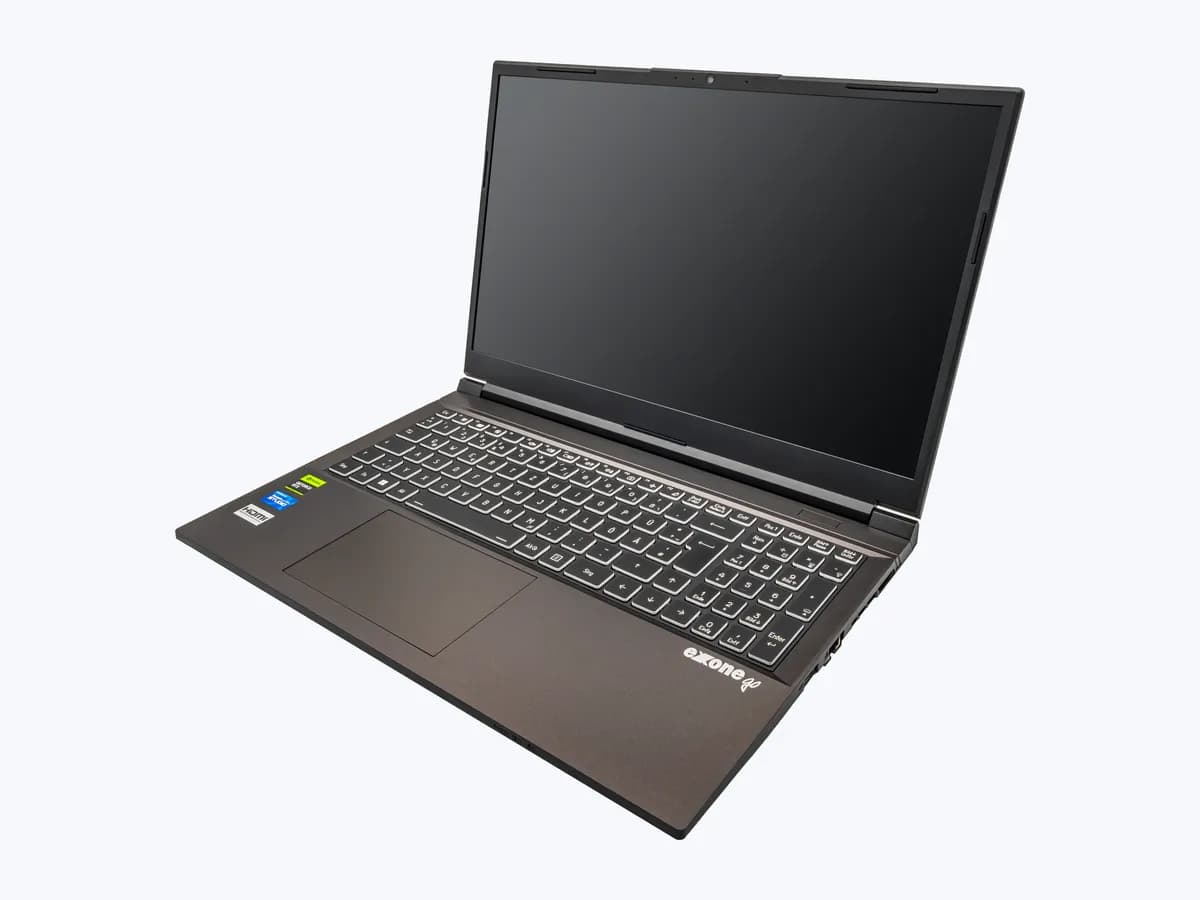
HP 800 on laptop: keyboard error detected at startup
Risk level
Low
Usually safe to check without specialist tools.
Urgency
Medium
Quick answer
The Keyboard Error (800) message at startup on an HP laptop indicates a stuck key, debris trapped between keys, or a keyboard hardware fault detected during boot. Remove any items resting on the keys, clear surface debris, and run the HP PC Hardware Diagnostics keyboard test.
Safety first
Stop and check this first
- HP cautions not to pry off or remove a stuck key for cleaning if your notebook is under warranty; contact HP first, or your warranty might not cover repairs. Even out of warranty, never insert a flat plastic pry tool more than 1/8 inch (3 mm) underneath the key edge.
- Keyboards damaged by liquid spills must be replaced immediately so moisture does not reach the system board. If you notice a swollen or hot battery, stop using the laptop immediately, do not charge or press it, and never open the AC adapter.
Safe checks you can perform
- Remove resting objects and inspect for stuck keys or surface debris
- Test the Esc key at power-on and load BIOS default settings (F9)
- Run the Keyboard Test in HP PC Hardware Diagnostics for Windows
Leave these tasks to a qualified professional
- Do not attempt this professional task: Load BIOS default settings (F9/F10), reinstall drivers, and run the diagnostic Keyboard Test
- Do not attempt this professional task: Clean or replace the integrated notebook keyboard assembly
What a technician must be able to justify
Technician visit
These are the steps they must carry out and show you. Tick them as they work: if steps are skipped, do not accept a part swap.
These are not instructions for opening or handling the equipment yourself. They are the checks that should support a technical conclusion.
Load BIOS default settings (F9/F10), reinstall drivers, and run the diagnostic Keyboard Test
What they doThe technician loads default BIOS settings (F10 > F9 > F10), uninstalls keyboard devices in Windows Device Manager (with Show hidden devices enabled), and runs the Keyboard Test in HP PC Hardware Diagnostics.
They must show youthe Startup Menu opening via Esc and a passed Keyboard Test in HP PC Hardware Diagnostics.
In writingthe input device diagnostic result and verification that the laptop boots without error 800.
Clean or replace the integrated notebook keyboard assembly
What they doIf the integrated keyboard cannot open the Startup Menu with Esc, has a stuck key while under warranty, or suffered a liquid spill, the service center services or replaces the integrated keyboard.
They must show youthe removed keyboard assembly (if replaced) and an interactive key test passing every key without error.
In writingthe part reference of the replaced keyboard or top cover assembly and confirmation that code 800 is resolved.
Before accepting a part or repair
Nothing has been shown yet. Do not accept a part swap based on the code alone.
Follow these steps
Note: Follow the documented order. An error code identifies the affected system, but it does not prove by itself which part has failed.
Remove resting objects and inspect for stuck keys or surface debris
- Who:
- you, with the HP laptop turned off completely.
- How:
- remove any items resting on the keyboard and check whether any key sits depressed or has debris wedged around its edges; do not pry off a stuck key if your notebook is under warranty.
- Result that matters:
- releasing any key that was held down during power-on self-test.
- If all keys spring back freely and code 800 no longer appears at boot:
- the error was caused by a held key.
- If a key stays stuck or Keyboard Error (800) returns:
- test whether the keyboard responds in the Startup Menu.
- Evidence to keep:
- a photo of the affected key or the 800 message on the startup screen.
Evidence: HP PCs - Resolving diagnostic errors that are displayed during startup · HP Notebook PCs - Keyboard troubleshooting (Windows)
Test the Esc key at power-on and load BIOS default settings (F9)
- Who:
- you, when turning the laptop on.
- How:
- shut down the computer, press the power button, and immediately press Esc repeatedly to open the Startup Menu; if it opens, press F10 for BIOS settings, press F9 to select and load default settings, and press F10 to accept the changes.
- Result that matters:
- determining whether the integrated keyboard works outside Windows and ruling out misconfigured BIOS settings.
- If the Startup Menu opens and after saving BIOS defaults with F9/F10 the notebook boots cleanly:
- run the Windows keyboard test to confirm.
- If the Startup Menu does not open when pressing Esc:
- HP's guide states that the integrated keyboard hardware is not working; connect a wired USB keyboard and arrange service.
- Evidence to keep:
- a note on whether the Startup Menu opened via Esc and how the laptop responds with a wired USB keyboard.
Evidence: HP Notebook PCs - Keyboard troubleshooting (Windows) · PC Notebooks HP - Soluciones para problemas con el teclado (Windows)
Run the Keyboard Test in HP PC Hardware Diagnostics for Windows
- Who:
- you, signed into Windows with administrator privileges.
- How:
- search for HP PC Hardware Diagnostics for Windows in the taskbar, right-click the app and select Run as administrator; open Device check > Input Devices, check Keyboard Test, click Run once, and follow the on-screen instructions (the test ends when tasks complete or after 3 minutes).
- Result that matters:
- verifying each key switch using HP's official diagnostic utility.
- If the Keyboard Test passes and error 800 does not return:
- the keyboard is working properly.
- If the diagnostic detects unresponsive or stuck keys:
- schedule keyboard repair or replacement.
- Evidence to keep:
- a screenshot or photo of the Keyboard Test result in HP PC Hardware Diagnostics.
Evidence: HP PCs - Resolving diagnostic errors that are displayed during startup · HP Notebook PCs - Keyboard troubleshooting (Windows)
Still not solved
If the error persists, stop here. See what the technician must do and show you.
Where this code applies
A code is meaningful only inside the right product and version context.
Primary scope
- System
- Laptops
- Brand
- HP
- Product type
- Laptop
Known code variants
- 800 Keyboard Error
- Bosch 800 bici elettrica
- Bosch 800 bicicleta eléctrica
- Bosch 800 E-Bike
- Bosch 800 eBike
- Bosch 800 vélo électrique
- Bosch eBike code 800
- Bosch eBike error 800
- Bosch eBike Fehler 800
- Bosch eBike Fehlercode 800
- code Bosch eBike 800
- codice Bosch eBike 800
- código Bosch eBike 800
- erreur Bosch eBike 800
- Error 800 teclado HP
- error Bosch eBike 800
- Error de teclado (800)
- errore Bosch eBike 800
- HP error 800
- HP Keyboard Error 800
- Keyboard Error (800)
What it means
In HP's official table for resolving diagnostic errors displayed during startup (document ish_6904096-6904147-16) and HP's notebook keyboard troubleshooting guide (document ish_6302754-9324442-16), Keyboard Error (800) appears when the system detects a held key or keyboard fault during startup. Code 800 by itself never proves that the integrated keyboard assembly is defective, and behavior on other models may differ.
Warnings and stop conditions
- Highsource verified
HP cautions not to pry off or remove a stuck key for cleaning if your notebook is under warranty; contact HP first, or your warranty might not cover repairs. Even out of warranty, never insert a flat plastic pry tool more than 1/8 inch (3 mm) underneath the key edge.
Evidence: HP Notebook PCs - Keyboard troubleshooting (Windows) · PC Notebooks HP - Soluciones para problemas con el teclado (Windows)
- Mediumsource verified
Keyboards damaged by liquid spills must be replaced immediately so moisture does not reach the system board. If you notice a swollen or hot battery, stop using the laptop immediately, do not charge or press it, and never open the AC adapter.
Evidence: HP Notebook PCs - Keyboard troubleshooting (Windows) · PC Notebooks HP - Soluciones para problemas con el teclado (Windows)
Symptoms and causes
Probable causes · in order
- Objects resting on the keyboard or debris stuck between keysCommon
HP's startup diagnostic error table identifies items resting on the keyboard or debris trapped under keys holding a switch closed as the primary trigger for code 800.
Evidence: HP PCs - Resolving diagnostic errors that are displayed during startup · HP Notebook PCs - Keyboard troubleshooting (Windows)
- Corrupted BIOS settings or Windows keyboard driver configurationPossible
HP's notebook keyboard guide explains that altered BIOS settings or corrupted Windows keyboard drivers can disrupt key detection until BIOS default settings are loaded with F9 or keyboard devices are reinstalled in Device Manager.
Evidence: HP Notebook PCs - Keyboard troubleshooting (Windows) · PC Notebooks HP - Soluciones para problemas con el teclado (Windows)
- Integrated keyboard hardware failure or liquid spill damageLess common
HP states that if pressing Esc repeatedly at power-on fails to open the Startup Menu, or if liquid was spilled onto the keys, the integrated keyboard hardware requires service or replacement.
Evidence: HP Notebook PCs - Keyboard troubleshooting (Windows) · PC Notebooks HP - Soluciones para problemas con el teclado (Windows)
Virtual technician
Does 800 still appear after these checks?
Answer a few questions to narrow down the likely cause and the safest next action. Guidance only - it never replaces a professional.
Sources and technical references
- 1
HP PCs - Resolving diagnostic errors that are displayed during startup
HP · 2026 · official_doc
- 2
Equipos HP - Solución de errores de diagnóstico que aparecen durante el inicio
HP · 2026 · official_doc
- 3
HP Notebook PCs - Keyboard troubleshooting (Windows)
HP · 2026 · official_doc
- 4
PC Notebooks HP - Soluciones para problemas con el teclado (Windows)
HP · 2026 · official_doc
Was this entry useful?