
- Networks
- Wi-Fi routers
LED-ENCENDIDO-PARPADEO-LENTO
ASUS LED-ENCENDIDO-PARPADEO-LENTO on Wi-Fi router: rescue mode
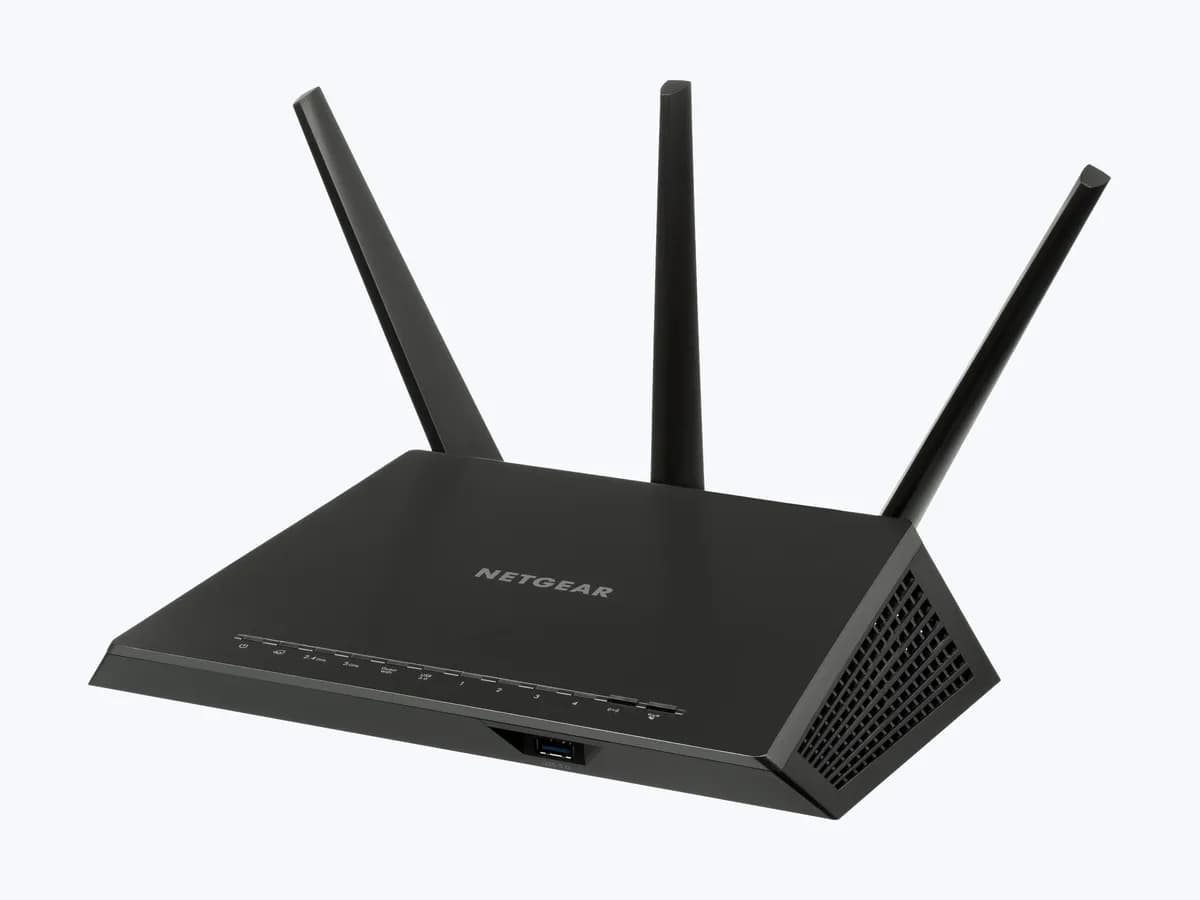
Risk level
Low
Usually safe to check without specialist tools.
Urgency
Medium
Quick answer
If the power light on your ASUS router is flashing slowly, ASUS says the router is in Rescue Mode, the state that accepts firmware through the Firmware Restoration utility. Wire a Windows PC to the router and load the official firmware for your model.
Safety first
Stop and check this first
- ASUS stresses that Rescue Mode is not the regular way to update: use it only when the normal update from the web interface does not work.
- Keep the Reset button pressed until the power light starts flashing slowly; releasing it early leaves the router out of Rescue Mode.
Safe checks you can perform
- Prepare the PC and the right firmware
- Set a fixed IP on the PC network adapter
- Upload the firmware with Firmware Restoration
- Return the PC to automatic IP and log in
Leave these tasks to a qualified professional
- Do not attempt this professional task: Case with ASUS Customer Service
- Do not attempt this professional task: ASUS help when access does not come back
What a technician must be able to justify
Technician visit
These are the steps they must carry out and show you. Tick them as they work: if steps are skipped, do not accept a part swap.
These are not instructions for opening or handling the equipment yourself. They are the checks that should support a technical conclusion.
Case with ASUS Customer Service
What they doIf you repeat the restoration with the right firmware and the power light never turns steady, ASUS support decides whether the router needs repair.
They must show youthe model, the firmware version you tried to load and the exact point where the utility fails.
In writingthe case number, the ASUS technician's conclusion and whether the repair falls under warranty.
ASUS help when access does not come back
What they doWhen the restoration completes but you still cannot open the settings page after RESET and a second upload, ask ASUS support to work through the case with you.
They must show youwhich firmware version ended up installed and which steps were repeated.
In writingthe case number, the diagnosis and the firmware version recommended for your model.
Before accepting a part or repair
Nothing has been shown yet. Do not accept a part swap based on the code alone.
Follow these steps
Note: Follow the documented order. An error code identifies the affected system, but it does not prove by itself which part has failed.
Prepare the PC and the right firmware
- Who:
- you, with a Windows computer (XP to 11) and a network cable.
- How:
- go to asus.com, search for your exact model, download the latest firmware under Support and unzip it; under Driver & Utility download and install ASUS Firmware Restoration.
- Result that matters:
- the unzipped firmware file for your model plus the utility installed.
- If the firmware is still zipped:
- extract it, because the utility cannot upload a zip file.
- If you cannot find the utility for your model:
- note the model and ask ASUS support.
- Evidence to keep:
- model name, downloaded firmware version and date.
Evidence: [Wireless Router] How to use Rescue Mode (Firmware Restoration)?
Set a fixed IP on the PC network adapter
- Who:
- you.
- How:
- cable the PC to the router, then in Network & Internet > Change adapter options > your LAN > Properties > Internet Protocol Version 4 enter IP 192.168.1.10 and subnet mask 255.255.255.0.
- Result that matters:
- the PC can talk to the router while it sits in Rescue Mode.
- If the utility says the wireless router is not in rescue mode:
- recheck these two values first.
- If the values are right and it is still not detected:
- enter Rescue Mode again by holding Reset while plugging in.
- Evidence to keep:
- screenshot of the IPv4 settings you used.
Evidence: [Wireless Router] How to use Rescue Mode (Firmware Restoration)?
Upload the firmware with Firmware Restoration
- Who:
- you.
- How:
- with the power light flashing slowly, open Firmware Restoration, click Browse, pick the unzipped file, click Upload and wait about one minute without unplugging anything.
- Result that matters:
- a steady power light, which ASUS gives as the sign of success, followed by a router reboot.
- If the light turns steady:
- wait for the reboot and close the utility.
- If the upload fails:
- repeat the steps; if it fails again, contact the ASUS Customer Service Center.
- Evidence to keep:
- screenshot of the final utility message and a note of the light state.
Evidence: [Wireless Router] How to use Rescue Mode (Firmware Restoration)?
Return the PC to automatic IP and log in
- Who:
- you.
- How:
- in the PC IPv4 properties select obtain an IP address and DNS server address automatically again, then open www.asusrouter.com in the browser.
- Result that matters:
- access to the router settings page once more.
- If you get in:
- review the settings and the firmware version now installed.
- If you cannot get in:
- push the RESET button and, if that fails, run the restoration in Rescue Mode again.
- Evidence to keep:
- firmware version shown by the router after the restoration.
Evidence: [Wireless Router] How to use Rescue Mode (Firmware Restoration)?
Still not solved
If the error persists, stop here. See what the technician must do and show you.
Where this code applies
A code is meaningful only inside the right product and version context.
Primary scope
- System
- Networks
- Brand
- ASUS
- Product type
- Wi-Fi routers
Known code variants
- ASUS Firmware Restoration
- ASUS Firmware Restoration utility
- ASUS led power parpadeando despacio
- ASUS luz de encendido parpadea lento
- ASUS power LED flashing slowly
- ASUS power light blinking slowly
- ASUS router firmware recovery
- ASUS router rescue mode
- ASUS RT-AC68U modo rescate
- ASUS RT-AC68U rescue mode
- restaurar firmware router ASUS
- router ASUS modo rescate
What it means
In its official Rescue Mode guide, using the RT-AC68U as the example, ASUS explains that the router enters this mode when you hold Reset while plugging in the power, and that you recognise it because the power light flashes slowly. It is meant for uploading firmware when a normal update fails, when the power light flashes abnormally or after trouble with third-party firmware. ZenWiFi units show Rescue Mode as solid magenta. Other models may differ. The slow flashing alone never proves the router is faulty.
Warnings and stop conditions
- Mediumsource verified
ASUS stresses that Rescue Mode is not the regular way to update: use it only when the normal update from the web interface does not work.
Evidence: [Wireless Router] How to use Rescue Mode (Firmware Restoration)?
- Lowsource verified
Keep the Reset button pressed until the power light starts flashing slowly; releasing it early leaves the router out of Rescue Mode.
Evidence: [Wireless Router] How to use Rescue Mode (Firmware Restoration)?
Symptoms and causes
Probable causes · in order
- Reset was held while plugging in the routerCommon
ASUS describes holding the Reset button while connecting the power cord as the way to put the router in Rescue Mode, with the power light flashing slowly.
Evidence: [Wireless Router] How to use Rescue Mode (Firmware Restoration)?
- A failed firmware updatePossible
The ASUS guide lists a router that cannot update its firmware the regular way as the first situation for using Firmware Restoration.
Evidence: [Wireless Router] How to use Rescue Mode (Firmware Restoration)?
- Third-party firmware on the routerPossible
ASUS names irregular operation caused by third-party firmware as another case where reloading official firmware in Rescue Mode is the remedy.
Evidence: [Wireless Router] How to use Rescue Mode (Firmware Restoration)?
Virtual technician
Does LED-ENCENDIDO-PARPADEO-LENTO still appear after these checks?
Answer a few questions to narrow down the likely cause and the safest next action. Guidance only - it never replaces a professional.
Sources and technical references
- 1
[Specification] How to judge the current status of ZenWiFi Series Router from LED color?
ASUS · 2024 · official_doc
- 2
[Wireless Router] How to use Rescue Mode (Firmware Restoration)?
ASUS · 2026 · official_doc
- 3
[Wireless] ¿Cómo utilizar el modo de rescate (restauración de firmware)?
ASUS · 2024 · official_doc
Was this entry useful?