
- Networks
- Video intercoms
Error 100 / 101 / 102
Fermax Error 100 / 101 / 102 video intercom: hotspot fail
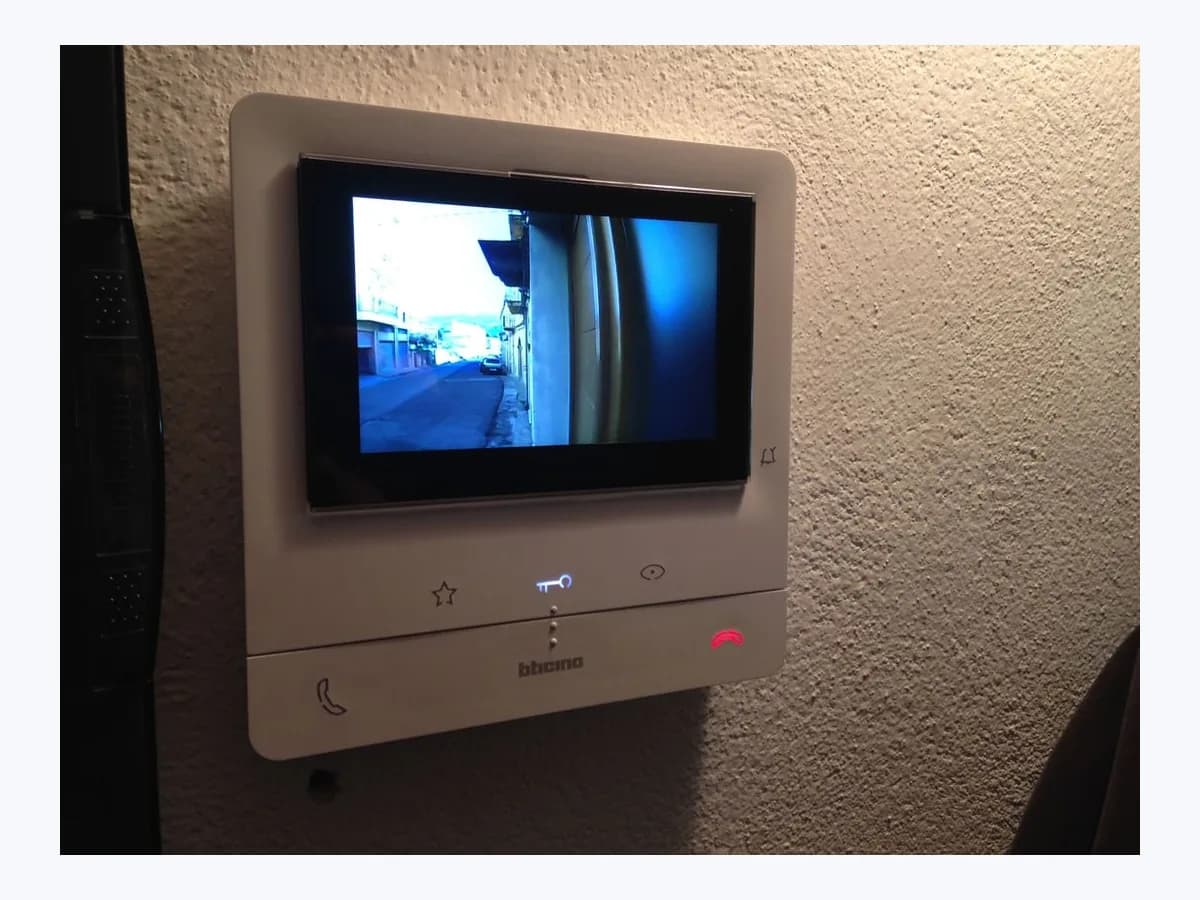
Risk level
Low
Usually safe to check without specialist tools.
Urgency
Medium
Quick answer
On Fermax VEO and IRIS WiFi monitors using DuoxMe, error codes 100, 101 and 102 mean your phone could not join the monitor's WiFi hotspot while scanning the QR code. Check that the MAC under the QR is not 00:00:00:00:00:00 and accept the hotspot prompt.
Safety first
Stop and check this first
- Do not open the monitor casing or touch the two-wire bus or power supply; if you prefer not to pry the monitor off its wall bracket yourself, leave the 10-second power disconnect to the installer.
Safe checks you can perform
- Inspect the MAC address beneath the monitor's pairing QR code
- Allow unknown or no-internet WiFi networks on your phone
- Try pairing with a second smartphone signed into your account
Leave these tasks to a qualified professional
- Do not attempt this professional task: Verify hotspot pairing in DuoxMe with a second smartphone
- Do not attempt this professional task: Power-cycle the monitor by detaching it for 10 seconds
What a technician must be able to justify
Technician visit
These are the steps they must carry out and show you. Tick them as they work: if steps are skipped, do not accept a part swap.
These are not instructions for opening or handling the equipment yourself. They are the checks that should support a technical conclusion.
Verify hotspot pairing in DuoxMe with a second smartphone
What they doIf 100, 101 or 102 continues after the restart, the professional tests connection to the monitor's access point using a different smartphone on the owner's account and records the connectivity menu response.
They must show youthe hotspot connection prompt succeeding and the home saved in the DuoxMe account.
In writingthe recorded code (100, 101 or 102), smartphones tested and final DuoxMe pairing status.
Power-cycle the monitor by detaching it for 10 seconds
What they doThe technician holds both sides of the monitor at the bottom to detach it from the wall bracket, waits at least 10 seconds for all electronic components to discharge completely, reconnects it and verifies that the red LED lights up.
They must show youthe red power LED illuminated after reattachment and a valid MAC address beneath the pairing QR code.
In writingthe MAC shown before and after the 10-second discharge and the result of the subsequent pairing test.
Before accepting a part or repair
Nothing has been shown yet. Do not accept a part swap based on the code alone.
Follow these steps
Note: Follow the documented order. An error code identifies the affected system, but it does not prove by itself which part has failed.
Inspect the MAC address beneath the monitor's pairing QR code
- Who:
- you, at your indoor WiFi monitor with authorized access to your DuoxMe account.
- How:
- on VEO press MENU, move with F1 or VIDEOCAMERA to the connectivity icon and press KEY to select (on IRIS tap the App icon); verify that a valid MAC address rather than MAC: 00:00:00:00:00:00 appears below the QR code.
- Result that matters:
- confirm whether the monitor's wireless module reports a valid hardware address before retrying.
- If a valid MAC is shown under the QR code:
- check your phone's local network permissions next.
- If MAC:
- 00:00:00:00:00:00 is displayed: arrange or follow Fermax's 10-second power-off restart procedure.
- Evidence to keep:
- a note or photo of the connectivity screen showing whether the MAC is valid or all zeros.
Evidence: Error code 100 / 101 / 102 pairing · How can I pair my FERMAX terminal using the app DuoxMe?
Allow unknown or no-internet WiFi networks on your phone
- Who:
- you, using the smartphone running the official DuoxMe application.
- How:
- check your phone's system settings so it permits connections to WiFi networks without internet access or unknown networks, then scan the QR code in Add home and accept the prompt to join the monitor's access point.
- Result that matters:
- enable the temporary phone-to-monitor hotspot link required to clear 100, 101 or 102.
- If the phone joins the hotspot and finishes setup:
- confirm the home appears active in DuoxMe.
- If the prompt never appears or 'No device found' is shown:
- test another phone or have the monitor restarted.
- Evidence to keep:
- a screenshot of error 100, 101 or 102 and whether the hotspot prompt appeared on the phone.
Evidence: Error code 100 / 101 / 102 pairing
Try pairing with a second smartphone signed into your account
- Who:
- you, using an alternative smartphone logged into the same DuoxMe owner account.
- How:
- sign into DuoxMe on a different smartphone and repeat Add home by scanning the monitor's QR code; because the paired home is saved in the account, your original smartphone will also have access afterward.
- Result that matters:
- rule out a handset restriction when error 100, 101 or 102 persists on the first phone.
- If pairing succeeds on the second smartphone:
- open DuoxMe on your primary phone and verify access.
- If both smartphones return 100, 101 or 102:
- ask the installer to perform the 10-second disconnect restart and inspect the unit.
- Evidence to keep:
- the smartphone models tested and the exact pairing code returned on each attempt.
Evidence: Error code 100 / 101 / 102 pairing
Still not solved
If the error persists, stop here. See what the technician must do and show you.
Where this code applies
A code is meaningful only inside the right product and version context.
Primary scope
- System
- Networks
- Brand
- Fermax
- Product type
- Video intercoms
Known code variants
- Código error 100
- Código error 101
- Código error 102
- Error code 100
- Error code 101
- Error code 102
- MAC: 00:00:00:00:00:00
- No device found
- No se ha encontrado ningún dispositivo
What it means
Fermax's official pages 'Error code 100 / 101 / 102 pairing' and 'How can I pair my FERMAX terminal using the app DuoxMe?' cover Duox WiFi monitors in the VEO (hands-free or handset) and IRIS families. These codes indicate that the smartphone failed to connect to the monitor's built-in WiFi access point when the QR code was displayed. Non-WiFi terminals and other Fermax product lines follow different pairing rules. Seeing 100, 101 or 102 alone never proves that the WiFi module or any other part has failed.
Warnings and stop conditions
- Mediumsource verified
Do not open the monitor casing or touch the two-wire bus or power supply; if you prefer not to pry the monitor off its wall bracket yourself, leave the 10-second power disconnect to the installer.
Evidence: Error code 100 / 101 / 102 pairing
Symptoms and causes
Probable causes · in order
- Smartphone blocking or declining the local WiFi hotspotCommon
During QR pairing in DuoxMe, the mobile phone must accept the prompt to join the monitor's access point and allow WiFi networks without internet access or unknown networks.
Evidence: Error code 100 / 101 / 102 pairing
- WiFi module state showing an all-zero MAC addressPossible
If MAC: 00:00:00:00:00:00 appears beneath the QR code in the pairing menu or 'No device found' is reported, the monitor needs a 10-second power-off discharge.
Evidence: Error code 100 / 101 / 102 pairing
- Phone-specific restriction against local access pointsPossible
Fermax notes that certain smartphones block this type of local hotspot connection and advises pairing with another phone because the linked home is stored in the DuoxMe account.
Evidence: Error code 100 / 101 / 102 pairing
Virtual technician
Does Error 100 / 101 / 102 still appear after these checks?
Answer a few questions to narrow down the likely cause and the safest next action. Guidance only - it never replaces a professional.
Sources and technical references
- 1
Código error 100 / 101 / 102 emparejamiento
Fermax · 2026 · official_doc
- 2
Error code 100 / 101 / 102 pairing
Fermax · 2026 · official_doc
- 3
¿Cómo emparejo mi terminal Fermax Duox a la app DuoxMe? Manual de instrucciones
Fermax · 2026 · official_doc
- 4
How can I pair my FERMAX terminal using the app DuoxMe?
Fermax · 2026 · official_doc
Was this entry useful?