
- Networks
- Video intercoms
Red blinking: System is busy
Golmar Red blinking: System is busy on G2+ intercom
Risk level
Low
Usually safe to check without specialist tools.
Urgency
Medium
Quick answer
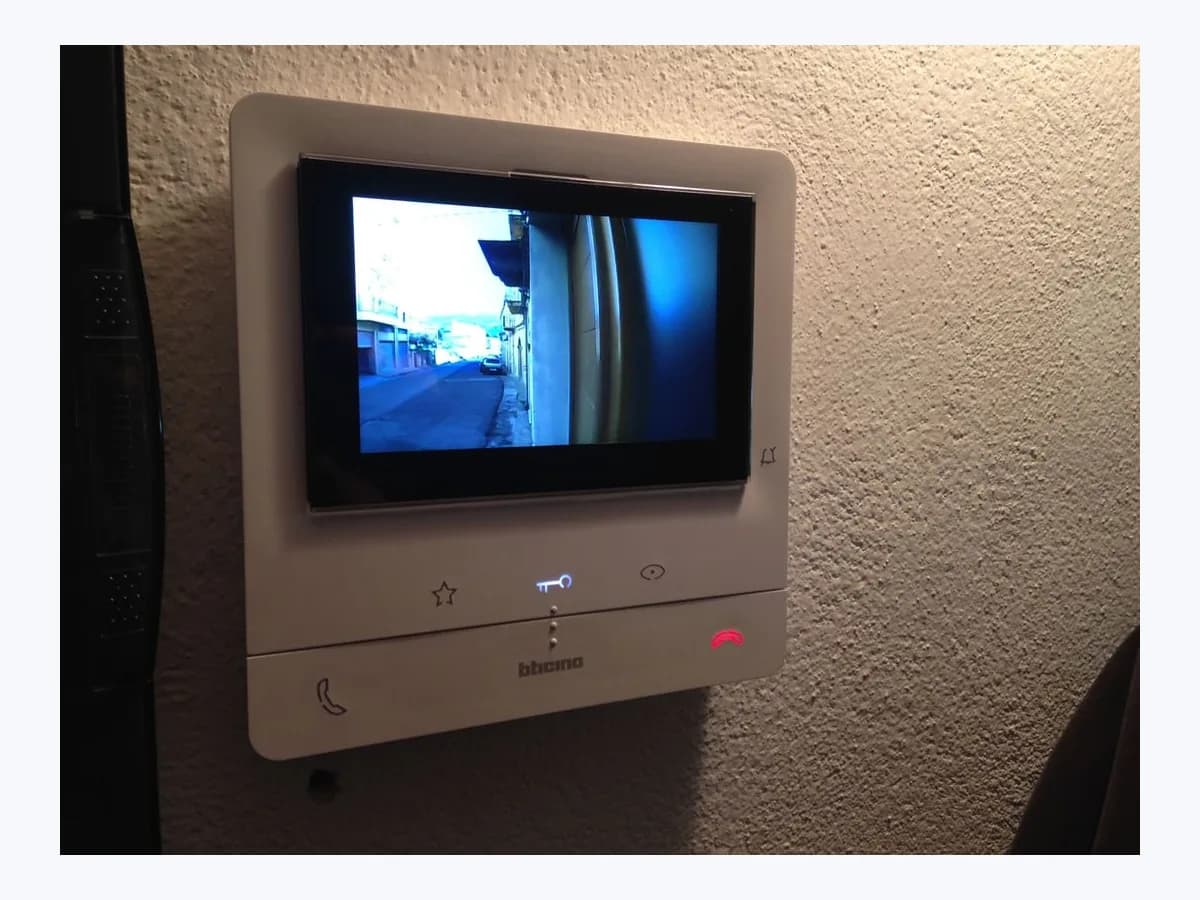
On a Golmar ART 4W LITE/G2+ monitor, a red blinking monitor status LED means the system is busy. Distinguish it from steady Red ON (Do not disturb), allow the 45 s call or 90 s communication timeout to finish, and check the address and M/S role on the About screen.
Safety first
Stop and check this first
- To avoid electrical shock on a Golmar G2+ system, never remove the AC protection cover or handle wires on the FA-G2+ or FA-G2+/LITE power supply terminals without first disconnecting mains power at the thermo-magnetic circuit breaker.
Safe checks you can perform
- Distinguish Red blinking (System is busy) from steady Red ON
- Allow the 45-second call and 90-second communication timeouts to clear
- Check monitor address, M/S role and firmware on the About screen
Leave these tasks to a qualified professional
- Do not attempt this professional task: Verify DIP switches 1-7, end-of-line switch 8 and special codes 0550-0553
- Do not attempt this professional task: Inspect the non-polarised 2-wire bus and FA-G2+ power supply with mains off
What a technician must be able to justify
Technician visit
These are the steps they must carry out and show you. Tick them as they work: if steps are skipped, do not accept a part swap.
These are not instructions for opening or handling the equipment yourself. They are the checks that should support a technical conclusion.
Verify DIP switches 1-7, end-of-line switch 8 and special codes 0550-0553
What they doWith the power disconnected before handling terminals or removing the monitor, authorised personnel check the binary apartment address on switches 1 to 7 (addresses 1 to 128), confirm switch 8 is ON only where the bus cable ends and OFF on intermediate monitors, and verify a single master monitor (0550) per apartment.
They must show youthe switch 1 to 8 positions and the About screen confirming the address and M, S1, S2 or S3 assignment.
In writingapartment address set on switches 1-7, switch 8 EOL position and Master/Slave code (0550-0553).
Inspect the non-polarised 2-wire bus and FA-G2+ power supply with mains off
What they doThe technician disconnects mains power via the thermo-magnetic circuit breaker, checks for any short-circuit across the BUS(M) and BUS(PL) terminals, inspects the power indicator LED on the FA-G2+ (30 Vdc +/- 2 V, 1.5 A) or FA-G2+/LITE (30 V, 0.5 A) unit, and confirms the installation does not exceed the supply rating.
They must show youthe power supply LED illuminated with the AC protection cover refitted and the monitor status LED steady yellow in standby.
In writinginstalled power supply model (FA-G2+/LITE or FA-G2+), BUS(M)/BUS(PL) short-circuit check and resolution of the busy state.
Before accepting a part or repair
Nothing has been shown yet. Do not accept a part swap based on the code alone.
Follow these steps
Note: Follow the documented order. An error code identifies the affected system, but it does not prove by itself which part has failed.
Distinguish Red blinking (System is busy) from steady Red ON
- Who:
- you, checking the front monitor status LED (C) on your Golmar ART 4W LITE/G2+ unit.
- How:
- verify whether the status LED is blinking red (System is busy) or illuminated steady red (Do not disturb mode activated); if it is steady red, wake the main menu and press the button below the bell icon for 1 second to disable Do not disturb.
- Result that matters:
- rule out a manual or timed Do not disturb state before treating the red LED as a busy G2+ channel.
- If the LED was steady red and changes to steady yellow when Do not disturb is disabled:
- normal ringing is restored.
- If the status LED is blinking red to indicate the system is busy:
- wait for the call or communication timer to expire.
- Evidence to keep:
- whether the front status LED (C) is blinking red or illuminated steady red.
Evidence: ART 4W LITE/G2+ Monitor Manual (TART 4W LITE/G2+ Rev. 0322 V02 EN)
Allow the 45-second call and 90-second communication timeouts to clear
- Who:
- you, observing the ART 4W LITE/G2+ monitor without touching any wiring.
- How:
- wait at least 90 seconds with no door panel call or apartment front door HZ push button pressed so any 45-second unanswered call or 90-second audio connection can finish and free the channel.
- Result that matters:
- check whether the G2+ channel clears automatically once the normal call or communication cycle ends.
- If the LED returns to steady yellow and you can display the master door panel image from the main menu:
- the bus was simply in use.
- If Red blinking:
- System is busy persists or blocks door panel viewing after 90 seconds: inspect the About screen next.
- Evidence to keep:
- how long the red blinking state lasted and whether door panel viewing works after 90 seconds.
Evidence: ART 4W LITE/G2+ Monitor Manual (TART 4W LITE/G2+ Rev. 0322 V02 EN) · Kit Videoportero G2+ ROCK R5110/ART 4W LITE 1P Guía Rápida (TR5110 ART 4W LITE Rev. 0325)
Check monitor address, M/S role and firmware on the About screen
- Who:
- you, using the front menu buttons on the ART 4W LITE/G2+ monitor.
- How:
- from standby, press any button to open the main menu, press the button below the settings icon, and open the About screen to record the monitor address (001 to 128), whether it is master or slave (M, S1, S2 or S3), and the FW version.
- Result that matters:
- confirm from the user menu that your apartment has only one master monitor (M) without removing the unit from its bracket.
- If more than one monitor in the same apartment shows M:
- ask the installer to set special codes 0550 to 0553 properly.
- If the About screen values are consistent but the system remains busy or unresponsive:
- arrange an authorised G2+ bus check.
- Evidence to keep:
- the exact About screen reading (for example, 001 / M FW 2.01) on each monitor in the apartment.
Evidence: ART 4W LITE/G2+ Monitor Manual (TART 4W LITE/G2+ Rev. 0322 V02 EN)
Still not solved
If the error persists, stop here. See what the technician must do and show you.
Where this code applies
A code is meaningful only inside the right product and version context.
Primary scope
- System
- Networks
- Brand
- Golmar
- Product type
- Video intercoms
Known code variants
- ART 4W LITE G2+ canal ocupado
- ART 4W LITE G2+ system busy
- Led de estado monitor rojo parpadeo
- Monitor status LED red blinking
- Rojo parpadeo: Canal ocupado
- System is busy red blinking LED
What it means
Golmar's ART 4W LITE/G2+ Monitor Manual (TART 4W LITE/G2+ Rev. 0322 V02) defines three states for the front monitor status LED (C): Yellow ON for standby without notification, Red ON when "Do not disturb" mode is activated, and "Red blinking: System is busy." On the non-polarised 2-wire G2+ bus, unanswered calls last up to 45 seconds and audio communication lasts up to 90 seconds. Other Golmar monitors may use different indicators, and a red blinking LED alone never proves that any component is faulty.
Warnings and stop conditions
- Highsource verified
To avoid electrical shock on a Golmar G2+ system, never remove the AC protection cover or handle wires on the FA-G2+ or FA-G2+/LITE power supply terminals without first disconnecting mains power at the thermo-magnetic circuit breaker.
Evidence: Kit Videoportero G2+ ROCK R5110/ART 4W LITE 1P Guía Rápida (TR5110 ART 4W LITE Rev. 0325) · Instrucciones Alimentador FA-G2+ / FA-G2+ Power Supply Instructions (TFA-G2+ Cód. 50124334 Rev. 0121)
Symptoms and causes
Probable causes · in order
- Active call, communication or intercom session on the G2+ busCommon
The G2+ channel stays occupied during the 45-second call window, during the 90-second maximum audio communication period, or while another terminal is using the bus.
Evidence: ART 4W LITE/G2+ Monitor Manual (TART 4W LITE/G2+ Rev. 0322 V02 EN) · Kit Videoportero G2+ ROCK R5110/ART 4W LITE 1P Guía Rápida (TR5110 ART 4W LITE Rev. 0325) · Instrucciones Alimentador FA-G2+ / FA-G2+ Power Supply Instructions (TFA-G2+ Cód. 50124334 Rev. 0121)
- Simultaneous HZ landing buttons or Master/Slave role conflictPossible
The ART 4W LITE/G2+ manual states that each apartment must have one master monitor (code 0550) and only one, and permits up to 6 monitors or apartments with the HZ push button activated at the same time in standby.
Evidence: ART 4W LITE/G2+ Monitor Manual (TART 4W LITE/G2+ Rev. 0322 V02 EN)
- DIP 1-7 address, DIP 8 end-of-line resistor or bus power issuePossible
An incorrect monitor address on switches 1 to 7, wrong end-of-line termination on switch 8, or exceeding FA-G2+/LITE capacity without upgrading to FA-G2+ can disrupt communication on the 2-wire G2+ bus.
Evidence: ART 4W LITE/G2+ Monitor Manual (TART 4W LITE/G2+ Rev. 0322 V02 EN) · Kit Videoportero G2+ ROCK R5110/ART 4W LITE 1P Guía Rápida (TR5110 ART 4W LITE Rev. 0325) · Instrucciones Alimentador FA-G2+ / FA-G2+ Power Supply Instructions (TFA-G2+ Cód. 50124334 Rev. 0121)
Virtual technician
Does Red blinking: System is busy still appear after these checks?
Answer a few questions to narrow down the likely cause and the safest next action. Guidance only - it never replaces a professional.
Sources and technical references
- 1
Manual Monitor ART 4W LITE/G2+ (TART 4W LITE/G2+ Rev. 0322 V02 ES)
Golmar · 2026 · official_doc
- 2
ART 4W LITE/G2+ Monitor Manual (TART 4W LITE/G2+ Rev. 0322 V02 EN)
Golmar · 2026 · official_doc
- 3
Kit Videoportero G2+ ROCK R5110/ART 4W LITE 1P Guía Rápida (TR5110 ART 4W LITE Rev. 0325)
Golmar · 2026 · official_doc
- 4
Golmar · 2026 · official_doc
Was this entry useful?