
- Networks
- Smart lighting and home hubs
All lights off
Philips Hue Bridge All lights off: no power on status
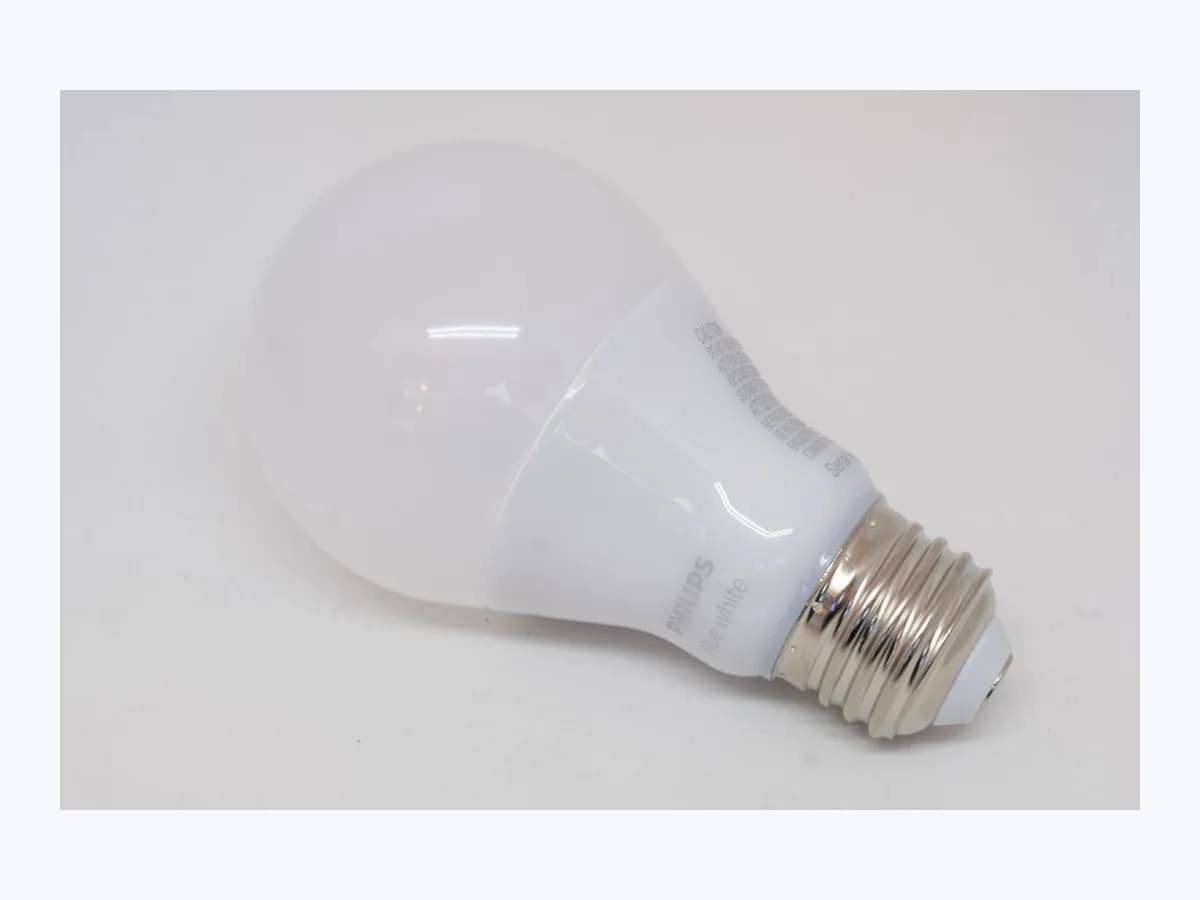
Risk level
Medium
Proceed carefully and stop if the check is unclear.
Urgency
High
Quick answer
When your Philips Hue Bridge or Hue Bridge Pro shows “All lights off” (“No power: Check adapter or outlet” or “No LED: the power is off”), check the wall outlet and original power adapter, and never swap adapters between Bridge and Bridge Pro.
Safety first
Stop and check this first
- Never open a Hue Bridge or power adapter, never swap power supplies between a Hue Bridge and Hue Bridge Pro, and do not use the Bridge Pro USB-C power supply with other devices; if any unit is hot, swollen, smoking, or smells of burning, unplug it safely and stop using it.
Safe checks you can perform
- Check the power adapter connection at the Bridge and outlet
- Verify that the model-specific power supply is attached
- Test another working wall outlet without opening the hardware
Leave these tasks to a qualified professional
- Do not attempt this professional task: Verify outlet power and model-correct power supply
- Do not attempt this professional task: Confirm boot LED sequence or refer unpowered hardware to Philips Hue
What a technician must be able to justify
Technician visit
These are the steps they must carry out and show you. Tick them as they work: if steps are skipped, do not accept a part swap.
These are not instructions for opening or handling the equipment yourself. They are the checks that should support a technical conclusion.
Verify outlet power and model-correct power supply
What they doThe technician tests the wall outlet and confirms that the standard Hue Bridge (traditional power jack) or Hue Bridge Pro (supplied USB-C power supply providing at least 5V) is connected with its proper external adapter without opening either unit.
They must show youthe verified power adapter, the working wall outlet test, and the resulting Power LED status.
In writingBridge model inspected, power supply verified, and whether the Power or Connectivity LED illuminated.
Confirm boot LED sequence or refer unpowered hardware to Philips Hue
What they doOnce power is restored, the professional verifies the normal LED state (three solid blue LEDs on Bridge V2 or white LEDs on Bridge Pro); if no LED turns on with a verified outlet and original adapter, the case is documented for Philips Hue support.
They must show youthe restored boot LED indicators or the continued absence of any LED on a verified outlet.
In writingoutlet and adapter test results, observed LED states, and details for Philips Hue customer support.
Before accepting a part or repair
Nothing has been shown yet. Do not accept a part swap based on the code alone.
Follow these steps
Note: Follow the documented order. An error code identifies the affected system, but it does not prove by itself which part has failed.
Check the power adapter connection at the Bridge and outlet
- Who:
- you, inspecting the external power cord and wall outlet for your Hue Bridge.
- How:
- confirm that the power adapter is firmly connected to the Hue Bridge and plugged into a working outlet near your router, watching for the left Power light (blue on Bridge V2) or Power LED (red/white on Bridge Pro).
- Result that matters:
- rule out a loose plug at the wall outlet or Bridge power input.
- If the Power indicator lights up after seating the plug:
- wait for the remaining status LEDs to finish booting.
- If all lights remain off on that outlet:
- verify that the correct power supply is connected for your model.
- Evidence to keep:
- Power LED state after checking both ends of the external power cable.
Evidence: Bridge | Philips Hue · how to connect hue bridge to wifi? | Philips Hue
Verify that the model-specific power supply is attached
- Who:
- you, checking the adapter label and connector on your Hue Bridge or Hue Bridge Pro.
- How:
- make sure a standard Hue Bridge is using its traditional power jack adapter and a Hue Bridge Pro is using its supplied USB-C power cable and adapter (or a USB-C supply providing at least 5V), never swapping supplies between the two.
- Result that matters:
- supply the voltage and connector specified by Philips Hue without risking damage to the Bridge.
- If connecting the supplied adapter restores the LED indicators:
- continue setup or checks in the Hue app.
- If all LEDs stay off with the supplied adapter:
- test the adapter in another known-good wall outlet.
- Evidence to keep:
- Bridge model (V2 or Pro), power connector type, and observed LED response.
Evidence: Bridge | Philips Hue · How to set up a Hue Bridge Pro | Philips Hue
Test another working wall outlet without opening the hardware
- Who:
- you, moving the original power adapter to another tested wall socket.
- How:
- plug the Bridge power adapter into a different known-working wall outlet; if a fixed wall receptacle is faulty, leave any mains electrical work to a licensed electrician.
- Result that matters:
- separate a dead wall socket from an unlit Hue Bridge and adapter assembly.
- If the Bridge LEDs illuminate on the second outlet:
- have a licensed electrician inspect the original wall outlet.
- If all lights stay off on a working outlet with the original power supply:
- contact Philips Hue customer support.
- Evidence to keep:
- LED behavior on the second wall outlet and confirmation of the power supply used.
Evidence: Bridge | Philips Hue · how to connect hue bridge to wifi? | Philips Hue
Still not solved
If the error persists, stop here. See what the technician must do and show you.
Where this code applies
A code is meaningful only inside the right product and version context.
Primary scope
- System
- Networks
- Brand
- Philips Hue
- Product type
- Smart lighting and home hubs
Known code variants
- All lights off
- All lights off No power
- Hue Bridge all LEDs off
- Indicador de alimentación apagado
- No hay LED: la alimentación está desconectada
- No LED: the power is off
- No power Check adapter or outlet
- Power indicator (left) off on Hue Bridge
- Sin LED: la alimentación está desconectada
- Todas las luces apagadas en Hue Bridge
What it means
In the “Understanding the Hue Bridge LEDs” table of “How to connect Hue Bridge to WIFI?”, Philips Hue defines “All lights off” as “No power: Check adapter or outlet.” On the “Bridge” support page, the left Power indicator on the standard Hue Bridge confirms that the power adapter is connected, while on the Hue Bridge Pro both “No LED” on the Connectivity LED and “No LED” on the Power LED mean the power is off. Other models may differ, and unlit LEDs alone never prove that the Bridge itself is defective.
Warnings and stop conditions
- Highsource verified
Never open a Hue Bridge or power adapter, never swap power supplies between a Hue Bridge and Hue Bridge Pro, and do not use the Bridge Pro USB-C power supply with other devices; if any unit is hot, swollen, smoking, or smells of burning, unplug it safely and stop using it.
Evidence: Bridge | Philips Hue
Symptoms and causes
Probable causes · in order
- Disconnected power adapter or unpowered wall outletCommon
Philips Hue attributes “All lights off” and “No LED: the power is off” to missing power and instructs owners to check the power adapter and wall outlet.
Evidence: Bridge | Philips Hue · how to connect hue bridge to wifi? | Philips Hue
- Mismatched or under-voltage power supply on Bridge or Bridge ProPossible
The Bridge support FAQ explains that the Hue Bridge uses a traditional power jack whereas the Hue Bridge Pro requires its USB-C power supply (or one providing at least 5V), and the two cannot be used interchangeably.
Evidence: Bridge | Philips Hue · How to set up a Hue Bridge Pro | Philips Hue
Virtual technician
Does All lights off still appear after these checks?
Answer a few questions to narrow down the likely cause and the safest next action. Guidance only - it never replaces a professional.
Sources and technical references
- 1
Philips Hue (Signify) · 2026 · official_doc
- 2
Philips Hue (Signify) · 2026 · official_doc
- 3
how to connect hue bridge to wifi? | Philips Hue
Philips Hue (Signify) · 2026 · official_doc
- 4
How to set up a Hue Bridge Pro | Philips Hue
Philips Hue (Signify) · 2026 · official_doc
- 5
Cómo configurar un Hue Bridge Pro | Philips Hue ES
Philips Hue (Signify) · 2026 · official_doc
Was this entry useful?