
- Networks
- Smart lighting and home hubs
Smart Bulb not discovered
Samsung Smart Bulb not discovered: smart bulb not found
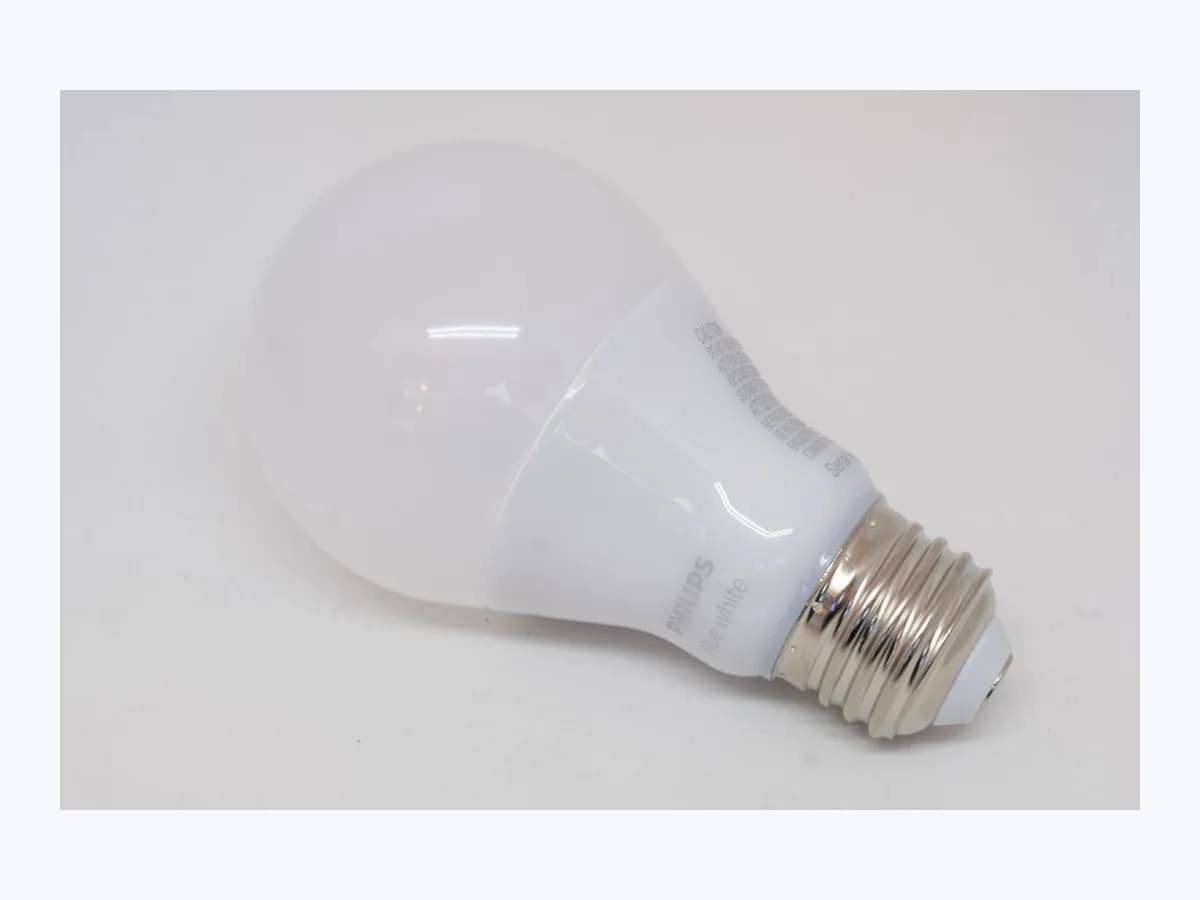
Risk level
Low
Usually safe to check without specialist tools.
Urgency
Low
Quick answer
If your Samsung SmartThings app shows Smart Bulb not discovered when adding or controlling a smart light, check your local Wi-Fi network or native partner app first, and for a SmartThings Smart Bulb remove it from the app and toggle the fixture 6 times until it flashes twice.
Safety first
Stop and check this first
- Performing a factory reset on the SmartThings Smart Bulb (removing it from the app and turning it on and off 6 times) erases its existing pairing and SmartThings settings.
- Never open a smart bulb, driver, bridge, hub, or power supply (technician only), and leave any hardwired luminaires, wall switches, dimmers, or mains wiring work to a licensed electrician; if a bulb or fixture is hot, swollen, smoking, or smells of burning, turn it off or unplug it if safe and stop using it.
Safe checks you can perform
- Verify same local Wi-Fi network, native app setup, and phone restart
- Remove the SmartThings Smart Bulb from the app and toggle power 6 times (0.5 to 2 s)
- Re-add the bulb under Lighting > SmartThings > Smart Bulb by scanning its QR code
Leave these tasks to a qualified professional
- Do not attempt this professional task: Verify prior app removal, 6-toggle double-flash reset, and QR code onboarding
- Do not attempt this professional task: Check LAN Wi-Fi network alignment, router channels 1, 2, or 3, and system log submission
What a technician must be able to justify
Technician visit
These are the steps they must carry out and show you. Tick them as they work: if steps are skipped, do not accept a part swap.
These are not instructions for opening or handling the equipment yourself. They are the checks that should support a technical conclusion.
Verify prior app removal, 6-toggle double-flash reset, and QR code onboarding
What they doThe technician confirms the SmartThings Smart Bulb was removed from the app first, performs the 6-cycle on/off switch sequence at 0.5 to 2 second intervals until the bulb flashes twice, and completes setup under Lighting > SmartThings > Smart Bulb using the QR code.
They must show youthe double flash on the Smart Bulb and the completed onboarding screen in the SmartThings app.
In writingconfirmation that the owner was advised that factory reset erases pairings, double-flash verification, and assigned room in SmartThings.
Check LAN Wi-Fi network alignment, router channels 1, 2, or 3, and system log submission
What they doIf discovery fails for a LAN Wi-Fi light or persists after resetting the Smart Bulb, the technician verifies that the phone and light share the same router, tests router Wi-Fi channels 1, 2, or 3 per TSG10007239, and submits system log data from the SmartThings support menu.
They must show youthe matching local network on the phone, the router Wi-Fi channel setting, and the Send feedback screen with system logs enabled.
In writingtested router Wi-Fi channel, discovery result in the SmartThings app, and support log submission reference.
Before accepting a part or repair
Nothing has been shown yet. Do not accept a part swap based on the code alone.
Follow these steps
Note: Follow the documented order. An error code identifies the affected system, but it does not prove by itself which part has failed.
Verify same local Wi-Fi network, native app setup, and phone restart
- Who:
- you, on the phone running the SmartThings app while trying to discover the light.
- How:
- for a LAN Wi-Fi light, confirm per TSG10007239 that your phone and the bulb are connected to the same local router network, check whether the bulb must be set up in its native app first (such as Philips Hue), then close the SmartThings app and restart your phone.
- Result that matters:
- rule out local network or app-cache discovery blocks before resetting the bulb.
- If the SmartThings app discovers the light after restarting the phone or completing native app setup:
- finish onboarding.
- If you are setting up a Samsung SmartThings Smart Bulb that still is not discovered:
- proceed to the 6-toggle reset sequence.
- Evidence to keep:
- connected Wi-Fi network name on the phone and screenshot of the SmartThings discovery screen.
Evidence: SmartThings does not connect or discover LAN Wi-Fi devices
Remove the SmartThings Smart Bulb from the app and toggle power 6 times (0.5 to 2 s)
- Who:
- you, using a standard lamp or wall switch only if you choose to factory reset the bulb knowing it erases its pairing.
- How:
- note that a factory reset erases the bulb pairing and settings; remove the bulb from the SmartThings app first per ANS10006872, then turn the light fixture on and off 6 times in intervals of 0.5 to 2 seconds until the bulb flashes twice after the sixth time.
- Result that matters:
- confirm via the double flash that the SmartThings Smart Bulb has been successfully reset.
- If the bulb flashes twice after the sixth toggle:
- leave it powered on and scan its QR code in the SmartThings app.
- If the bulb does not flash twice:
- repeat the 0.5 to 2 second switch intervals without touching any hardwired mains wiring.
- Evidence to keep:
- confirmation of the double flash after the sixth switch cycle and prior removal from the SmartThings app.
Evidence: Set up your SmartThings Smart Bulb
Re-add the bulb under Lighting > SmartThings > Smart Bulb by scanning its QR code
- Who:
- you, in the SmartThings app immediately after the bulb flashes twice.
- How:
- open Devices > Add (+) > Add device > By device type > Lighting > SmartThings > Smart Bulb > Start, scan the QR code on the Smart Bulb when prompted, install the bulb in the socket, and turn it on.
- Result that matters:
- complete discovery and assign a location and room in the SmartThings app per ANS10006872.
- If the SmartThings app connects to the bulb and assigns it to your room:
- test turning it on and off in the app.
- If the bulb still is not discovered after flashing twice:
- submit feedback with system log data through the SmartThings support menu.
- Evidence to keep:
- screenshot of the By device type > Lighting > SmartThings > Smart Bulb onboarding step.
Evidence: Cómo obtener soporte al cliente en SmartThings · Set up your SmartThings Smart Bulb
Still not solved
If the error persists, stop here. See what the technician must do and show you.
Where this code applies
A code is meaningful only inside the right product and version context.
Primary scope
- System
- Networks
- Brand
- Samsung
- Product type
- Smart lighting and home hubs
Known code variants
- Bombilla inteligente SmartThings no se descubre
- Smart Bulb not performing as expected
- SmartThings does not connect or discover LAN Wi-Fi devices
- SmartThings does not discover lighting device
- SmartThings Smart Bulb isn't being discovered
- SmartThings Smart Bulb no detectada
What it means
Samsung official guides "Set up your SmartThings Smart Bulb" (ANS10006872) and "SmartThings does not connect or discover LAN Wi-Fi devices" (TSG10007239) for the Samsung SmartThings Smart Bulb and LAN Wi-Fi lighting family explain what to do when a bulb is not discovered by the SmartThings app or stops responding. Other smart bulb brands or models may differ in reset timing, and a discovery failure alone never proves the bulb or fixture is defective.
Warnings and stop conditions
- Mediumsource verified
Performing a factory reset on the SmartThings Smart Bulb (removing it from the app and turning it on and off 6 times) erases its existing pairing and SmartThings settings.
Evidence: Set up your SmartThings Smart Bulb
- Highsource verified
Never open a smart bulb, driver, bridge, hub, or power supply (technician only), and leave any hardwired luminaires, wall switches, dimmers, or mains wiring work to a licensed electrician; if a bulb or fixture is hot, swollen, smoking, or smells of burning, turn it off or unplug it if safe and stop using it.
Evidence: Set up your SmartThings Smart Bulb
Symptoms and causes
Probable causes · in order
- SmartThings Smart Bulb needs a factory reset cycle to enter pairing modeCommon
Samsung states in ANS10006872 that if your SmartThings Smart Bulb isn't being discovered by the SmartThings app or isn't performing as expected, resetting and reconnecting it fixes most software issues.
Evidence: Set up your SmartThings Smart Bulb
- Phone and LAN Wi-Fi light on different networks or missing setup in the native appPossible
According to TSG10007239, LAN Wi-Fi lighting requires the phone and device to share the same router network, and some bulbs (such as Philips Hue) must be set up in their native app first.
Evidence: SmartThings does not connect or discover LAN Wi-Fi devices
- Router Wi-Fi channel conflict or stale SmartThings app state on the phonePossible
In TSG10007239 Samsung recommends closing the SmartThings app and restarting the phone, rebooting the router, or changing the router Wi-Fi channel to 1, 2, or 3 when discovery fails.
Evidence: SmartThings does not connect or discover LAN Wi-Fi devices
Virtual technician
Does Smart Bulb not discovered still appear after these checks?
Answer a few questions to narrow down the likely cause and the safest next action. Guidance only - it never replaces a professional.
Sources and technical references
- 1
Cómo obtener soporte al cliente en SmartThings
Samsung · 2026 · official_doc
- 2
Set up your SmartThings Smart Bulb
Samsung · 2026 · official_doc
- 3
SmartThings does not connect or discover LAN Wi-Fi devices
Samsung · 2026 · official_doc
Was this entry useful?