
- Networks
- Wi-Fi routers
LED-WIFI-APAGADO
TP-Link LED-WIFI-APAGADO on Wi-Fi router: wireless LED is off
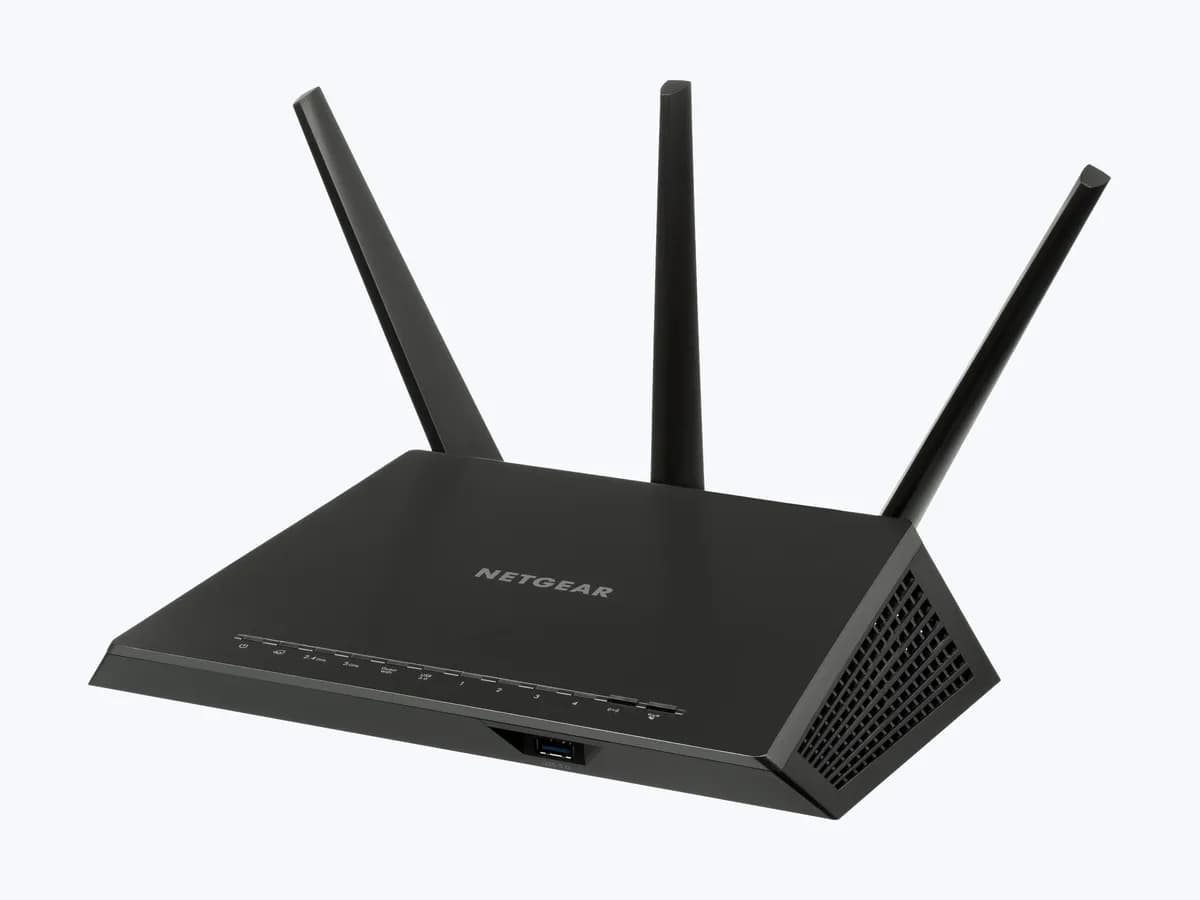
Risk level
Low
Usually safe to check without specialist tools.
Urgency
Medium
Quick answer
If the wireless LED on your TP-Link router (for example an Archer) does not come on, first check the Wi-Fi button or switch and make sure the wireless function is enabled in the web interface.
Safety first
Stop and check this first
- A reset erases the router configuration (network name and password, internet settings): have your provider's details at hand before doing it.
- Some models have a single LED: before assuming Wi-Fi is off, check in the Quick Installation Guide what each state means.
Safe checks you can perform
- Check whether a Wi-Fi network is visible
- Check the Wi-Fi button or switch
- Enable the wireless function in the web interface
- Reset as the Quick Installation Guide says
Leave these tasks to a qualified professional
- Do not attempt this professional task: Replacement through TP-Link technical support
- Do not attempt this professional task: Ask your provider if the router is theirs
What a technician must be able to justify
Technician visit
These are the steps they must carry out and show you. Tick them as they work: if steps are skipped, do not accept a part swap.
These are not instructions for opening or handling the equipment yourself. They are the checks that should support a technical conclusion.
Replacement through TP-Link technical support
What they doIf the LED stays off with the button on, Wi-Fi enabled and the router reset, TP-Link support looks into a replacement.
They must show youthe steps you tried and the router label with serial number and hardware version.
In writingthe case number, the diagnosis and the replacement decision.
Ask your provider if the router is theirs
What they doIf your provider supplied the TP-Link router, their support can check the wireless settings remotely before you reset it.
They must show youthe wireless network status in their remote diagnosis.
In writingthe ticket number and whether they will replace the device.
Before accepting a part or repair
Nothing has been shown yet. Do not accept a part swap based on the code alone.
Follow these steps
Note: Follow the documented order. An error code identifies the affected system, but it does not prove by itself which part has failed.
Check whether a Wi-Fi network is visible
- Who:
- you.
- How:
- look for your Wi-Fi network name on your phone near the router and check whether a device connected by cable has internet.
- Result that matters:
- knowing whether only the wireless part fails or the internet connection too.
- If the network is missing but cable works:
- only Wi-Fi is affected, follow this guide.
- If there is no internet by cable either:
- check the Internet LED and your provider's connection.
- Evidence to keep:
- screenshot of visible networks and a note of the cable test.
Evidence: What should I do if the LED of TP-Link router is abnormal?
Check the Wi-Fi button or switch
- Who:
- you.
- How:
- look on the router for a button or switch labelled Wi-Fi or with the wireless symbol and set it to on; wait a few seconds.
- Result that matters:
- the wireless LED coming on.
- If the LED comes on and the network appears:
- Wi-Fi had been turned off with the button.
- If there is no button or nothing changes:
- check the web interface.
- Evidence to keep:
- photo of the button and the LED afterwards.
Evidence: What should I do if the LED of TP-Link router is abnormal?
Enable the wireless function in the web interface
- Who:
- you, connected to the router by cable.
- How:
- log in to the router's web interface with your admin password and check in the wireless settings that the network for each band is enabled; save the changes.
- Result that matters:
- confirming Wi-Fi is not disabled in the configuration.
- If it was disabled:
- once enabled, the LED comes on and the network returns.
- If it was already enabled and the LED is still off:
- consider a reset.
- Evidence to keep:
- screenshot of the wireless settings.
Evidence: What should I do if the LED of TP-Link router is abnormal?
Reset as the Quick Installation Guide says
- Who:
- you, knowing you will lose the configuration.
- How:
- hold the reset button or hole as described in your model's Quick Installation Guide and then set the router up again.
- Result that matters:
- ruling out a corrupted setting that keeps Wi-Fi from turning on.
- If after the reset the wireless LED comes on:
- set up your network again.
- If it is still off:
- contact TP-Link support.
- Evidence to keep:
- model, serial number and hardware version from the label.
Evidence: What should I do if the LED of TP-Link router is abnormal?
Still not solved
If the error persists, stop here. See what the technician must do and show you.
Where this code applies
A code is meaningful only inside the right product and version context.
Primary scope
- System
- Networks
- Brand
- TP-Link
- Product type
- Wi-Fi routers
Known code variants
- router TP-Link no sale la red wifi
- TP-Link 2.4G 5G LED off
- TP-Link Archer led inalámbrico no se enciende
- TP-Link Archer wireless LED not on
- TP-Link botón wifi apagado
- TP-Link led 2.4G 5G apagado
- TP-Link router luz wifi apagada
- TP-Link router no wifi network
- TP-Link router wifi light off
- TP-Link Wi-Fi button off
What it means
TP-Link lists a wireless LED that does not come on among the abnormal LED states of its Wi-Fi routers, such as Archer models. That LED shows whether the Wi-Fi radio (2.4 GHz or 5 GHz depending on the model) is broadcasting; when it is off, the wireless network is usually disabled by the button or in the settings rather than the internet connection failing. Some models have a single LED: check their Quick Installation Guide. The LED alone never proves the router is faulty.
Warnings and stop conditions
- Mediumsource verified
A reset erases the router configuration (network name and password, internet settings): have your provider's details at hand before doing it.
Evidence: What should I do if the LED of TP-Link router is abnormal?
- Lowsource verified
Some models have a single LED: before assuming Wi-Fi is off, check in the Quick Installation Guide what each state means.
Evidence: What should I do if the LED of TP-Link router is abnormal?
Symptoms and causes
Probable causes · in order
- Wi-Fi button or switch turned offCommon
TP-Link says to first make sure the router's Wi-Fi button or switch, if it has one, is in the on position.
Evidence: What should I do if the LED of TP-Link router is abnormal?
- Wireless function disabled in the interfacePossible
According to TP-Link, you should log in to the router's web interface and confirm that the wireless function is enabled.
Evidence: What should I do if the LED of TP-Link router is abnormal?
- Settings that only a reset fixesPossible
TP-Link suggests a hard reset by holding the reset button or hole as described in the Quick Installation Guide if the earlier steps fail.
Evidence: What should I do if the LED of TP-Link router is abnormal?
- Device faultLess common
If the LED is still off after these steps, TP-Link asks you to email its technical support with model, serial number, hardware version and proof of purchase to get a replacement.
Evidence: What should I do if the LED of TP-Link router is abnormal?
Virtual technician
Does LED-WIFI-APAGADO still appear after these checks?
Answer a few questions to narrow down the likely cause and the safest next action. Guidance only - it never replaces a professional.
Sources and technical references
- 1
What should I do if the LED of TP-Link router is abnormal?
TP-Link · 2023 · official_doc
- 2
¿Qué debo hacer si el LED del router TP-Link es anormal?
TP-Link · 2024 · official_doc
Was this entry useful?