
- Networks
- Smart lighting and home hubs
Failed to add device
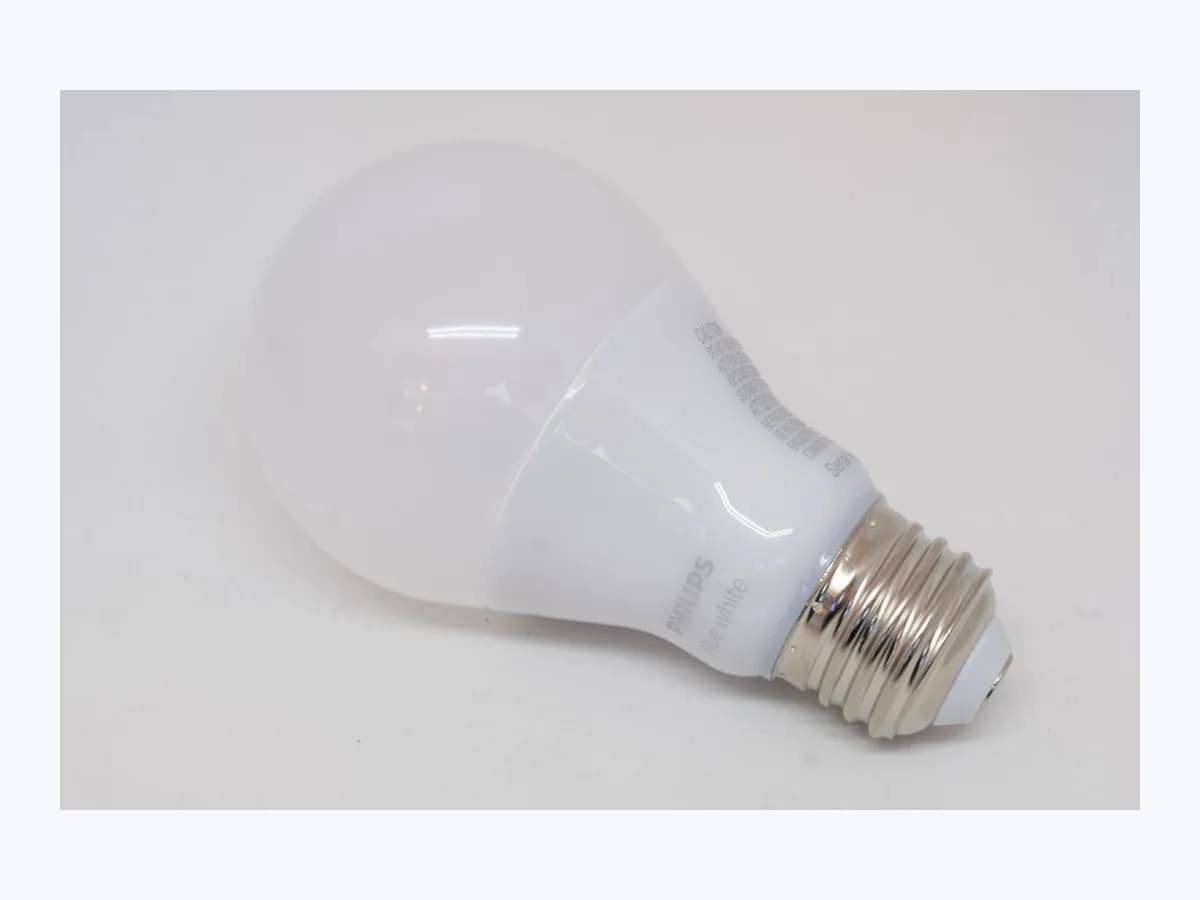
Tuya Failed to add device on smart light: 2.4G pairing failure
Risk level
Low
Usually safe to check without specialist tools.
Urgency
Low
Quick answer
On Tuya Smart and Smart Life smart lights, 'Failed to add device' happens when the lamp is not blinking in pairing mode, Wi-Fi is not a visible 2.4G network, or the router uses 11n-only or MAC filtering.
Safety first
Stop and check this first
- Resetting the smart light to enter net-pairing mode erases its existing Wi-Fi configuration and pairings each time you re-add the device.
- Never open a bulb, driver, hub, or power adapter (internal service is for a technician only), have a licensed electrician handle any hardwired fixtures, wall switches, or mains wiring, and unplug or power off any device that is hot, swollen, smoking, or smells of burning.
Safe checks you can perform
- Reset the smart light using the on-off-on-off-on switch sequence within 10 seconds
- Bring the lamp, phone, and router close together on a visible 2.4G Wi-Fi network
- Try AP mode (compatible mode) and look for SmartLife-xxxx or undefined-xxxx
Leave these tasks to a qualified professional
- Do not attempt this professional task: Configure router wireless settings for WPA2-PSK/AES, non-11n-only, and MAC filter removal
- Do not attempt this professional task: Complete net-pairing in EZ mode or AP hotspot mode on the local Wi-Fi network
What a technician must be able to justify
Technician visit
These are the steps they must carry out and show you. Tick them as they work: if steps are skipped, do not accept a part swap.
These are not instructions for opening or handling the equipment yourself. They are the checks that should support a technical conclusion.
Configure router wireless settings for WPA2-PSK/AES, non-11n-only, and MAC filter removal
What they doIn the router wireless settings, enable 2.4G SSID broadcast, set encryption to WPA2-PSK and authentication to AES (or both to automatic), ensure wireless mode is not 11n only, remove the device from any wireless MAC filter list, and turn off Wi-Fi on an unused device if the router connection limit is full.
They must show youthe router wireless page showing 2.4G broadcast enabled, WPA2-PSK/AES (or auto), wireless mode not set to 11n only, and MAC filtering disabled or cleared.
In writingthe router settings verified (2.4G SSID, WPA2-PSK/AES, wireless mode, MAC filter status, and client capacity).
Complete net-pairing in EZ mode or AP hotspot mode on the local Wi-Fi network
What they doTrigger the 3-time switch reset within 10 seconds to place the light in EZ fast-blink or AP slow-blink mode, connect through the app while phone and lamp share the same 2.4G Wi-Fi environment, and verify control before switching to 2G/3G/4G remote control.
They must show youthe smart light successfully added in the app and responding to on/off commands.
In writingwhether EZ mode or AP mode (SmartLife-xxxx / undefined-xxxx) was used to complete pairing.
Before accepting a part or repair
Nothing has been shown yet. Do not accept a part swap based on the code alone.
Follow these steps
Note: Follow the documented order. An error code identifies the affected system, but it does not prove by itself which part has failed.
Reset the smart light using the on-off-on-off-on switch sequence within 10 seconds
- Who:
- Owner
- How:
- Note that resetting a device clears its previous Wi-Fi pairing: turn off the light first, then switch it on-off-on-off-on 3 times within 10 seconds (or hold the reset button for 5 seconds on products with a button) until it flashes.
- Result that matters:
- Smart light flashing quickly (2 to 4 times/sec for EZ mode) or slowly (once or twice per 3 seconds for AP mode).
- If the bulb flashes quickly:
- confirm rapid blinking in the app and proceed with EZ mode search.
- If you need AP mode from EZ mode:
- repeat the on-off-on-off-on switch sequence within 10 seconds until it flashes slowly.
- Evidence to keep:
- Observed blinking speed of the smart light (fast EZ flash or slow AP flash).
Evidence: Frequently Asked Question and Network Connection Troubleshooting - Tuya Smart · FAQ - Tuya Smart
Bring the lamp, phone, and router close together on a visible 2.4G Wi-Fi network
- Who:
- Owner
- How:
- Place the device, phone, and router close to each other, ensure the phone is on a 2.4G Wi-Fi network with SSID broadcast enabled (not hidden) and no Chinese characters, and enter the exact Wi-Fi password.
- Result that matters:
- Phone and smart light sharing strong 2.4G Wi-Fi coverage with verified credentials.
- If the app displays that the network has been paired:
- the smart light is ready for control.
- If EZ mode still fails to add the device:
- switch the lamp to slow blink and try AP mode.
- Evidence to keep:
- Screenshot of the 2.4G Wi-Fi selection screen in the app during net-pairing.
Evidence: Frequently Asked Question and Network Connection Troubleshooting - Tuya Smart · FAQ - Tuya Smart
Try AP mode (compatible mode) and look for SmartLife-xxxx or undefined-xxxx
- Who:
- Owner
- How:
- With the light slowly flashing in AP mode, tap Add device in the app, select AP mode in the top right corner, and connect your phone Wi-Fi to the device hotspot before returning to the app.
- Result that matters:
- Direct phone connection to the lamp's SmartLife-xxxx or undefined-xxxx Wi-Fi hotspot.
- If SmartLife-xxxx or undefined-xxxx appears in your Wi-Fi list:
- connect to it and tap Next in the app.
- If the router still rejects the lamp:
- inspect router WPA2-PSK/AES, 11n-only, MAC filter, and device limit settings.
- Evidence to keep:
- Screenshot of the SmartLife-xxxx or undefined-xxxx hotspot in your phone Wi-Fi list.
Evidence: Frequently Asked Question and Network Connection Troubleshooting - Tuya Smart · FAQ - Tuya Smart
Still not solved
If the error persists, stop here. See what the technician must do and show you.
Where this code applies
A code is meaningful only inside the right product and version context.
Primary scope
- System
- Networks
- Brand
- Tuya
- Product type
- Smart lighting and home hubs
Known code variants
- Añadir dispositivos con fallo
- Cannot find SmartLife-xxxx
- Failure in connecting the network
- Fallo al añadir dispositivo en Tuya Smart
- No encuentra SmartLife-xxxx
- undefined-xxxx
- Why failed to add device
What it means
Tuya's official Help Center and FAQ pages ('Troubleshooting for failure in connecting the network (failed to add device)' and 'Why failed to add device?') for smart lighting explain that this message appears when net-pairing fails in quick connect (EZ) mode or hotspot (AP) mode. Official causes include not resetting the lamp into rapid or slow blinking status before setup, using a 5 GHz or hidden SSID instead of a broadcast 2.4G Wi-Fi network, wrong password, router settings not set to WPA2-PSK/AES or left on 11n only, Chinese characters in the SSID, full router client limits, or MAC filtering. Other models may differ, and this error alone never proves hardware is defective.
Warnings and stop conditions
- Mediumsource verified
Resetting the smart light to enter net-pairing mode erases its existing Wi-Fi configuration and pairings each time you re-add the device.
Evidence: Frequently Asked Question and Network Connection Troubleshooting - Tuya Smart · FAQ - Tuya Smart
- Mediumsource verified
Never open a bulb, driver, hub, or power adapter (internal service is for a technician only), have a licensed electrician handle any hardwired fixtures, wall switches, or mains wiring, and unplug or power off any device that is hot, swollen, smoking, or smells of burning.
Evidence: Frequently Asked Question and Network Connection Troubleshooting - Tuya Smart
Symptoms and causes
Probable causes · in order
- Smart light not reset into net-pairing status (EZ fast blink or AP slow blink)Common
Each time you add a Wi-Fi device, you must reset it first so the light flashes quickly (EZ mode) or slowly (AP hotspot mode).
Evidence: Frequently Asked Question and Network Connection Troubleshooting - Tuya Smart · FAQ - Tuya Smart
- Phone connected to 5 GHz Wi-Fi, hidden SSID, or wrong router passwordCommon
Only 2.4G Wi-Fi is supported for net-pairing, the router broadcast function must be enabled (not hidden mode), and the password must be exact.
Evidence: Frequently Asked Question and Network Connection Troubleshooting - Tuya Smart · FAQ - Tuya Smart
- Router encryption not WPA2-PSK/AES, wireless mode on 11n only, or Chinese SSIDPossible
Net-pairing fails if router encryption/authentication is not WPA2-PSK and AES (or auto), if wireless mode is set to 11n only, or if the SSID contains Chinese characters.
Evidence: Frequently Asked Question and Network Connection Troubleshooting - Tuya Smart · FAQ - Tuya Smart
- Wireless MAC address filtering enabled, router client limit full, or weak signalLess common
If the router's MAC filter blocks the lamp, connected devices have reached the router limit, or the lamp, phone, and router are too far apart, adding fails.
Evidence: Frequently Asked Question and Network Connection Troubleshooting - Tuya Smart · FAQ - Tuya Smart
Virtual technician
Does Failed to add device still appear after these checks?
Answer a few questions to narrow down the likely cause and the safest next action. Guidance only - it never replaces a professional.
Sources and technical references
- 1
Preguntas frecuentes y solución de problemas de conexión de red - Tuya Smart
Tuya Smart · 2026 · official_doc
- 2
Frequently Asked Question and Network Connection Troubleshooting - Tuya Smart
Tuya Smart · 2026 · official_doc
- 3
Preguntas Más Frecuentes - Tuya Smart
Tuya Smart · 2026 · official_doc
- 4
Tuya Smart · 2026 · official_doc
Was this entry useful?