
- Networks
- Smart locks
Firmware update fails
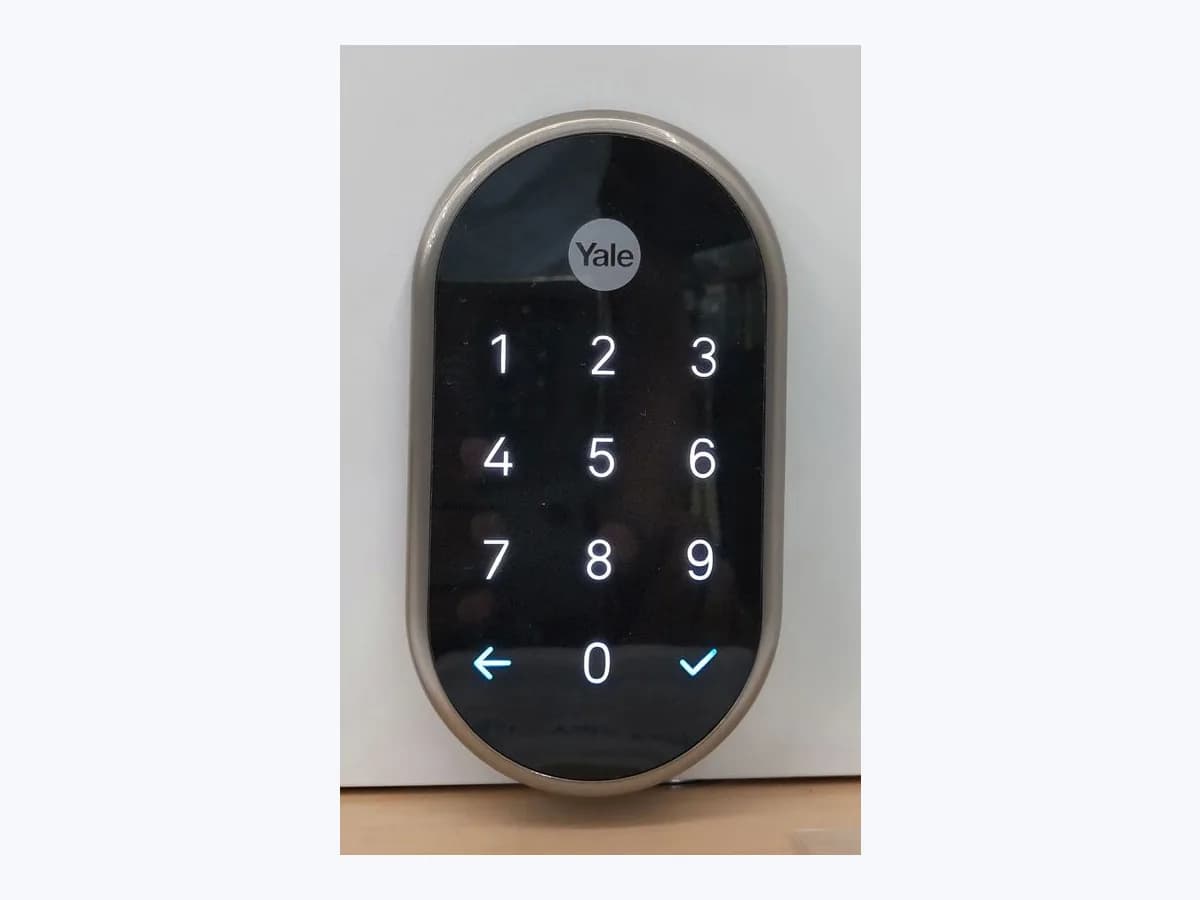
Yale Linus lock Firmware update fails: update interrupted
Risk level
Low
Usually safe to check without specialist tools.
Urgency
Medium
Quick answer
Keep your phone near Linus with Bluetooth enabled and the Yale app open until the firmware update finishes. If it fails, restart the phone, remove and reinsert one lock battery as Yale directs, then attempt the update again.
Safety first
Stop and check this first
- Avoid switching to another app during the Linus firmware update: Yale requires its application to remain open for completion even though backgrounding preserves progress.
- Complete firmware updates separately for each Yale lock using its owner account; the guide offers no simultaneous update for several locks and does not require guests to perform it.
Safe checks you can perform
- Prepare the local connection for the Linus firmware update
- Retry the firmware after the prescribed phone and lock restart
- Read the firmware version listed for the lock in settings
Leave these tasks to a qualified professional
- Do not attempt this professional task: Supervise a firmware retry under the documented connection conditions
- Do not attempt this professional task: Refer an update failure that survives the retry to Yale
What a technician must be able to justify
Technician visit
These are the steps they must carry out and show you. Tick them as they work: if steps are skipped, do not accept a part swap.
These are not instructions for opening or handling the equipment yourself. They are the checks that should support a technical conclusion.
Supervise a firmware retry under the documented connection conditions
What they doThe technician assists the owner in checking Bluetooth and keeping the app open, then follows the phone restart and single-battery power cycle when an update fails.
They must show youthe retry with the phone beside the lock and the firmware version viewed afterward.
In writingwhether Bluetooth was enabled, whether the app stayed open, and the outcome after both restarts.
Refer an update failure that survives the retry to Yale
What they doIf firmware updating fails again after the official sequence, the technician records the result and refers the issue to regional Yale support.
They must show youthe recorded interruption and the available version field in the lock settings.
In writingthe displayed firmware version, completed retry steps, and the support response for continuing the update.
Before accepting a part or repair
Nothing has been shown yet. Do not accept a part swap based on the code alone.
Follow these steps
Note: Follow the documented order. An error code identifies the affected system, but it does not prove by itself which part has failed.
Prepare the local connection for the Linus firmware update
- Who:
- you, as the Linus owner with your phone beside the lock.
- How:
- enable Bluetooth, stay within its range and open the Yale app; keep it open throughout the process and connect the phone to your local Wi-Fi network for a quicker update.
- Result that matters:
- meet the connection conditions for the update that starts when the owner connects.
- If progress continues while the app stays open:
- remain nearby until completion and then check the version.
- If the update fails despite those connection conditions:
- follow Yale's documented restart sequence.
- Evidence to keep:
- Bluetooth status and the point at which the update stops or completes.
Evidence: Updating your Lock Firmware
Retry the firmware after the prescribed phone and lock restart
- Who:
- you, following the Linus firmware guidance with access to the battery compartment.
- How:
- after an update failure, restart your phone and power cycle the lock by removing and reinserting one battery; then try the update again with the Yale app open near Linus.
- Result that matters:
- carry out the retry Yale specifies for an update that fails partway through.
- If the firmware update completes after this retry:
- open the settings to view the installed version.
- If the failure returns after restarting the phone and lock:
- contact regional Yale support for help.
- Evidence to keep:
- the retry outcome and confirmation of both restarts required by the guide.
Evidence: Updating your Lock Firmware
Read the firmware version listed for the lock in settings
- Who:
- you, viewing the Linus device entry inside the Yale application.
- How:
- tap the Menu Icon, open Settings, select your lock and navigate to Firmware Version; record the displayed version when reviewing completion or reporting a persistent failure to support.
- Result that matters:
- obtain the version information Yale identifies for checking lock firmware.
- If the update has completed and the version is visible:
- keep that information with the update outcome.
- If the update still fails:
- provide the visible version and completed retry details to Yale support.
- Evidence to keep:
- a screenshot of the Firmware Version field for this Linus lock.
Evidence: Updating your Lock Firmware
Still not solved
If the error persists, stop here. See what the technician must do and show you.
Where this code applies
A code is meaningful only inside the right product and version context.
Primary scope
- System
- Networks
- Brand
- Yale
- Product type
- Smart locks
Known code variants
- Actualización de Yale Linus interrumpida
- Falla la actualización del firmware
- Firmware update fails
- Lock firmware update failed
- Yale Linus firmware update interrupted
What it means
Yale addresses an interrupted update in its Updating your Lock Firmware page, with the corresponding Spanish guide identifying the Linus family. Completion requires Bluetooth proximity and the Yale app remaining open; the process can take up to 15 minutes. Instructions for Yale models outside this Linus family may differ, so this procedure is not universal; an update failure alone never establishes that a lock component has failed.
Warnings and stop conditions
- Lowsource verified
Avoid switching to another app during the Linus firmware update: Yale requires its application to remain open for completion even though backgrounding preserves progress.
Evidence: Updating your Lock Firmware
- Lowsource verified
Complete firmware updates separately for each Yale lock using its owner account; the guide offers no simultaneous update for several locks and does not require guests to perform it.
Evidence: Updating your Lock Firmware
Symptoms and causes
Probable causes · in order
- Phone outside the lock Bluetooth connection rangeCommon
The firmware procedure requires the phone to remain within Bluetooth range of the lock with Bluetooth switched on.
Evidence: Updating your Lock Firmware
- Yale app closed or moved into the backgroundPossible
An update cannot finish while the Yale app is in the background; progress is saved, but the app must stay open to complete it.
Evidence: Updating your Lock Firmware
Virtual technician
Does Firmware update fails still appear after these checks?
Answer a few questions to narrow down the likely cause and the safest next action. Guidance only - it never replaces a professional.
Sources and technical references
- 1
Yale Home · 2026 · official_doc
- 2
Actualización de firmware de la cerradura inteligente Yale Linus
Yale Home · 2026 · official_doc
Was this entry useful?