
- Gaming and consoles
- VR headsets
Tracking lost
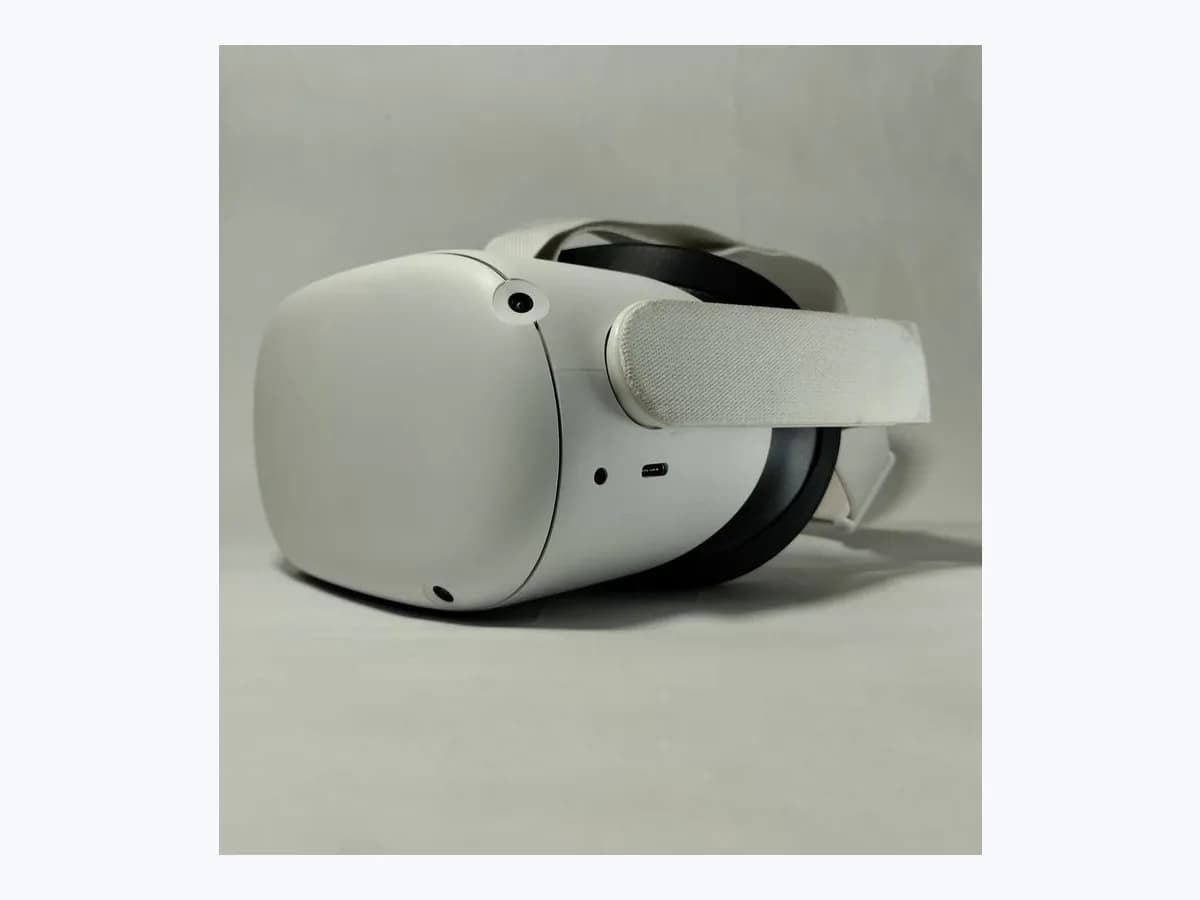
Meta Tracking lost on VR headset: 6DoF position failure
Risk level
Medium
Proceed carefully and stop if the check is unclear.
Urgency
Medium
Quick answer
Your Meta Quest headset displays a tracking lost error message, drops from 6DoF to 3DoF rotational tracking only, or forgets your saved Guardian boundary. Check room lighting, clear boundary history in settings and re-enable headset tracking.
Safety first
Stop and check this first
- To avoid injury, if you turn off 6DoF tracking or continue using the headset in 3DoF mode, only use Meta Quest while seated or standing in a fixed position.
- If multiple profiles are registered on the same headset, clearing boundary history deletes saved boundaries for every profile, not just the active one.
Safe checks you can perform
- Remove the headset to inspect room lighting and clear playspace dimensions
- Clear boundary history in Environment setup settings
- Re-enable Headset tracking under Movement tracking settings
- Redraw the boundary from the centre while holding the trigger
Leave these tasks to a qualified professional
- Do not attempt this professional task: Unlink saved scenes and clear physical space history in Horizon OS
- Do not attempt this professional task: Dry camera inspection and escalation to Meta Store Support
What a technician must be able to justify
Technician visit
These are the steps they must carry out and show you. Tick them as they work: if steps are skipped, do not accept a part swap.
These are not instructions for opening or handling the equipment yourself. They are the checks that should support a technical conclusion.
Unlink saved scenes and clear physical space history in Horizon OS
What they doThe technician clears saved scene anchors under Library > Settings > Environment > Space setup > Manage your spaces > Unlink as well as spatial data under Privacy and safety > Device permissions > Clear physical space history > Clear, then resets floor level.
They must show youa freshly calibrated floor level and Stationary (1 x 1 m) or Roomscale (2 x 2 m) boundary with verified 6DoF movement.
In writingnotice that clearing boundary and physical space history removes saved boundaries for all user profiles on the headset.
Dry camera inspection and escalation to Meta Store Support
What they doIf 6DoF tracking still fails across well-lit rooms after wiping all boundary histories and cleaning the exterior cameras with a dry microfibre cloth, escalate to official Meta Store Support without opening the visor.
They must show youlive 6DoF vs 3DoF lean test in a well-lit room after dry-wiping the exterior tracking cameras.
In writingverified 3DoF/6DoF behaviour and the official Meta Store Support case reference.
Before accepting a part or repair
Nothing has been shown yet. Do not accept a part swap based on the code alone.
Follow these steps
Note: Follow the documented order. An error code identifies the affected system, but it does not prove by itself which part has failed.
Remove the headset to inspect room lighting and clear playspace dimensions
- Who:
- you, in the room where you use your Meta Quest headset.
- How:
- take off the headset, check that room lighting has not become dim or shadowy (turn on lights to match a normal bright living room) and verify at least 1 x 1 metres clear for Stationary mode or 2 x 2 metres obstacle-free for Roomscale.
- Result that matters:
- ensure the inside-out cameras have clear visual landmarks and minimum safe floor space.
- If turning on room lights restores 6DoF movement and boundary recognition:
- resolved.
- If the tracking lost message persists in a bright room:
- clear your boundary history.
- Evidence to keep:
- room lighting condition and measured clear floor space (1 x 1 m or 2 x 2 m).
Evidence: Set up your boundary for Meta Quest | Quest help | Meta · I'm having trouble with setting up a boundary with my Touch controllers | Quest help | Meta · Troubleshoot Meta Quest headsets: Boundary | Quest help | Meta · Learn how headset tracking works on Meta Quest | Quest help | Meta
Clear boundary history in Environment setup settings
- Who:
- you, inside the Meta Quest Settings menu.
- How:
- press the Meta or Oculus button on the right Touch controller to open the universal menu, go to Quick controls > Settings > Environment setup > Boundary and select Clear boundary history.
- Result that matters:
- wipe conflicting boundary anchors stored on the headset and in the cloud.
- If the history clears and lets you trace a new boundary without errors:
- resolved.
- If the headset stays stuck in 3DoF mode:
- check the Headset tracking toggle.
- Evidence to keep:
- confirmation of Clear boundary history inside the Boundary settings screen.
Evidence: Set up your boundary for Meta Quest | Quest help | Meta · I'm having trouble with setting up a boundary with my Touch controllers | Quest help | Meta · Troubleshoot Meta Quest headsets: Boundary | Quest help | Meta · Learn how headset tracking works on Meta Quest | Quest help | Meta
Re-enable Headset tracking under Movement tracking settings
- Who:
- you, in the Movement tracking submenu on the headset.
- How:
- open Quick controls > Settings > Movement tracking, select the toggle next to Headset tracking to turn it on, and test leaning closer to or further from a virtual object.
- Result that matters:
- verify that 6DoF positional tracking is enabled instead of 3DoF rotation only.
- If leaning toward or away from an object moves your position in VR (6DoF active):
- resolved.
- If you can only look around without moving closer (3DoF) or boundary drawing fails:
- check controller tracing.
- Evidence to keep:
- Headset tracking toggle state and result of the 6DoF lean-in test.
Evidence: Set up your boundary for Meta Quest | Quest help | Meta · I'm having trouble with setting up a boundary with my Touch controllers | Quest help | Meta · Troubleshoot Meta Quest headsets: Boundary | Quest help | Meta · Learn how headset tracking works on Meta Quest | Quest help | Meta
Redraw the boundary from the centre while holding the trigger
- Who:
- you, standing in the centre of your playspace with the Touch controller.
- How:
- stand in the middle of your play area looking around so the headset maps the room, point the Touch controller at the floor while holding down the trigger to trace the boundary, and make sure your hand does not cover the tracking ring.
- Result that matters:
- set the floor level and boundary walls from a clear central vantage point.
- If the Stationary or Roomscale boundary locks in and persists across sessions:
- resolved.
- If the headset still forgets the boundary or drops 6DoF:
- perform a full physical space history reset.
- Evidence to keep:
- selected boundary mode (Stationary 1 x 1 m or Roomscale 2 x 2 m).
Evidence: Set up your boundary for Meta Quest | Quest help | Meta · I'm having trouble with setting up a boundary with my Touch controllers | Quest help | Meta · Troubleshoot Meta Quest headsets: Boundary | Quest help | Meta · Learn how headset tracking works on Meta Quest | Quest help | Meta
Still not solved
If the error persists, stop here. See what the technician must do and show you.
Where this code applies
A code is meaningful only inside the right product and version context.
Primary scope
- System
- Gaming and consoles
- Brand
- Meta
- Product type
- VR headsets
Known code variants
- Error de límite y seguimiento en gafas Quest
- Guardian boundary forgotten
- Headset tracking lost error message
- Meta Quest 6DoF tracking lost
- Pérdida de seguimiento 6DoF Meta Quest
- Se ha perdido el seguimiento
- Tracking lost
What it means
According to official Meta Quest support pages on 6DoF inside-out headset tracking and boundary setup for Quest 3, Quest 3S, Quest 2 and Quest Pro, when the headset cameras cannot map your surroundings an error message notifies you that 6DoF tracking is lost and the visor falls back to 3DoF (tracking only head rotation without room movement or virtual boundary walls). This message alone never proves a camera or internal part is faulty, and other models may differ.
Warnings and stop conditions
- Highsource verified
To avoid injury, if you turn off 6DoF tracking or continue using the headset in 3DoF mode, only use Meta Quest while seated or standing in a fixed position.
Evidence: Set up your boundary for Meta Quest | Quest help | Meta · I'm having trouble with setting up a boundary with my Touch controllers | Quest help | Meta · Troubleshoot Meta Quest headsets: Boundary | Quest help | Meta · Learn how headset tracking works on Meta Quest | Quest help | Meta
- Lowsource verified
If multiple profiles are registered on the same headset, clearing boundary history deletes saved boundaries for every profile, not just the active one.
Evidence: Set up your boundary for Meta Quest | Quest help | Meta · I'm having trouble with setting up a boundary with my Touch controllers | Quest help | Meta · Troubleshoot Meta Quest headsets: Boundary | Quest help | Meta · Learn how headset tracking works on Meta Quest | Quest help | Meta
Symptoms and causes
Probable causes · in order
- Dim room lighting, heavy shadows or lighting changes between sessionsCommon
Inside-out 6DoF tracking needs a bright, shadow-free play area similar to normal living-room lighting; if the room is too dark or lighting changed since the boundary was drawn, tracking stops.
Evidence: Set up your boundary for Meta Quest | Quest help | Meta · I'm having trouble with setting up a boundary with my Touch controllers | Quest help | Meta · Troubleshoot Meta Quest headsets: Boundary | Quest help | Meta · Learn how headset tracking works on Meta Quest | Quest help | Meta
- Moved furniture, new room decor or boundary drawn near wallsCommon
Rearranging furniture, adding wall or floor decor, or drawing the boundary while standing against the edge instead of the centre of the playspace prevents the headset from recognising the room.
Evidence: Set up your boundary for Meta Quest | Quest help | Meta · I'm having trouble with setting up a boundary with my Touch controllers | Quest help | Meta · Troubleshoot Meta Quest headsets: Boundary | Quest help | Meta · Learn how headset tracking works on Meta Quest | Quest help | Meta
- Corrupted boundary history or physical space anchor dataPossible
Saved boundary anchors on the device and cloud conflict across sessions, preventing Stationary (1 x 1 m) or Roomscale (minimum 2 x 2 m) boundaries from loading.
Evidence: Set up your boundary for Meta Quest | Quest help | Meta · I'm having trouble with setting up a boundary with my Touch controllers | Quest help | Meta · Troubleshoot Meta Quest headsets: Boundary | Quest help | Meta · Learn how headset tracking works on Meta Quest | Quest help | Meta
- Headset tracking toggle turned off or controller tracking ring blockedPossible
Headset tracking was switched off under Movement tracking settings, or your hand is covering the Touch controller tracking ring while trying to draw the boundary.
Evidence: Set up your boundary for Meta Quest | Quest help | Meta · I'm having trouble with setting up a boundary with my Touch controllers | Quest help | Meta · Troubleshoot Meta Quest headsets: Boundary | Quest help | Meta · Learn how headset tracking works on Meta Quest | Quest help | Meta
Virtual technician
Does Tracking lost still appear after these checks?
Answer a few questions to narrow down the likely cause and the safest next action. Guidance only - it never replaces a professional.
Sources and technical references
- 1
Set up your boundary for Meta Quest | Quest help | Meta
Meta · 2026 · official_doc
- 2
Configura tus límites en Meta Quest | Ayuda de Quest | Meta
Meta · 2026 · official_doc
- 3
I'm having trouble with setting up a boundary with my Touch controllers | Quest help | Meta
Meta · 2026 · official_doc
- 4
Tengo problemas para configurar los límites con mis controladores Touch. | Ayuda de Quest | Meta
Meta · 2026 · official_doc
- 5
Troubleshoot Meta Quest headsets: Boundary | Quest help | Meta
Meta · 2026 · official_doc
- 6
Solucionar problemas relacionados con las gafas Meta Quest: límites | Ayuda de Quest | Meta
Meta · 2026 · official_doc
- 7
Learn how headset tracking works on Meta Quest | Quest help | Meta
Meta · 2026 · official_doc
- 8
Descubre cómo funciona el seguimiento de las gafas en Meta Quest | Ayuda de Quest | Meta
Meta · 2026 · official_doc
Was this entry useful?