
- Gaming and consoles
- Handheld gaming PCs
LED flashes
Valve LED flashes error on handheld PC: battery depleted
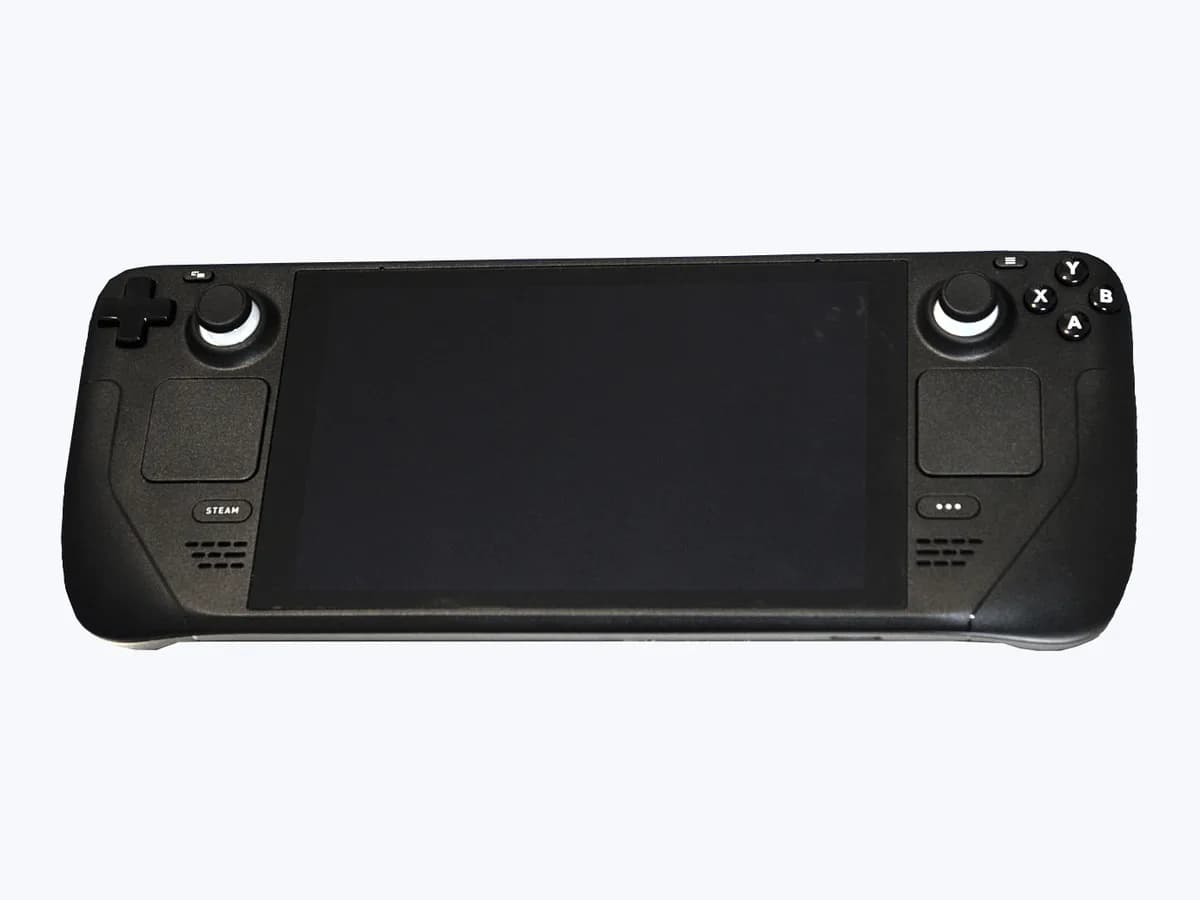
Risk level
Low
Usually safe to check without specialist tools.
Urgency
Medium
Quick answer
In Valve's official Steam Deck Basic Use & Troubleshooting Guide, if the LED flashes after pressing the power button the battery is depleted, or the handheld remains in battery storage mode until the supplied power supply is plugged in.
Safety first
Stop and check this first
- Do not open the Steam Deck enclosure or handle the internal battery; perform only the external charging and button sequences documented by Valve.
Safe checks you can perform
- Plug in the provided power supply for at least 15 minutes
- Hold Volume Plus while powering on and select Continue
- Perform a forced restart for your LCD or OLED model
Leave these tasks to a qualified professional
- Do not attempt this professional task: Verify battery storage mode behaviour in BIOS with the official PSU
- Do not attempt this professional task: Prepare diagnostic evidence for Steam Support escalation
What a technician must be able to justify
Technician visit
These are the steps they must carry out and show you. Tick them as they work: if steps are skipped, do not accept a part swap.
These are not instructions for opening or handling the equipment yourself. They are the checks that should support a technical conclusion.
Verify battery storage mode behaviour in BIOS with the official PSU
What they doCheck BIOS access (Volume + while powering on, Power, Battery storage mode) and verify the LED response (blinks 3 times on LCD or blinks blue twice after about 8 seconds on OLED) when connecting the official power supply.
They must show youthe LED behaviour next to the USB-C port when plugging in the supplied power supply and the BIOS options screen on your Steam Deck.
In writingthe exact Steam Deck variant (LCD or OLED), the observed LED flash count, and the result of waking the unit from battery storage mode.
Prepare diagnostic evidence for Steam Support escalation
What they doRecord the 15-minute charge test with the supplied power supply, the Volume + BIOS Continue attempt, and the 10-second or 16-second forced restart test so the owner can contact Steam Support.
They must show youthe charging test with the supplied USB-C power supply and the response to the documented button combinations.
In writingthe completed troubleshooting steps on your Steam Deck for submission to Steam Support.
Before accepting a part or repair
Nothing has been shown yet. Do not accept a part swap based on the code alone.
Follow these steps
Note: Follow the documented order. An error code identifies the affected system, but it does not prove by itself which part has failed.
Plug in the provided power supply for at least 15 minutes
- Who:
- You, no tools
- How:
- Connect the supplied USB-C power supply to your Steam Deck, confirm that the LED next to the USB-C port lights up, and let the handheld charge for at least 15 minutes.
- Result that matters:
- Whether the charging LED stays lit and whether the LED flashes 3 times when pressing power unplugged.
- If the LED lights up and the handheld powers on after 15 minutes of charging:
- the battery was depleted or in battery storage mode.
- If the LED lights up while charging but the power button still does not respond:
- move to the Volume + BIOS check.
- Evidence to keep:
- Charging duration with the supplied PSU and the exact LED flash pattern observed.
Evidence: Steam Deck - Basic Use & Troubleshooting Guide
Hold Volume Plus while powering on and select Continue
- Who:
- You, no tools
- How:
- With the provided power supply plugged in, hold down the Volume + button while pressing the power button, then select Continue from the BIOS options shown on screen.
- Result that matters:
- Whether the BIOS options screen appears and allows you to boot by selecting Continue.
- If the BIOS options menu opens and boots into SteamOS after choosing Continue:
- the charging wake hang is resolved.
- If the screen remains blank after holding Volume + and pressing power:
- proceed to the forced restart check.
- Evidence to keep:
- Whether the BIOS options menu appeared while holding Volume + with the charger connected.
Evidence: Steam Deck - Basic Use & Troubleshooting Guide
Perform a forced restart for your LCD or OLED model
- Who:
- You, no tools
- How:
- Hold the power button down for 4 seconds on Steam Deck LCD (7 seconds on Steam Deck OLED), or for 10 seconds on LCD (16 seconds on OLED) if an OS-level issue prevents shutting down.
- Result that matters:
- Whether the Steam Deck completes a forced power cycle and turns back on after a couple of seconds.
- If the handheld restarts cleanly after holding the power button:
- an OS-level hang was preventing normal wake.
- If the power button remains unresponsive after the 10-second or 16-second hold on the supplied charger:
- arrange a Steam Deck power and battery inspection.
- Evidence to keep:
- Your Steam Deck model (LCD or OLED) and the hold duration tested on the power button.
Evidence: Steam Deck - Basic Use & Troubleshooting Guide
Still not solved
If the error persists, stop here. See what the technician must do and show you.
Where this code applies
A code is meaningful only inside the right product and version context.
Primary scope
- System
- Gaming and consoles
- Brand
- Valve
- Product type
- Handheld gaming PCs
Known code variants
- El LED parpadea
- El LED parpadea tres veces
- LED blinks blue twice
- LED flashes
- LED flashes 3 times
- LED flashes after pressing the power button
What it means
On Valve's official Basic Use & Troubleshooting Guide for the Steam Deck LCD and Steam Deck OLED family (other models may differ), if the LED flashes after pressing the power button the battery is currently depleted and you should plug in the provided power supply for at least 15 minutes before powering on. If the LED flashes 3 times when pressing the power button while unplugged, the device is still in shipping mode or battery storage mode. This LED flash pattern alone never proves a battery or system board is faulty.
Warnings and stop conditions
- Highsource verified
Do not open the Steam Deck enclosure or handle the internal battery; perform only the external charging and button sequences documented by Valve.
Evidence: Steam Deck - Basic Use & Troubleshooting Guide
Symptoms and causes
Probable causes · in order
- Depleted battery charge when pressing the power buttonCommon
The Steam Deck battery is currently depleted and needs to stay connected to the provided USB-C power supply for at least 15 minutes before turning on.
Evidence: Steam Deck - Basic Use & Troubleshooting Guide
- Shipping mode or battery storage mode still activePossible
Out of the box or after extended storage without use, the LED flashes 3 times when pressing power unplugged because the handheld remains in battery storage mode until connected to the power supply.
Evidence: Steam Deck - Basic Use & Troubleshooting Guide
- Unresponsive power button while charging or OS-level hangPossible
The LED lights up when plugging in the power supply, yet pressing the power button does not wake the unit without booting through BIOS options or forcing a restart.
Evidence: Steam Deck - Basic Use & Troubleshooting Guide
Virtual technician
Does LED flashes still appear after these checks?
Answer a few questions to narrow down the likely cause and the safest next action. Guidance only - it never replaces a professional.
Sources and technical references
- 1
Steam Deck - Basic Use & Troubleshooting Guide
Valve · 2026 · official_doc
- 2
Steam Deck - Uso básico y guía de solución de problemas
Valve · 2026 · official_doc
Was this entry useful?