
- Gaming and consoles
- Handheld gaming PCs
Previous B
Valve Previous B error on handheld PC: SteamOS OS rollback
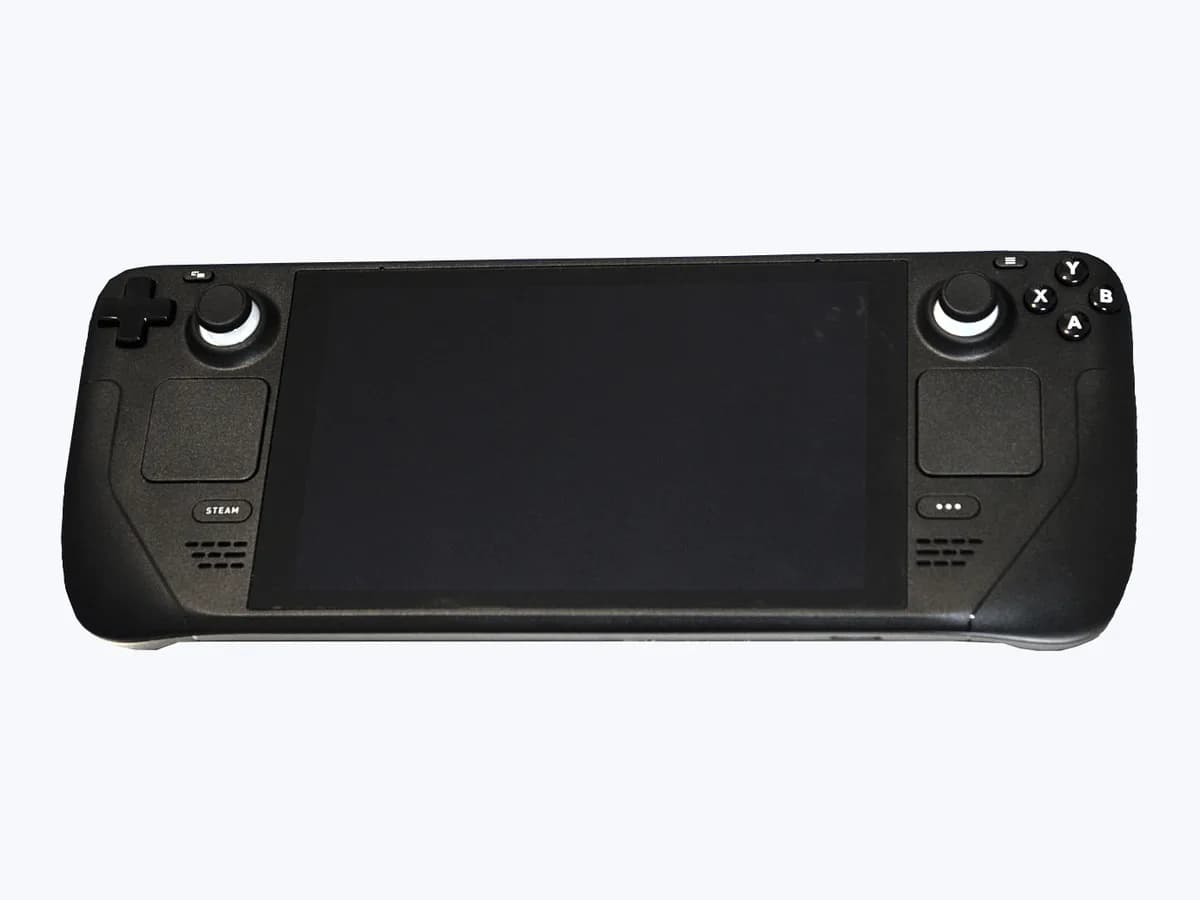
Risk level
Medium
Proceed carefully and stop if the check is unclear.
Urgency
High
Quick answer
In Valve's official SteamOS Recovery and Troubleshooting guide, holding the '...' button while powering on opens the SteamOS recovery menu where selecting Previous B rolls the Steam Deck back to the previous OS version when it cannot boot.
Safety first
Stop and check this first
- Selecting ERASE USER DATA FROM DECK or Re-image Device formats your Steam Deck and permanently deletes all downloaded games, custom configurations, and personal files on the device.
Safe checks you can perform
- Open the SteamOS recovery menu by holding '...' while powering on
- Select Previous B using the D-pad and press A to roll back
- Check for a recovery USB key before erasing user data
Leave these tasks to a qualified professional
- Do not attempt this professional task: Boot the official SteamOS recovery USB and run Repair SteamOS
- Do not attempt this professional task: Run Re-image Device or ERASE USER DATA with owner approval or escalate to Steam Support
What a technician must be able to justify
Technician visit
These are the steps they must carry out and show you. Tick them as they work: if steps are skipped, do not accept a part swap.
These are not instructions for opening or handling the equipment yourself. They are the checks that should support a technical conclusion.
Boot the official SteamOS recovery USB and run Repair SteamOS
What they doPrepare an 8 GB minimum USB key with the official Steam Deck recovery image using Rufus or Balena Etcher, hold Volume Down (-) while pressing Power to enter the Boot Manager (EFI USB Device), and run Repair SteamOS from the recovery desktop.
They must show youthe Boot Manager screen selecting EFI USB Device and the Repair SteamOS utility running in the recovery environment.
In writingwhich recovery option was executed (Previous B rollback or USB Repair SteamOS) and whether user files were preserved.
Run Re-image Device or ERASE USER DATA with owner approval or escalate to Steam Support
What they doIf Repair SteamOS cannot restore boot and the owner approves full data deletion, run Re-image Device from the recovery USB or ERASE USER DATA FROM DECK, or document the failure for Steam Support.
They must show youthe data-wipe confirmation prompt before running Re-image Device or ERASE USER DATA FROM DECK.
In writingyour signed approval prior to formatting the Steam Deck and the result of the factory re-image or Steam Support escalation.
Before accepting a part or repair
Nothing has been shown yet. Do not accept a part swap based on the code alone.
Follow these steps
Note: Follow the documented order. An error code identifies the affected system, but it does not prove by itself which part has failed.
Open the SteamOS recovery menu by holding '...' while powering on
- Who:
- You, no tools
- How:
- Make sure your Steam Deck is completely powered down, then hold the '...' Quick Access button while pressing the power button until the SteamOS menu appears on screen.
- Result that matters:
- Whether the SteamOS recovery menu opens showing Current A, Previous B, and ERASE USER DATA FROM DECK.
- If the SteamOS recovery menu appears on screen:
- move to the next check to select Previous B.
- If the menu does not open on the first try:
- power the handheld completely down again and repeat holding '...' with Power.
- Evidence to keep:
- The exact options displayed on the SteamOS recovery menu screen.
Evidence: SteamOS Recovery and Troubleshooting
Select Previous B using the D-pad and press A to roll back
- Who:
- You, no tools
- How:
- Use the D-pad to highlight the second menu option, Previous B, and press the A button on your Steam Deck to boot into the previous SteamOS version.
- Result that matters:
- Whether the Steam Deck rolls back to the previous OS version and boots into the main interface.
- If the handheld boots normally after choosing Previous B:
- the issue was confined to the Current A OS slot.
- If selecting Previous B also fails to boot SteamOS:
- proceed to the next check before erasing any user data.
- Evidence to keep:
- Boot behaviour after selecting Previous B with the A button.
Evidence: SteamOS Recovery and Troubleshooting
Check for a recovery USB key before erasing user data
- Who:
- You, no tools
- How:
- Before selecting ERASE USER DATA FROM DECK (which formats the Steam Deck and deletes all downloaded games and personal content), check whether you have an 8 GB USB key and USB-C adapter to run Repair SteamOS.
- Result that matters:
- Whether you want to preserve installed games and personal files using USB Repair SteamOS before formatting.
- If you want to preserve your personal files or lack a prepared USB key:
- arrange a technician check to run Repair SteamOS.
- If you accept losing all installed games and personal content:
- ERASE USER DATA FROM DECK formats the handheld.
- Evidence to keep:
- Your preference on preserving personal data prior to any formatting or re-imaging step.
Evidence: SteamOS Recovery and Troubleshooting · SteamOS Installation and Repair
Still not solved
If the error persists, stop here. See what the technician must do and show you.
Where this code applies
A code is meaningful only inside the right product and version context.
Primary scope
- System
- Gaming and consoles
- Brand
- Valve
- Product type
- Handheld gaming PCs
Known code variants
- Current A
- ERASE USER DATA FROM DECK
- Previous B
- Re-image Device
- Repair SteamOS
- SteamOS recovery menu
What it means
On Valve's official SteamOS Recovery and Troubleshooting and SteamOS Installation and Repair pages for the Steam Deck family (other models may differ), the "Previous B" option appears inside the SteamOS recovery menu (opened by holding the "..." Quick Access button while pressing the power button from a powered-down state) alongside "Current A" and "ERASE USER DATA FROM DECK". It rolls back to the previous OS slot when a system update or configuration change prevents booting. Needing this recovery option alone never proves that the internal SSD or motherboard is faulty.
Warnings and stop conditions
- Highsource verified
Selecting ERASE USER DATA FROM DECK or Re-image Device formats your Steam Deck and permanently deletes all downloaded games, custom configurations, and personal files on the device.
Evidence: SteamOS Recovery and Troubleshooting · SteamOS Installation and Repair
Symptoms and causes
Probable causes · in order
- Corrupted active SteamOS partition after an update or system changeCommon
The active "Current A" OS image fails to complete boot because of corrupted operating system files, requiring a rollback to the prior OS image via "Previous B".
Evidence: SteamOS Recovery and Troubleshooting
- Damaged user data or local configuration blocking startupPossible
Corrupted user-level files or system settings prevent SteamOS from reaching the main interface until repaired via a recovery USB stick or wiped from the recovery menu.
Evidence: SteamOS Recovery and Troubleshooting · SteamOS Installation and Repair
- Both SteamOS boot slots damaged requiring USB recovery mediaLess common
Neither "Current A" nor "Previous B" boots the handheld, so a bootable USB drive (8 GB minimum) flashed with the Steam Deck recovery image is needed to run Repair SteamOS or Re-image Device.
Evidence: SteamOS Installation and Repair
Virtual technician
Does Previous B still appear after these checks?
Answer a few questions to narrow down the likely cause and the safest next action. Guidance only - it never replaces a professional.
Sources and technical references
- 1
SteamOS Recovery and Troubleshooting
Valve · 2026 · official_doc
- 2
Recuperación y solución de problemas de SteamOS
Valve · 2026 · official_doc
- 3
SteamOS Installation and Repair
Valve · 2026 · official_doc
- 4
Instalación y reparación de SteamOS
Valve · 2026 · official_doc
Was this entry useful?