
- Networks
- Fibre routers
SERVICE-ROJO-INTERMITENTE-LENTO
AT&T SERVICE-ROJO-INTERMITENTE-LENTO on BGW320 gateway: no broadband connection
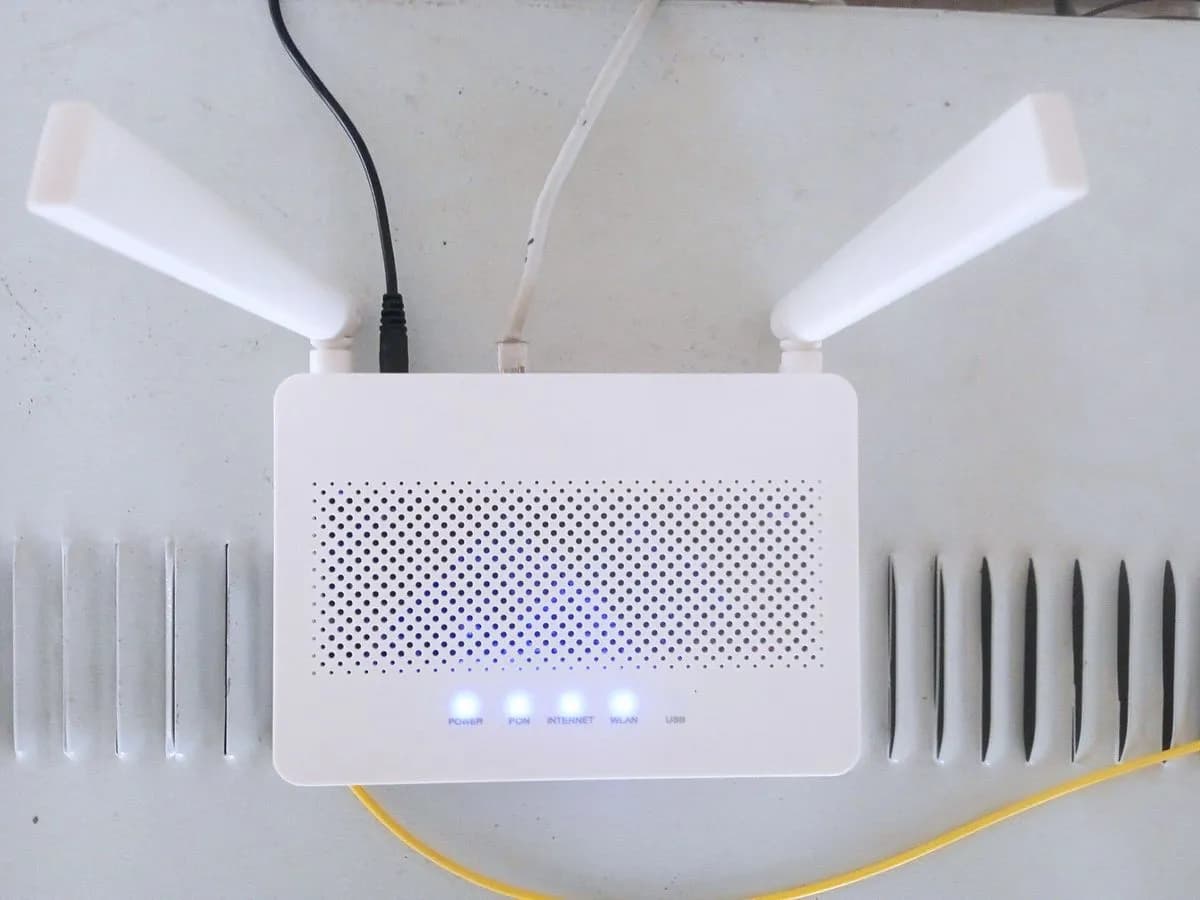
Risk level
Low
Usually safe to check without specialist tools.
Urgency
Medium
Quick answer
If the Service light on the AT&T BGW320 blinks red slowly, AT&T says the gateway has no broadband connection. First check the cables by eye, without unplugging the fiber, and check att.com/outages for an outage.
Safety first
Stop and check this first
- Do not unplug, clean or bend the fiber cable or its connector: if it is damaged, the AT&T technician replaces it.
- Holding Reset for 10 seconds returns the gateway to factory settings and you lose custom settings: if you let go earlier, it only reboots.
Safe checks you can perform
- Visual cable check
- Outages in your area
- Note settings before the reset
- Reset with the button for 10 seconds
Leave these tasks to a qualified professional
- Do not attempt this professional task: Measure the fiber signal at the jack and the gateway
- Do not attempt this professional task: Check cabling before replacing the gateway
What a technician must be able to justify
Technician visit
These are the steps they must carry out and show you. Tick them as they work: if steps are skipped, do not accept a part swap.
These are not instructions for opening or handling the equipment yourself. They are the checks that should support a technical conclusion.
Measure the fiber signal at the jack and the gateway
What they doThe AT&T technician measures the fiber signal reaching the jack and the gateway.
They must show youthe fiber reading at the jack and the gateway against AT&T's range.
In writingthe faulty section and what was repaired.
Check cabling before replacing the gateway
What they doThe technician checks the fiber cable, its connectors and the jack, and only replaces the gateway if the reading points to it.
They must show youthe Service light solid white after the repair.
In writingthe part replaced and why.
Before accepting a part or repair
Nothing has been shown yet. Do not accept a part swap based on the code alone.
Follow these steps
Note: Follow the documented order. An error code identifies the affected system, but it does not prove by itself which part has failed.
Visual cable check
- Who:
- you, looking only.
- How:
- Follow the gateway cables: power, network cable and fiber cable to the jack. Look for connectors out of place or damaged cables. Do not unplug or clean the fiber connector.
- Result that matters:
- Whether a cable is loose or damaged.
- If it is the power or an Ethernet cable:
- seat it properly and watch the light.
- If it is the fiber or all looks fine:
- leave it and check for outages.
- Evidence to keep:
- Photos of the connections and the light.
Evidence: BGW320 Wi-Fi Gateway What Do the Lights Mean? · Learn about your All-Fi Hub (BGW320)
Outages in your area
- Who:
- you, from a phone on mobile data.
- How:
- Go to att.com/outages, Smart Home Manager or myAT&T and check for an outage in your area.
- Result that matters:
- Whether an outage appears.
- If there is one:
- wait for AT&T to fix it; do not reset.
- If not:
- consider the reset following AT&T's guide.
- Evidence to keep:
- A screenshot with date and time.
Evidence: Learn about your All-Fi Hub (BGW320)
Note settings before the reset
- Who:
- you.
- How:
- Write down your Wi-Fi name, password and any custom setting (for example static IP addresses), as AT&T recommends before a reset.
- Result that matters:
- Having those details outside the gateway.
- If you have them:
- you can do the reset.
- If not:
- ask AT&T for help before resetting.
- Evidence to keep:
- The note with your settings.
Evidence: Reset Your Wi-Fi Gateway to Original Settings
Reset with the button for 10 seconds
- Who:
- you, only if there is no outage.
- How:
- Hold the Reset button for 10 seconds, as AT&T says for this state, and wait for the gateway to restart and its lights to come on.
- Result that matters:
- The Service light colour at the end.
- If it is solid white:
- the gateway has broadband again.
- If slow red returns:
- the fault persists; contact AT&T.
- Evidence to keep:
- Time of the reset and final colour.
Evidence: Learn about your All-Fi Hub (BGW320) · Reset Your Wi-Fi Gateway to Original Settings
Still not solved
If the error persists, stop here. See what the technician must do and show you.
Where this code applies
A code is meaningful only inside the right product and version context.
Primary scope
- System
- Networks
- Brand
- AT&T
- Product type
- Fibre routers
Known code variants
- at&t all-fi hub red blinking
- at&t gateway no broadband connection
- att bgw320 blinking red slow
- att fiber no broadband red light
- att gateway red light slow blink
- bgw320 rojo lento
What it means
AT&T assigns slow blinking red (about one blink every 2 seconds) to a gateway with no broadband connection and asks you to check for a loose, disconnected or damaged cable. AT&T's next step is to hold the Reset button for 10 seconds, which its own reset guide says returns the gateway to factory settings, and then to check for outages. The light does not say whether the cable, the network or the gateway fails, and it does not prove the device is faulty.
Warnings and stop conditions
- Mediumeditorial warning
Do not unplug, clean or bend the fiber cable or its connector: if it is damaged, the AT&T technician replaces it.
Evidence: Learn about your All-Fi Hub (BGW320)
- Mediumsource verified
Holding Reset for 10 seconds returns the gateway to factory settings and you lose custom settings: if you let go earlier, it only reboots.
Evidence: Reset Your Wi-Fi Gateway to Original Settings
Symptoms and causes
Probable causes · in order
- Loose, disconnected or damaged cablePossible
This is AT&T's first cause. It stands out by checking the cables by eye at the gateway and the wall jack.
Evidence: BGW320 Wi-Fi Gateway What Do the Lights Mean? · Learn about your All-Fi Hub (BGW320)
- Outage on AT&T's networkPossible
If the cables look fine, AT&T points to att.com/outages. Confirmed if an outage shows for your area.
Evidence: Learn about your All-Fi Hub (BGW320)
- Gateway settingsPossible
AT&T offers the button reset as the next step; if it then turns solid white, the problem was in the stored settings.
Evidence: Learn about your All-Fi Hub (BGW320) · Reset Your Wi-Fi Gateway to Original Settings
Virtual technician
Does SERVICE-ROJO-INTERMITENTE-LENTO still appear after these checks?
Answer a few questions to narrow down the likely cause and the safest next action. Guidance only - it never replaces a professional.
Sources and technical references
- 1
BGW320 Wi-Fi Gateway What Do the Lights Mean?
AT&T · 2023 · manual
- 2
Learn about your All-Fi Hub (BGW320)
AT&T · 2026 · official_doc
- 3
Reset Your Wi-Fi Gateway to Original Settings
AT&T · 2026 · official_doc
Was this entry useful?