

- Networks
- Video intercoms
Access point mode
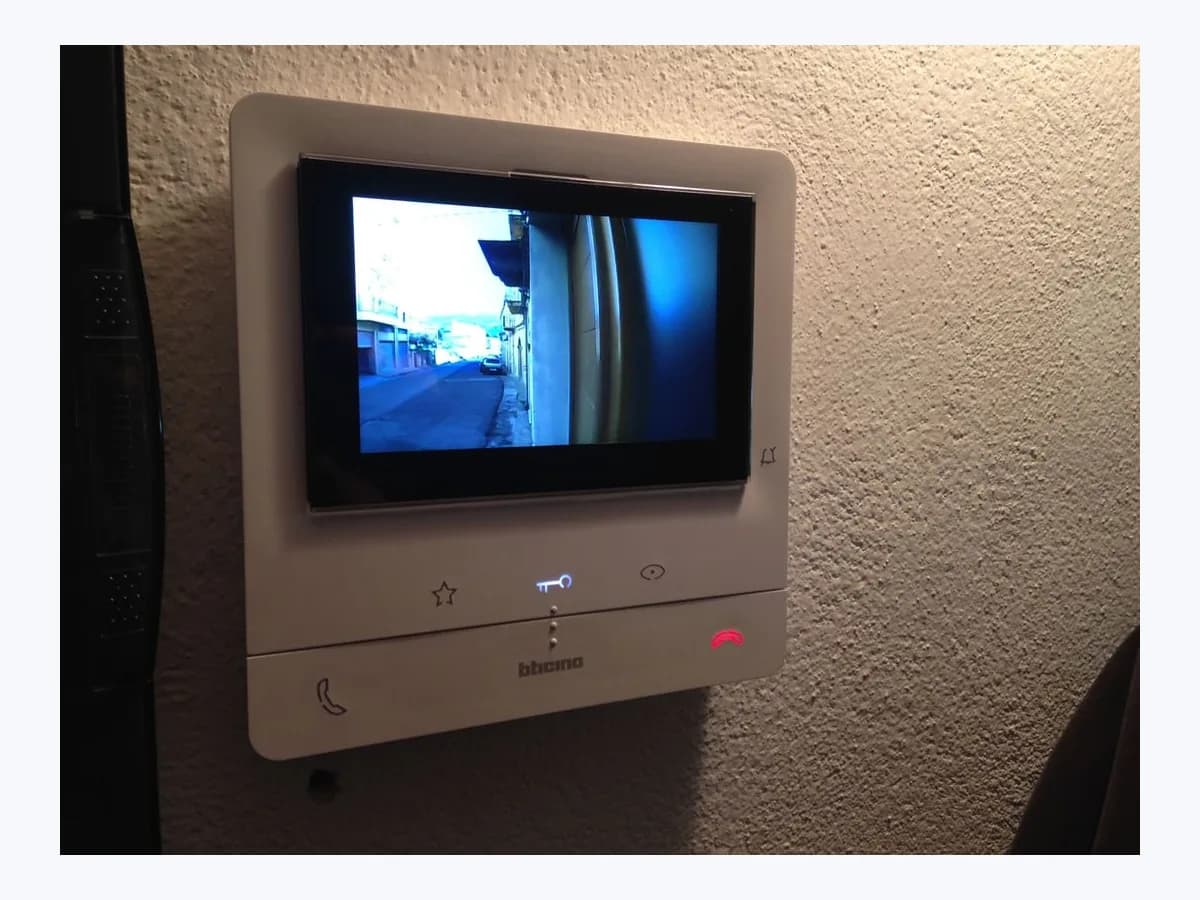
Comelit video intercom Access point mode: Wi-Fi not paired
Risk level
Low
Usually safe to check without specialist tools.
Urgency
Medium
Quick answer
On Comelit Mini Wi-Fi (6741W), Mini ViP Wi-Fi (6742W), and Maxi ViP Wi-Fi (6842W) video entry monitors, the Access point mode status means the indoor monitor is not yet connected to your home Wi-Fi network and is broadcasting its setup access point for pairing in the Comelit App.
Safety first
Stop and check this first
- Never open the Comelit indoor monitor or entrance panel wiring, and never work on the building bus or power supply unit yourself; all wiring and bus tasks belong to a qualified installer.
- When completing User registration in the Comelit App, remember that selecting the only user option deletes all previously registered users on that monitor.
Safe checks you can perform
- Connect your smartphone to home Wi-Fi and select Door Entry Monitors in the Comelit App
- Use the click here link and tap the Access point icon in the Comelit App
- Match the network name on the monitor and confirm your home Wi-Fi with the screen on
- Complete User registration in the Comelit App without unintentionally wiping existing users
Leave these tasks to a qualified professional
- Do not attempt this professional task: Inspect bus power supply stability and building-mode configuration on the Comelit monitor
- Do not attempt this professional task: Verify home Wi-Fi reception at the monitor mounting point and complete app pairing
What a technician must be able to justify
Technician visit
These are the steps they must carry out and show you. Tick them as they work: if steps are skipped, do not accept a part swap.
These are not instructions for opening or handling the equipment yourself. They are the checks that should support a technical conclusion.
Inspect bus power supply stability and building-mode configuration on the Comelit monitor
What they doCheck the building intercom bus power supply and building-mode programming on the Comelit monitor (6741W, 6742W, or 6842W) if the screen shuts off before the access point pairing wizard can complete.
They must show youthe indoor monitor staying powered on in its wireless menu and receiving a test call from the entrance panel.
In writingthe Comelit monitor article number (6741W, 6742W, or 6842W), bus supply status, and configuration parameters checked.
Verify home Wi-Fi reception at the monitor mounting point and complete app pairing
What they doTest home Wi-Fi signal quality at the wall monitor location and complete the Comelit App access point pairing flow through to User registration.
They must show youthe Comelit monitor switching from Access point mode to connected Wi-Fi and the Registration complete confirmation in the app.
In writingthe home Wi-Fi network paired with the monitor and the user registration option selected in the Comelit App.
Before accepting a part or repair
Nothing has been shown yet. Do not accept a part swap based on the code alone.
Follow these steps
Note: Follow the documented order. An error code identifies the affected system, but it does not prove by itself which part has failed.
Connect your smartphone to home Wi-Fi and select Door Entry Monitors in the Comelit App
- Who:
- You with your smartphone connected to your home Wi-Fi network in front of the Comelit monitor, without opening the casing.
- How:
- Download and sign in to the Comelit App on your smartphone while connected to home Wi-Fi, select Door Entry Monitors (or open the menu, choose Manage Devices, tap Add new, and select Door Entry Monitors if another system is configured), and switch on the monitor by pressing the menu key.
- Result that matters:
- The indoor monitor screen lights up and displays the Access point mode state.
- If the monitor screen turns on in Access point mode, proceed to the click here link at the bottom of the app screen.
- If pressing the menu key does not wake the monitor screen, do not open the housing or touch bus wiring; call an installer.
- Evidence to keep:
- Screenshot of the Comelit App device selection step and a photo of the monitor screen state.
Evidence: Pair your Video Entry Device · Asocia tu videoportero
Use the click here link and tap the Access point icon in the Comelit App
- Who:
- You in the Comelit App with the indoor monitor kept switched on.
- How:
- When tapping Search for device produces no results because the door entry monitor is in Access point mode, tap click here at the bottom of the screen, confirm the presence of a Wi-Fi door entry monitor, keep the Comelit device switched on, and tap the Access point icon.
- Result that matters:
- The Comelit App detects the temporary access point broadcast from the monitor.
- If the monitor network name appears in the app, proceed to verify that it matches the monitor screen.
- If the temporary network name does not appear, check that the monitor screen is still on and displaying Access point mode.
- Evidence to keep:
- Screenshot of the Access point step in the Comelit App showing the detected monitor network name.
Evidence: Pair your Video Entry Device · Asocia tu videoportero
Match the network name on the monitor and confirm your home Wi-Fi with the screen on
- Who:
- You with your home Wi-Fi network name and password ready.
- How:
- Make sure the network name shown in the Comelit App matches the name shown on the Comelit device, tap continue, select the home Wi-Fi network to which you want the Comelit device connected, enter the password, and verify the Comelit monitor is still switched on before confirming.
- Result that matters:
- The monitor joins your home Wi-Fi network and the wizard advances to User registration.
- If model 6741W in building mode displays a pop-up asking to switch on the monitor, wake the screen before confirming.
- If the monitor remains in Access point mode after confirming with the screen on, double-check the Wi-Fi password or request installer help.
- Evidence to keep:
- Photo of the Comelit monitor screen after transitioning from Access point mode to connected Wi-Fi.
Evidence: Pair your Video Entry Device · Comelit App - Smart Registration
Complete User registration in the Comelit App without unintentionally wiping existing users
- Who:
- You finishing the configuration wizard in the Comelit App.
- How:
- In the User registration step, choose whether you want to add yourself as a new user or register as the only user (remembering that registering as the only user deletes previously registered users) and select end to close the configuration wizard.
- Result that matters:
- Registration completes and your Comelit video entry monitor is paired with the Comelit App.
- If other household members are already registered on the monitor, choose to add yourself as a new user.
- If you intend to remove all prior users on the monitor, select the only user option and finish the wizard.
- Evidence to keep:
- Screenshot of the Registration complete screen in the Comelit App.
Evidence: Pair your Video Entry Device · Asocia tu videoportero
Still not solved
If the error persists, stop here. See what the technician must do and show you.
Where this code applies
A code is meaningful only inside the right product and version context.
Primary scope
- System
- Networks
- Brand
- Comelit
- Product type
- Video intercoms
Known code variants
- Access point mode Comelit
- Comelit Access point mode
- Door entry monitor is in Access point mode
- Modo de punto de acceso
- Modo punto de acceso
- Su Mini Wi-Fi Door Station está en modo punto de acceso
- Your Mini Wi-Fi door entry monitor is in access point mode
What it means
According to the official Comelit Group video entry pairing and Smart Registration guides for the Mini Wi-Fi (6741W), Mini ViP Wi-Fi (6742W), and Maxi ViP Wi-Fi (6842W) monitors, the Access point mode status indicates that the indoor monitor is not yet connected to any home Wi-Fi network, so tapping Search for device in the Comelit App produces no results. On the 6741W monitor in building mode with the screen switched off, functions are restricted until the screen is turned on; other Comelit door entry models may vary, and seeing Access point mode alone never proves any monitor hardware is faulty.
Warnings and stop conditions
- Mediumsource verified
Never open the Comelit indoor monitor or entrance panel wiring, and never work on the building bus or power supply unit yourself; all wiring and bus tasks belong to a qualified installer.
Evidence: Pair your Video Entry Device · Comelit App - Smart Registration
- Lowsource verified
When completing User registration in the Comelit App, remember that selecting the only user option deletes all previously registered users on that monitor.
Evidence: Pair your Video Entry Device · Asocia tu videoportero
Symptoms and causes
Probable causes · in order
- Indoor monitor has not yet been connected to the home Wi-Fi networkCommon
The Comelit door entry monitor remains in local access point mode because it has not yet received the home Wi-Fi network selection and password from the Comelit App wizard.
Evidence: Pair your Video Entry Device · Asocia tu videoportero
- Running Search for device without launching the access point connection flowPossible
Tapping Search for device in the Comelit App fails to return results while the monitor is in Access point mode until you tap the click here link at the bottom of the screen.
Evidence: Pair your Video Entry Device · Asocia tu videoportero
- Monitor screen switched off before confirming Wi-Fi credentials or in building modeLess common
If the Comelit indoor monitor screen turns off before you confirm the home Wi-Fi password, or remains off in building mode on model 6741W, the pairing wizard cannot finish.
Evidence: Pair your Video Entry Device · Comelit App - Smart Registration
Virtual technician
Does Access point mode still appear after these checks?
Answer a few questions to narrow down the likely cause and the safest next action. Guidance only - it never replaces a professional.
Sources and technical references
- 1
Comelit Group · 2026 · official_doc
- 2
Comelit Group · 2026 · official_doc
- 3
Comelit App - Smart Registration
Comelit Group · 2026 · official_doc
- 4
Comelit Group · 2026 · official_doc
- 5
Comelit Group · 2026 · official_doc
Was this entry useful?