

- Networks
- Video intercoms
Wi-Fi connection is off
Comelit intercom Wi-Fi connection is off: Wi-Fi disabled
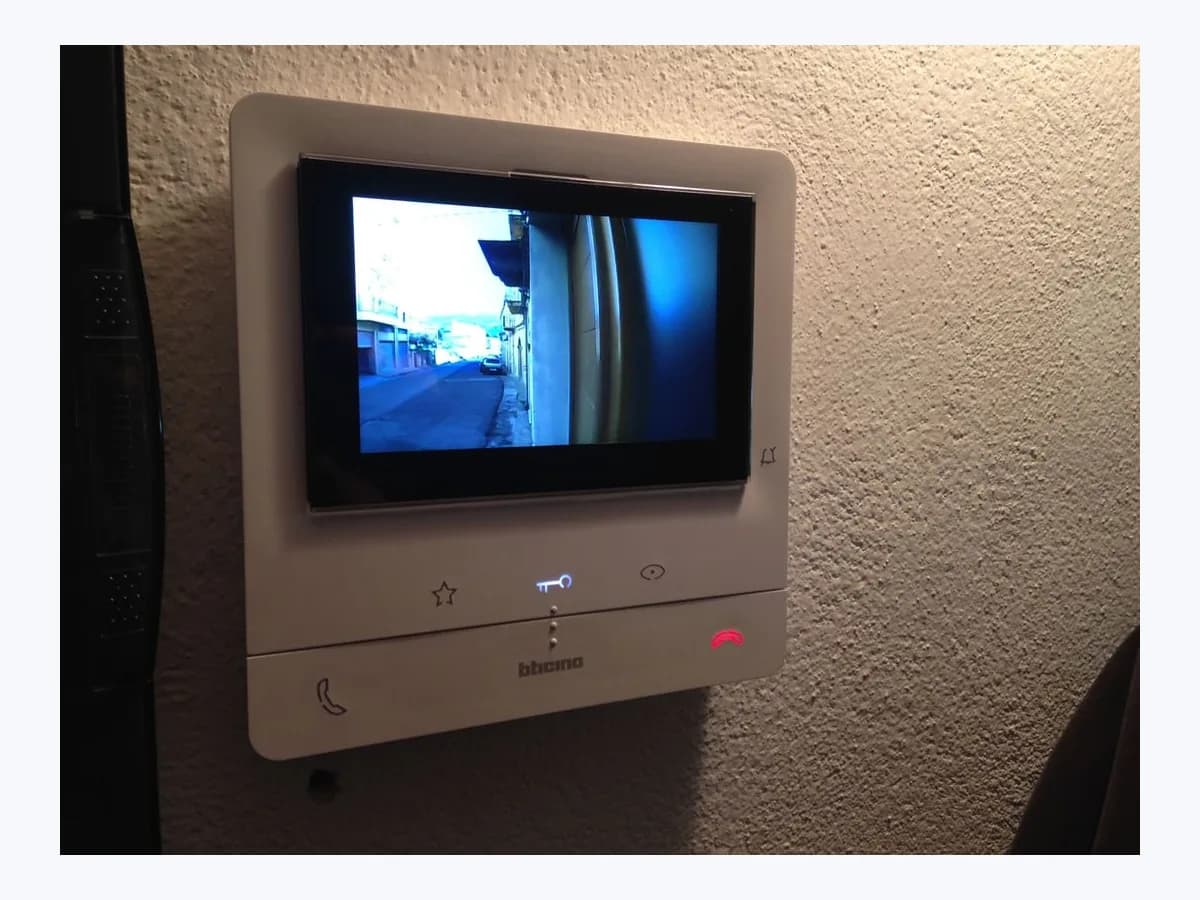
Risk level
Low
Usually safe to check without specialist tools.
Urgency
Low
Quick answer
On Comelit Mini ViP Wi-Fi (6742W), Maxi ViP Wi-Fi (6842W), and Mini Wi-Fi (6741W) video entry monitors, the Wi-Fi connection is off (or monitor does not have a connection) state indicates that monitor Wi-Fi is disabled in the Wi-Fi Setup menu or that reception is enabled without a router link.
Safety first
Stop and check this first
- Do not open the Comelit door entry monitor housing or touch building bus or power supply wiring when troubleshooting Wi-Fi; use only the on-screen Wi-Fi Setup menu.
- Never attempt to bypass door entry locks, access control credentials, or shared building intercom wiring.
Safe checks you can perform
- Wake the monitor with the menu key and check which Wi-Fi icon is shown
- Select the Wi-Fi off icon and tap Enable Wi-Fi in the Wi-Fi Setup menu
- Check the home router status if the monitor shows it does not have a connection
- Tap Search for device in the Comelit App once the monitor connects to Wi-Fi
Leave these tasks to a qualified professional
- Do not attempt this professional task: Check installer programming and Wi-Fi menu availability on the Comelit monitor
- Do not attempt this professional task: Verify router connectivity at the monitor location and complete Comelit App registration
What a technician must be able to justify
Technician visit
These are the steps they must carry out and show you. Tick them as they work: if steps are skipped, do not accept a part swap.
These are not instructions for opening or handling the equipment yourself. They are the checks that should support a technical conclusion.
Check installer programming and Wi-Fi menu availability on the Comelit monitor
What they doVerify the installer configuration on the Comelit monitor (6741W, 6742W, or 6842W) and the Simplebus or ViP system settings if the Wi-Fi off icon cannot be switched to Enable Wi-Fi.
They must show youthe Wi-Fi Setup menu active on the Comelit monitor screen with Enable Wi-Fi operating normally.
In writingthe monitor model inspected (6741W, 6742W, or 6842W) and the installer configuration settings verified.
Verify router connectivity at the monitor location and complete Comelit App registration
What they doDiagnose why the Comelit monitor continues to report no connection despite having Wi-Fi reception enabled and the home router running, then complete Comelit App registration.
They must show youthe monitor showing an active Wi-Fi connection icon and appearing when tapping Search for device in the Comelit App.
In writingthe router status verification at the monitor location and confirmation of completed device registration.
Before accepting a part or repair
Nothing has been shown yet. Do not accept a part swap based on the code alone.
Follow these steps
Note: Follow the documented order. An error code identifies the affected system, but it does not prove by itself which part has failed.
Wake the monitor with the menu key and check which Wi-Fi icon is shown
- Who:
- You in front of the Comelit indoor monitor, without opening the enclosure or touching any wiring.
- How:
- Press the menu key on your Comelit monitor to switch on the screen and compare the on-screen icon against the official pairing guide: either the Wi-Fi off icon (Wi-Fi connection is off) or the active reception icon indicating the monitor does not have a connection.
- Result that matters:
- You determine whether wireless reception is switched off in the monitor menu or whether the router connection is missing.
- If the Wi-Fi off icon is shown on the monitor screen, proceed to enable Wi-Fi in the Wi-Fi Setup menu.
- If the monitor shows reception enabled but no connection, proceed to check your home Wi-Fi router status.
- Evidence to keep:
- Clear photo of the Wi-Fi icon displayed on the Comelit monitor screen after pressing the menu key.
Evidence: Pair your Video Entry Device · Asocia tu videoportero
Select the Wi-Fi off icon and tap Enable Wi-Fi in the Wi-Fi Setup menu
- Who:
- You using the on-screen menu of the Comelit monitor (6742W or 6842W).
- How:
- When the monitor shows that its Wi-Fi connection is off, access the Wi-Fi Setup menu by selecting the Wi-Fi off icon on the screen, select Enable Wi-Fi, and then tap back to select device in the Comelit App.
- Result that matters:
- The monitor activates its wireless interface and clears the Wi-Fi off icon.
- If the monitor connects to your router or enters Access point mode, return to device selection in the Comelit App.
- If the Wi-Fi Setup menu cannot be opened or Enable Wi-Fi is locked, do not open the casing; contact your installer.
- Evidence to keep:
- Photo of the monitor Wi-Fi Setup menu showing Enable Wi-Fi selected.
Evidence: Pair your Video Entry Device · Asocia tu videoportero
Check the home router status if the monitor shows it does not have a connection
- Who:
- You checking your home Wi-Fi router and the indoor monitor screen.
- How:
- When Wi-Fi reception for the monitor is enabled but there is no connection, check your home Wi-Fi router status, wait for wireless service to come back online, and tap back to select device in the Comelit App.
- Result that matters:
- The Comelit door entry monitor reconnects to the home Wi-Fi router.
- If the monitor icon changes to connected to the Wi-Fi network, proceed to Search for device in the Comelit App.
- If the router is working normally but the monitor still lacks a connection, re-run the Wi-Fi setup from the device selection screen.
- Evidence to keep:
- Photo of the router status lights and the updated connection icon on the Comelit monitor.
Evidence: Pair your Video Entry Device · Asocia tu videoportero
Tap Search for device in the Comelit App once the monitor connects to Wi-Fi
- Who:
- You in the Comelit App with your smartphone on the same home Wi-Fi network.
- How:
- Once the monitor is connected to your home Wi-Fi network, tap Search for device in the Comelit App, select the name of your device from the detected list, and follow the on-screen User registration instructions.
- Result that matters:
- The Comelit App finds the monitor on the local network and completes pairing.
- If your monitor name appears in the detected list, select it and complete User registration.
- If enabling Wi-Fi put the monitor into Access point mode instead, use the click here link at the bottom of the screen to join your home Wi-Fi first.
- Evidence to keep:
- Screenshot of the Comelit App device list showing your detected door entry monitor.
Evidence: Pair your Video Entry Device · Asocia tu videoportero
Still not solved
If the error persists, stop here. See what the technician must do and show you.
Where this code applies
A code is meaningful only inside the right product and version context.
Primary scope
- System
- Networks
- Brand
- Comelit
- Product type
- Video intercoms
Known code variants
- Conexión Wi-Fi apagada Comelit
- La conexión de su Mini-portero Wi-Fi está ausente
- La conexión Wi-Fi está desactivada
- Monitor does not have a connection
- The Wi-Fi connection for your Mini ViP Wi-Fi door entry monitor is off
- Your Mini Wi-Fi door entry monitor does not have a connection
What it means
In the official Comelit Group Pair your Video Entry Device guide for Mini Wi-Fi (6741W), Mini ViP Wi-Fi (6742W), and Maxi ViP Wi-Fi (6842W) monitors, two distinct non-connected states are documented when pairing with the Comelit App: The Wi-Fi connection for your door entry monitor is off (requiring you to open the Wi-Fi Setup menu via the Wi-Fi off icon and select Enable Wi-Fi) and Your door entry monitor does not have a connection (meaning Wi-Fi reception is enabled on the monitor, but there is no connection to the router). Other Comelit intercom units can differ, and a Wi-Fi off or no-connection icon by itself never proves that the monitor hardware has failed.
Warnings and stop conditions
- Mediumsource verified
Do not open the Comelit door entry monitor housing or touch building bus or power supply wiring when troubleshooting Wi-Fi; use only the on-screen Wi-Fi Setup menu.
Evidence: Pair your Video Entry Device · Comelit App - Smart Registration
- Mediumsource verified
Never attempt to bypass door entry locks, access control credentials, or shared building intercom wiring.
Evidence: Pair your Video Entry Device · App Comelit - Help
Symptoms and causes
Probable causes · in order
- Wi-Fi reception is turned off in the monitor Wi-Fi Setup menuCommon
The Comelit door entry monitor shows the Wi-Fi off icon because wireless reception has been disabled on the unit and must be enabled before configuring the Comelit App.
Evidence: Pair your Video Entry Device · Asocia tu videoportero
- Monitor Wi-Fi reception is enabled but has no active link to the home routerPossible
The indoor monitor has Wi-Fi reception enabled, yet shows that it does not have a connection because the home Wi-Fi router is offline, rebooting, or out of range.
Evidence: Pair your Video Entry Device · Asocia tu videoportero
- Building-mode screen sleep restriction or installer provisioning settingLess common
On installations using building mode on the 6741W monitor or where wireless settings were restricted during commissioning, the monitor must be switched on or checked by the installer.
Evidence: Pair your Video Entry Device · Comelit App - Smart Registration
Virtual technician
Does Wi-Fi connection is off still appear after these checks?
Answer a few questions to narrow down the likely cause and the safest next action. Guidance only - it never replaces a professional.
Sources and technical references
- 1
Comelit Group · 2026 · official_doc
- 2
Comelit Group · 2026 · official_doc
- 3
Comelit App - Smart Registration
Comelit Group · 2026 · official_doc
- 4
Comelit Group · 2026 · official_doc
- 5
Comelit Group · 2026 · official_doc
Was this entry useful?