

- Networks
- Mesh Wi-Fi routers
AMARILLO-PARPADEO-RAPIDO
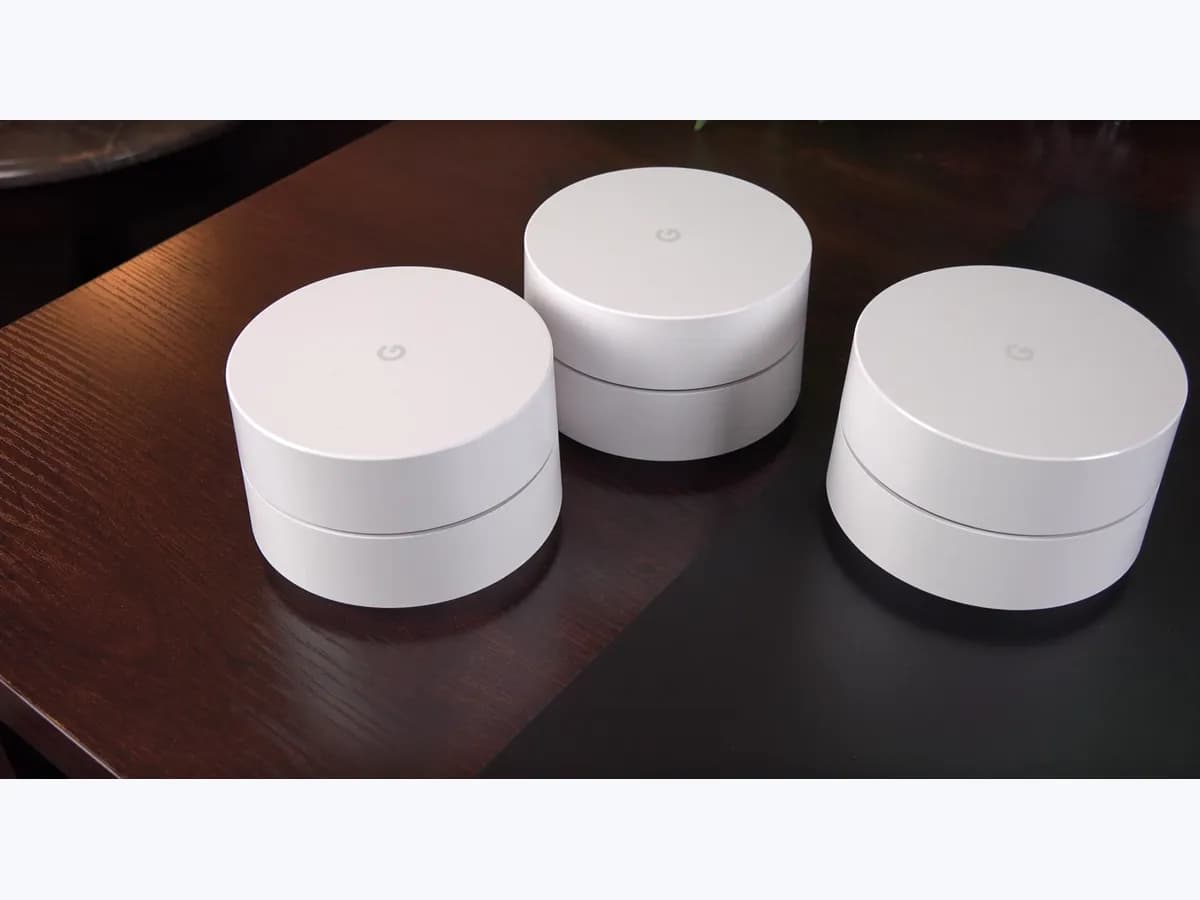
Google Nest Wifi Pro AMARILLO-PARPADEO-RAPIDO: fast yellow
Risk level
Low
Usually safe to check without specialist tools.
Urgency
Medium
Quick answer
On Google Nest Wifi Pro routers and points, a fast blinking yellow light (AMARILLO-PARPADEO-RAPIDO) indicates that the device encountered an error during setup in the Google Home app, or that the bottom factory reset button is currently being held down.
Safety first
Stop and check this first
- Do not unplug the power cable while the Nest Wifi Pro is completing a factory reset; wait until the LED finishes blinking white and returns to slow pulsing blue.
Safe checks you can perform
- Wait for slow pulsing blue and check Bluetooth and iOS Local Network permissions
- Verify the modem Ethernet cable and connect to the bottom sticker setup Wi-Fi
- Perform a 12-second factory reset if the Nest Wifi Pro was previously set up
Leave these tasks to a qualified professional
- Do not attempt this professional task: Contact Google Nest support if setup errors persist after a completed factory reset
- Do not attempt this professional task: Have your ISP verify the modem WAN handoff if setup fails during Internet verification
What a technician must be able to justify
Technician visit
These are the steps they must carry out and show you. Tick them as they work: if steps are skipped, do not accept a part swap.
These are not instructions for opening or handling the equipment yourself. They are the checks that should support a technical conclusion.
Contact Google Nest support if setup errors persist after a completed factory reset
What they doIf enabling Bluetooth and Local Network permissions, power cycling, and completing the 12-second factory reset do not resolve the fast blinking yellow setup error, contact Google Nest support.
They must show youGoogle Home app version, LED transition sequence, and steps already completed.
In writingGoogle Nest support case number and recommended resolution or replacement.
Have your ISP verify the modem WAN handoff if setup fails during Internet verification
What they doIf the fast blinking yellow error occurs specifically when the primary Nest Wifi Pro router tries to connect to the Internet through the modem, ask your ISP to verify the modem's Ethernet handoff.
They must show youModem status indicators and DHCP lease availability on the modem LAN port.
In writingISP confirmation that the modem Ethernet port is delivering an active Internet connection.
Before accepting a part or repair
Nothing has been shown yet. Do not accept a part swap based on the code alone.
Follow these steps
Note: Follow the documented order. An error code identifies the affected system, but it does not prove by itself which part has failed.
Wait for slow pulsing blue and check Bluetooth and iOS Local Network permissions
- Who:
- Person setting up the device with the Google Home app.
- How:
- Wait for the Nest Wifi Pro LED to transition from fast blinking yellow back to slow pulsing blue; close the Google Home app, and on an iPhone or iPad enable Bluetooth in Settings and turn on Settings > Privacy > Local Network for the Google Home app.
- Result that matters:
- Slow pulsing blue ready-for-setup LED and active local discovery permissions on your phone.
- If the LED is slowly pulsing blue and Bluetooth and Local Network are enabled, reopen the Google Home app and try setup again.
- If the device still does not appear in the setup list, check the Ethernet cable and manual setup Wi-Fi network.
- Evidence to keep:
- Screenshot of Bluetooth and Local Network permissions enabled for the Google Home app.
Evidence: Wifi device light meanings: Understanding LED indicators · Google Home app can't find Wifi devices
Verify the modem Ethernet cable and connect to the bottom sticker setup Wi-Fi
- Who:
- User next to the Nest Wifi Pro unit and modem.
- How:
- Confirm the Ethernet cable is connected between your powered-on modem and the Nest Wifi Pro; if the app still cannot find the device, open your phone's Wi-Fi settings, join the Wi-Fi network matching the bottom sticker using the setup code on the bottom as the password, and return to the app.
- Result that matters:
- Direct local association with the Nest Wifi Pro setup broadcast.
- If the Google Home app detects the unit after joining the bottom sticker Wi-Fi network, follow the prompts to finish setup.
- If setup fails again because the unit was configured previously, perform a full hardware factory reset.
- Evidence to keep:
- Photo of the powered-on modem Ethernet connection and slow pulsing blue LED.
Evidence: Google Home app can't find Wifi devices
Perform a 12-second factory reset if the Nest Wifi Pro was previously set up
- Who:
- Device owner performing a hardware reset.
- How:
- Press and hold the etched factory reset button circle on the bottom of the Nest Wifi Pro for 12 seconds: the light will blink yellow and then turn solid yellow; release the button and wait 5 to 10 minutes without unplugging power until the light pulses blue slowly.
- Result that matters:
- Complete factory reset followed by a slow pulsing blue ready-for-setup indicator.
- If the LED finishes blinking white and pulses blue slowly, start setup again in the Google Home app.
- If the unit still errors out with fast blinking yellow after a completed reset, contact Google Nest support.
- Evidence to keep:
- Confirmation that the LED turned solid yellow at 12 seconds and returned to slow pulsing blue.
Evidence: Wifi device light meanings: Understanding LED indicators · Factory reset your Wifi device · Google Home app can't find Wifi devices
Still not solved
If the error persists, stop here. See what the technician must do and show you.
Where this code applies
A code is meaningful only inside the right product and version context.
Primary scope
- System
- Networks
- Brand
- Google Nest
- Product type
- Mesh Wi-Fi routers
Known code variants
- Amarillo que parpadea rápidamente Nest Wifi Pro
- Error de configuración Nest Wifi Pro
- Fast blinking yellow Nest Wifi Pro
- Google Nest Wifi Pro fast blinking yellow light
- Luz amarilla parpadeo rápido Google Nest Wifi Pro
What it means
In Google's official Wifi device light meanings table (Nest Wifi Pro section, Fast blinking yellow) and troubleshooting guide for when the Google Home app cannot find Wifi devices, a fast blinking yellow LED means either a setup error occurred during pairing or you are pressing the reset button on the bottom of the unit (which turns solid yellow after 12 seconds). Earlier Nest Wifi and Google Wifi generations use different LED colors for errors, and this light alone never proves a faulty hardware component.
Warnings and stop conditions
- Mediumeditorial warning
Do not unplug the power cable while the Nest Wifi Pro is completing a factory reset; wait until the LED finishes blinking white and returns to slow pulsing blue.
Evidence: Factory reset your Wifi device
Symptoms and causes
Probable causes · in order
- Setup error or interrupted pairing session in the Google Home appCommon
Initial setup in the Google Home app failed due to disabled Bluetooth or iOS Local Network permissions on the phone, or a temporary local connection drop.
Evidence: Wifi device light meanings: Understanding LED indicators · Google Home app can't find Wifi devices
- Reset button on the bottom of the Nest Wifi Pro is being pressedPossible
Holding down the recessed reset button on the underside of the Nest Wifi Pro causes the LED to blink yellow rapidly before turning solid yellow at 12 seconds.
Evidence: Wifi device light meanings: Understanding LED indicators · Factory reset your Wifi device
- Device retains previous setup data and requires a full factory resetPossible
If the Nest Wifi Pro router or point was set up previously, it may fail new setup attempts until a complete factory reset finishes.
Evidence: Factory reset your Wifi device · Google Home app can't find Wifi devices
Virtual technician
Does AMARILLO-PARPADEO-RAPIDO still appear after these checks?
Answer a few questions to narrow down the likely cause and the safest next action. Guidance only - it never replaces a professional.
Sources and technical references
- 1
Wifi device light meanings: Understanding LED indicators
Google · 2026 · official_doc
- 2
Significado de las luces del dispositivo Wifi: información sobre los indicadores LED
Google · 2026 · official_doc
- 3
Factory reset your Wifi device
Google · 2026 · official_doc
- 4
Google Home app can't find Wifi devices
Google · 2026 · official_doc
- 5
La aplicación Google Home no puede encontrar dispositivos Wifi
Google · 2026 · official_doc
- 6
Restablecer el estado de fábrica de un dispositivo Wifi
Google · 2026 · official_doc
Was this entry useful?