

- Networks
- Mesh Wi-Fi routers
LUZ-AMARILLA-PULSANTE
Google Nest LUZ-AMARILLA-PULSANTE on mesh router: network error
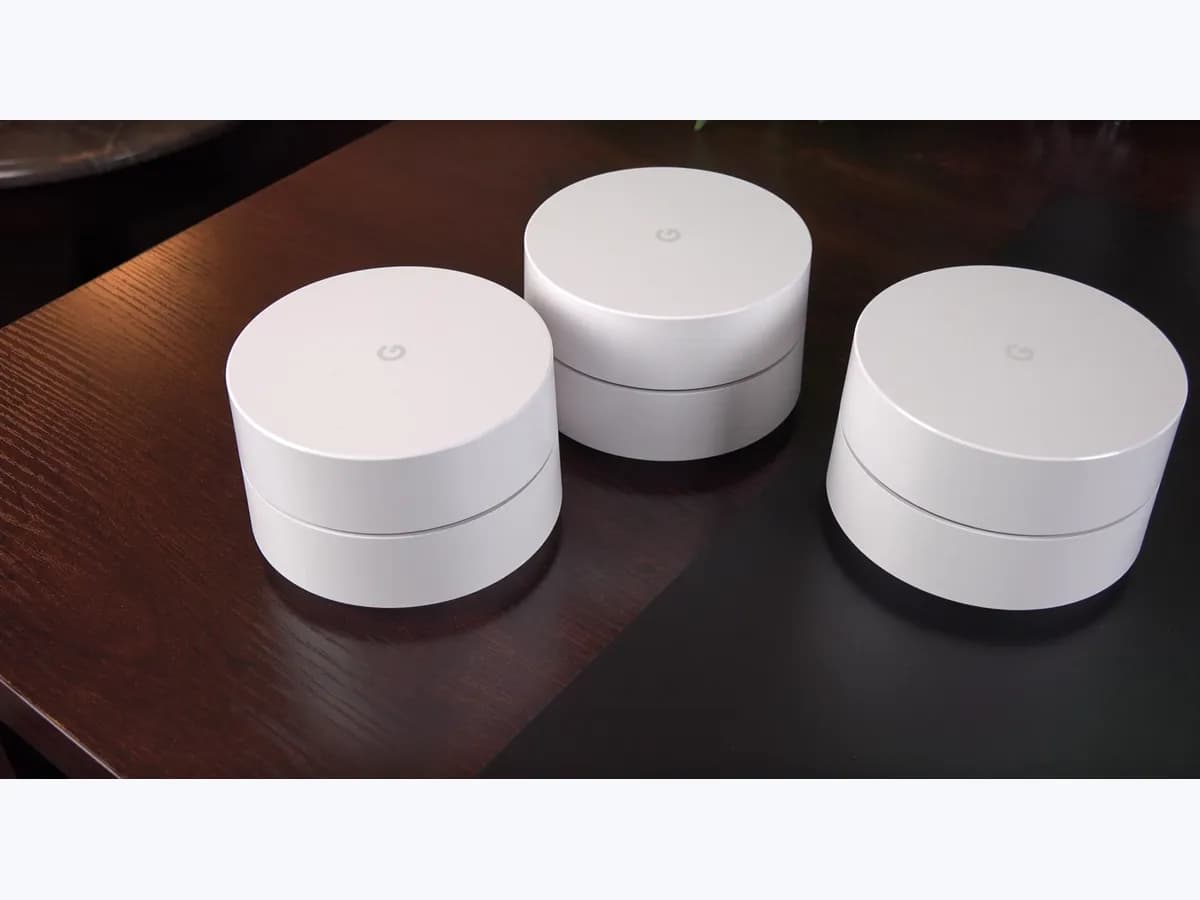
Risk level
Low
Usually safe to check without specialist tools.
Urgency
Medium
Quick answer
On Nest Wifi, Nest Wifi Pro and Google Wifi, a pulsing yellow or orange light means a network error or no Internet. Start by checking that the modem Ethernet cable clicks into the WAN port, then restart the modem and Wifi devices in order.
Safety first
Stop and check this first
- A factory reset erases all settings and data on the device, interrupts Internet for several minutes and means setting it up again in the Google Home app.
- In the WAN settings enter only the PPPoE or static IP details your provider gave you; never try someone else's credentials.
Safe checks you can perform
- Cable to the WAN port and modem powered
- Ordered restart: modem, router, then points
- WAN settings only with provider data
- Ask your provider about outages
Leave these tasks to a qualified professional
- Do not attempt this professional task: Line check with your provider
- Do not attempt this professional task: Open a case with Google Nest support
What a technician must be able to justify
Technician visit
These are the steps they must carry out and show you. Tick them as they work: if steps are skipped, do not accept a part swap.
These are not instructions for opening or handling the equipment yourself. They are the checks that should support a technical conclusion.
Line check with your provider
What they doIf the modem gives no Internet even to a device plugged straight into it, your provider checks the line, the modem and the login details the router needs.
They must show youthe line and modem status in their diagnosis.
In writingthe ticket number, the cause found and whether any connection details changed.
Open a case with Google Nest support
What they doIf the line is confirmed and the device still has no Internet after a factory reset, Google support reviews the router or point with you.
They must show youthe steps already tried and the result of each.
In writingthe case number, the diagnosis and whether the unit should be replaced.
Before accepting a part or repair
Nothing has been shown yet. Do not accept a part swap based on the code alone.
Follow these steps
Note: Follow the documented order. An error code identifies the affected system, but it does not prove by itself which part has failed.
Cable to the WAN port and modem powered
- Who:
- you.
- How:
- follow the Ethernet cable from the modem to the WAN port of the router or primary point, pull it out and push it back until the tab clicks, and check the modem lights are on.
- Result that matters:
- ruling out a loose physical connection before restarting anything.
- If the cable was loose:
- once reseated, the light should return to solid white within a minute or two.
- If the cable was fine and the modem is on:
- do the ordered restart.
- Evidence to keep:
- photo of the modem lights and the cable in the WAN port.
Evidence: Wifi device light meanings: Understanding LED indicators · Nest Wifi Pro, Nest Wifi, or Google Wifi network not working
Ordered restart: modem, router, then points
- Who:
- you.
- How:
- unplug the modem and every Wifi device until their lights go out, plug in only the modem and wait about 2 minutes, then the router or primary point and wait one minute, and finally the remaining points.
- Result that matters:
- the primary router getting Internet back and no longer pulsing yellow or orange.
- If it returns to solid white:
- close and reopen the Google Home app and run a mesh test.
- If it keeps pulsing yellow or orange:
- check the WAN settings and ask your provider.
- Evidence to keep:
- time of the restart and the light colour at the end.
Evidence: Wifi device light meanings: Understanding LED indicators · Nest Wifi Pro, Nest Wifi, or Google Wifi network not working
WAN settings only with provider data
- Who:
- you, in the Google Home app.
- How:
- if your fibre or DSL service uses PPPoE or a static IP, confirm the WAN settings hold exactly the details your provider gave you; if you do not have them, ask the provider.
- Result that matters:
- confirming the router identifies itself to the provider network as expected.
- If they were missing or wrong:
- correct them with the official details and wait for the light to change.
- If they are correct:
- call the provider to check the service.
- Evidence to keep:
- screenshot of the WAN settings screen (password hidden).
Evidence: Nest Wifi Pro, Nest Wifi, or Google Wifi network not working
Ask your provider about outages
- Who:
- you.
- How:
- call your Internet provider or check its service status page and ask whether there is an outage in your area or whether anything changed on your line or their network.
- Result that matters:
- knowing whether the fault is outside your home.
- If there is an outage or change:
- wait for the fix and repeat the ordered restart.
- If nothing is reported:
- consider the factory reset Google suggests.
- Evidence to keep:
- ticket number and what they told you.
Evidence: Nest Wifi Pro, Nest Wifi, or Google Wifi network not working
Still not solved
If the error persists, stop here. See what the technician must do and show you.
Where this code applies
A code is meaningful only inside the right product and version context.
Primary scope
- System
- Networks
- Brand
- Google Nest
- Product type
- Mesh Wi-Fi routers
Known code variants
- Google Wifi luz naranja parpadea
- Google Wifi naranja sin internet
- Google Wifi orange light no internet
- Google Wifi pulsing orange
- Nest Wifi error de red luz amarilla
- Nest Wifi luz amarilla que late
- Nest Wifi network error yellow light
- Nest Wifi Pro amarillo parpadea lentamente
- Nest Wifi Pro slow blinking yellow
- Nest Wifi pulsing yellow light
What it means
Google describes slow blinking yellow on Nest Wifi Pro as a network error or lost WAN connectivity; on the Nest Wifi router and Nest Wifi point, pulsing yellow is a network error, and on a Google Wifi point pulsing orange means it has no Internet connection. In each case the primary device is not getting Internet from the modem through its WAN port. The light alone never proves the router or point is faulty.
Warnings and stop conditions
- Mediumsource verified
A factory reset erases all settings and data on the device, interrupts Internet for several minutes and means setting it up again in the Google Home app.
Evidence: Factory reset your Wifi device
- Lowsource verified
In the WAN settings enter only the PPPoE or static IP details your provider gave you; never try someone else's credentials.
Evidence: Nest Wifi Pro, Nest Wifi, or Google Wifi network not working
Symptoms and causes
Probable causes · in order
- Loose Ethernet cable between modem and routerCommon
Google asks you to confirm the Ethernet cable from the modem is securely in the WAN port of the router or primary point, with the tab clicking in.
Evidence: Wifi device light meanings: Understanding LED indicators · Nest Wifi Pro, Nest Wifi, or Google Wifi network not working
- Modem off or not on the provider's lineCommon
Google says to check that the modem is powered on and connected to your Internet provider's line before blaming the Wifi device.
Evidence: Nest Wifi Pro, Nest Wifi, or Google Wifi network not working
- Outage or change on the provider sidePossible
The official steps include asking your provider about local outages, setting changes or changes to their network.
Evidence: Nest Wifi Pro, Nest Wifi, or Google Wifi network not working
- Provider requires PPPoE or a static IPPossible
Google notes that some fibre or DSL services need PPPoE details or a static IP in the WAN settings, which only your provider can give you.
Evidence: Nest Wifi Pro, Nest Wifi, or Google Wifi network not working
Virtual technician
Does LUZ-AMARILLA-PULSANTE still appear after these checks?
Answer a few questions to narrow down the likely cause and the safest next action. Guidance only - it never replaces a professional.
Sources and technical references
- 1
Wifi device light meanings: Understanding LED indicators
Google · 2026 · official_doc
- 2
Significado de las luces del dispositivo Wifi: información sobre los indicadores LED
Google · 2026 · official_doc
- 3
Nest Wifi Pro, Nest Wifi, or Google Wifi network not working
Google · 2026 · official_doc
- 4
Factory reset your Wifi device
Google · 2026 · official_doc
Was this entry useful?