
- Networks
- Smart speakers
Auth check failure on device(s)
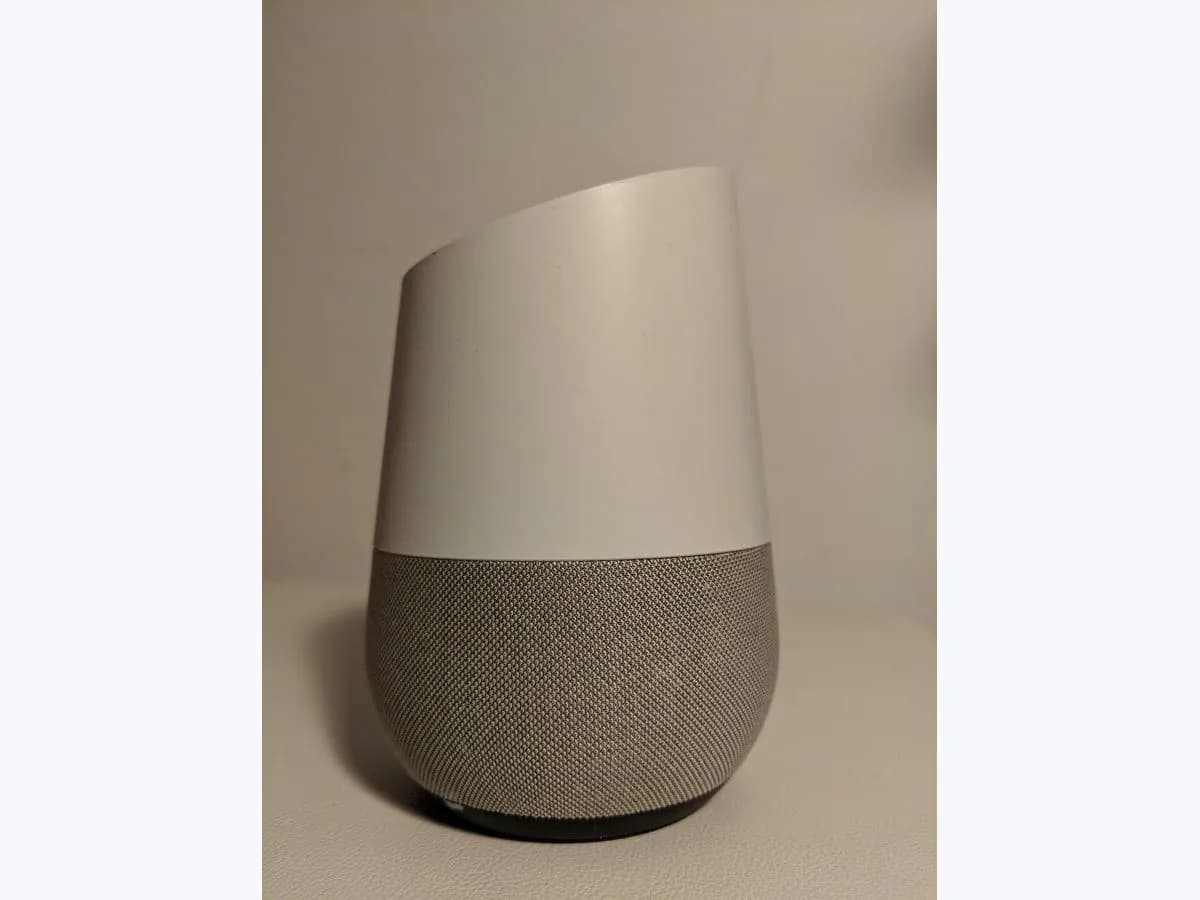
Google Nest Auth check failure on speaker: not a home member
Risk level
Low
Usually safe to check without specialist tools.
Urgency
Low
Quick answer
Getting 'Auth check failure on device(s)' when adding a shared Google Assistant speaker or display means you are not a member of the home it is linked to in the Google Home app. Ask a home member to invite you (up to 6 members) or factory reset the device if it belonged to a previous owner.
Safety first
Stop and check this first
- You cannot invite a child with a Family Link-managed account directly to a home; a parent in the child's Google Family Group must first join the home linked to the device and then add the child's account to the speaker or Smart Display.
Safe checks you can perform
- Verify which Google Account is active in the Google Home app
- Have a home member invite you and accept from your Inbox
- Factory reset the speaker or display if it had a previous owner
Leave these tasks to a qualified professional
- Do not attempt this professional task: Contact Google Nest support if the Auth check failure message persists
- Do not attempt this professional task: Contact Google Nest support if the already linked to a user error remains after reset
What a technician must be able to justify
Technician visit
These are the steps they must carry out and show you. Tick them as they work: if steps are skipped, do not accept a part swap.
These are not instructions for opening or handling the equipment yourself. They are the checks that should support a technical conclusion.
Contact Google Nest support if the Auth check failure message persists
What they doIf the 'Auth check failure on device(s)' message continues in the Google Home app after accepting the home member invitation (within the 6-member limit) and checking linked accounts, contact Google Nest support.
They must show youthe on-screen error message, the home invitation and account check steps already performed, and the device model.
In writingyour Google Nest case number, the diagnosis of the home invitation state, and the next step from support.
Contact Google Nest support if the already linked to a user error remains after reset
What they doWhen the app still displays 'This device is already linked to a user. Factory reset the device to change configuration.' after you complete a hardware factory reset on the speaker or display, contact Google Nest support.
They must show youthe 'already linked to a user' message seen, the factory reset steps already completed, and the device model.
In writingthe support case reference, the diagnosis, and the next step quoted by Google support.
Before accepting a part or repair
Nothing has been shown yet. Do not accept a part swap based on the code alone.
Follow these steps
Note: Follow the documented order. An error code identifies the affected system, but it does not prove by itself which part has failed.
Verify which Google Account is active in the Google Home app
- Who:
- you, on your phone or tablet.
- How:
- open the Google Home app, tap your profile picture or initial at the top right, and check that the Google Account shown is a personal account (not a Google Workspace account) and matches the account you intend to link.
- Result that matters:
- ruling out an account mismatch or an unsupported Google Workspace sign-in.
- If the wrong account was selected:
- switch accounts from the drop-down and check whether the device is already in your home.
- If your personal account is selected and the device belongs to a household member's home:
- ask them for a home invitation.
- Evidence to keep:
- a screenshot of the active account in the Google Home app and the error message.
Evidence: Fix an "Auth check failure on device(s)" error · Check which Google Account is linked to a speaker or display
Have a home member invite you and accept from your Inbox
- Who:
- you and a current member of the home in the Google Home app.
- How:
- the home member opens Google Home, selects the home, taps Settings, Add and Home member, and sends an invite to your email (or accepts your existing request instead of sending a new one, up to 6 members); you then tap Favorites, Inbox, select the pending invitation, and tap Next and Agree.
- Result that matters:
- joining the home linked to the device so the Home app can finish Google Assistant setup the next time you connect to the home's Wi-Fi.
- If you accept the invite and open the Home app on the home's Wi-Fi:
- you are added to the shared devices on that Wi-Fi.
- If you are linking a child's Family Link account:
- join the home yourself first as a parent in the child's Google Family Group, then add the child's account to the speaker or Smart Display.
- Evidence to keep:
- the accepted invitation in Inbox and the home member list (up to 6 members).
Evidence: Fix an "Auth check failure on device(s)" error
Factory reset the speaker or display if it had a previous owner
- Who:
- you, standing beside the previously used speaker or display.
- How:
- if the device was used before by someone outside your household or shows 'This device is already linked to a user. Factory reset the device to change configuration', perform a hardware factory reset (5 plus 10 seconds on Nest Audio, Nest Mini and Home Mini; 12 seconds on Home Max; 15 seconds on Google Home; 10 seconds holding both volume buttons on Nest Hub and Hub Max).
- Result that matters:
- clearing all personal data from the previous owner so you can set up the device fresh.
- If the device finishes resetting:
- set it up again with your Google Account in the Google Home app.
- If the error continues even after joining the home or completing a factory reset:
- contact Google support.
- Evidence to keep:
- confirmation that the factory reset completed and the setup screen reached.
Evidence: Factory reset your Google smart speaker or display · Error message: This device is already linked to a user
Still not solved
If the error persists, stop here. See what the technician must do and show you.
Where this code applies
A code is meaningful only inside the right product and version context.
Primary scope
- System
- Networks
- Brand
- Google Nest
- Product type
- Smart speakers
Known code variants
- Auth check failure Google Home
- Cómo corregir un error de comprobación de autenticación en dispositivos
- Error de comprobación de autenticación en dispositivos
- Este dispositivo ya está vinculado a un usuario
- Factory reset the device to change configuration
- Fix an Auth check failure on device(s) error
- Google Home Auth check failure on devices
- Nest speaker already linked to a user
- Restablece el estado de fábrica del dispositivo para cambiar la configuración
- This device is already linked to a user
What it means
According to Google's official help article, seeing an 'Auth check failure on device(s)' error when trying to add a shared Google Assistant-enabled speaker or Smart Display means you are not a member of the home that the device is linked to in the Google Home app. If the speaker or display was used before by someone else and your account is not linked to it, setup or Wi-Fi changes can also trigger 'This device is already linked to a user. Factory reset the device to change configuration.' Neither message indicates a hardware defect.
Warnings and stop conditions
- Lowsource verified
You cannot invite a child with a Family Link-managed account directly to a home; a parent in the child's Google Family Group must first join the home linked to the device and then add the child's account to the speaker or Smart Display.
Evidence: Fix an "Auth check failure on device(s)" error
Symptoms and causes
Probable causes · in order
- Your Google Account is not a member of the linked homeCommon
Google explains that 'Auth check failure on device(s)' appears when you try to add a shared Google Assistant-enabled device without being a member of the home it belongs to in the Google Home app.
Evidence: Fix an "Auth check failure on device(s)" error
- Google Workspace account, Family Link child account or 6-member limitPossible
Google notes that you cannot join a home using these steps with a Google Workspace account, that a home and a Google Family Group can each have up to 6 members, and that a child's Family Link account cannot be invited directly to a home.
Evidence: Fix an "Auth check failure on device(s)" error
- Device still linked to a previous owner's accountPossible
If the speaker or display was owned by someone else before, Google protects their personal data and requires a hardware factory reset before a new user can set it up or change Wi-Fi settings.
Evidence: Factory reset your Google smart speaker or display · Error message: This device is already linked to a user
Virtual technician
Does Auth check failure on device(s) still appear after these checks?
Answer a few questions to narrow down the likely cause and the safest next action. Guidance only - it never replaces a professional.
Sources and technical references
- 1
Factory reset your Google smart speaker or display
Google · 2026 · official_doc
- 2
Restablecer el estado de fábrica de un altavoz o una pantalla inteligente de Google
Google · 2026 · official_doc
- 3
Fix an "Auth check failure on device(s)" error
Google · 2026 · official_doc
- 4
Cómo corregir un error de comprobación de autenticación en dispositivos
Google · 2026 · official_doc
- 5
Error message: This device is already linked to a user
Google · 2026 · official_doc
- 6
Mensaje de error: este dispositivo ya está vinculado a un usuario
Google · 2026 · official_doc
- 7
Check which Google Account is linked to a speaker or display
Google · 2026 · official_doc
- 8
Comprobar qué cuenta de Google está vinculada a un altavoz o a una pantalla
Google · 2026 · official_doc
Was this entry useful?