
- Networks
- Smart speakers
CUATRO-LUCES-NARANJAS
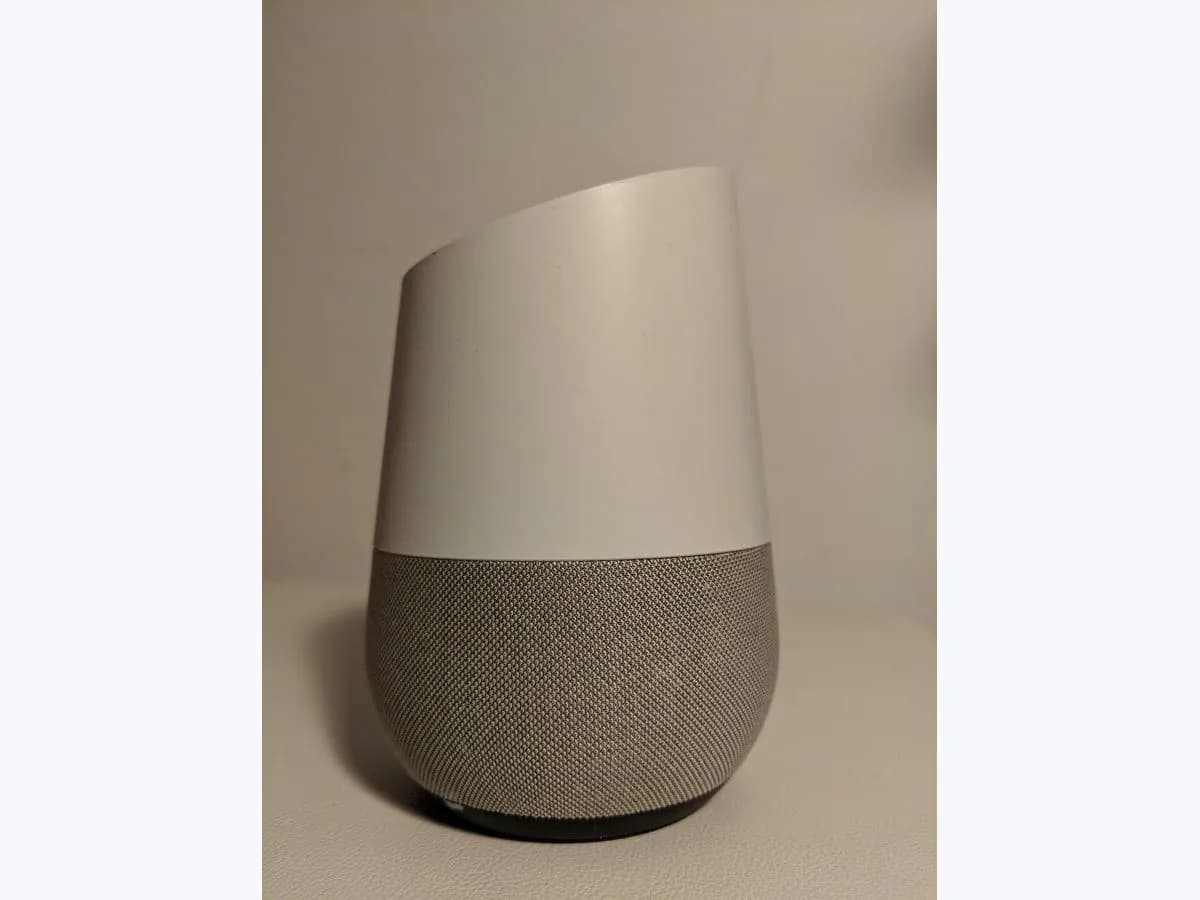
Google Nest 4 solid orange lights on speaker: microphone muted
Risk level
Low
Usually safe to check without specialist tools.
Urgency
Low
Quick answer
Four solid orange lights on a Nest Audio, Nest Mini, Home Mini, Home Max or Google Home mean the microphone is turned off and your voice assistant cannot detect 'Hey Google'. Flip the physical microphone switch or button back on, and reboot the device if it still does not answer.
Safety first
Stop and check this first
- On the Google Home Speaker, you can turn off the orange mic off light in the Google Home app under Settings and Lights when the mic switch shows orange, but you must still slide the physical switch on the speaker to unmute the microphone.
Safe checks you can perform
- Count the orange lights and check whether they stay solid
- Turn the physical microphone switch or button back on
- Reboot the device and watch the LED dots when speaking
- Adjust hotword sensitivity and enable device reports
Leave these tasks to a qualified professional
- Do not attempt this professional task: Contact Google support or the device manufacturer about the physical mic switch
- Do not attempt this professional task: Crash report submission and Google Nest support escalation
What a technician must be able to justify
Technician visit
These are the steps they must carry out and show you. Tick them as they work: if steps are skipped, do not accept a part swap.
These are not instructions for opening or handling the equipment yourself. They are the checks that should support a technical conclusion.
Contact Google support or the device manufacturer about the physical mic switch
What they doWhen sliding the physical microphone switch or pressing the rear mute button does not clear the orange light or unmute the microphone, contact Google Nest support (or reach out to the device manufacturer for other speakers that work with 'Hey Google').
They must show youthe physical switch position, the orange light shown on the unit, and the device model.
In writingthe support case reference, the diagnosis of the switch state, and the next step quoted by support.
Crash report submission and Google Nest support escalation
What they doIf the physical microphone switch is turned on but the 4 solid orange lights stay on or the speaker still does not respond to 'Hey Google' after rebooting, turn on usage and crash reports under Recognition & sharing, submit a feedback report in the Google Home app with email updates enabled, and contact Google Nest support.
They must show youthe device model, the 4 solid orange lights or orange light ring seen, and the steps already performed.
In writingthe support case number, the diagnosis, and any quoted next step from Google support.
Before accepting a part or repair
Nothing has been shown yet. Do not accept a part swap based on the code alone.
Follow these steps
Note: Follow the documented order. An error code identifies the affected system, but it does not prove by itself which part has failed.
Count the orange lights and check whether they stay solid
- Who:
- you, looking at the top or front of the speaker before pressing anything.
- How:
- check whether you see 4 solid orange lights (or the orange ring on Google Home Speaker), an orange lights countdown confirming a factory reset, or 6 solid orange lights on an original Google Home.
- Result that matters:
- separating the normal microphone-muted state from a factory reset countdown or a stuck software update.
- If you see 4 solid orange lights or the orange mic ring:
- move on to flipping the physical microphone control.
- If you see 6 solid orange lights on an original Google Home:
- an update is taking longer than expected.
- Evidence to keep:
- a photo of the lit LEDs and the exact model name of your device.
Evidence: Learn about the lights on your speaker
Turn the physical microphone switch or button back on
- Who:
- you, with physical access to the Google speaker or display.
- How:
- slide the mic switch next to the power cord on Nest Audio or Google Home Speaker (2026), on the side of Nest Mini (2nd gen) and Home Mini (1st gen), on the back of Home Max and Nest displays, or press the rear mute button on Google Home.
- Result that matters:
- turning the microphone back on so the voice assistant announces whether the mic is muted and clears the orange LEDs.
- If the orange lights turn off and the assistant answers 'Hey Google':
- the physical mute switch was the only cause.
- If the microphone is on but the assistant still gives no answer:
- continue with a power reboot.
- Evidence to keep:
- the switch position and the spoken confirmation from the speaker when toggled.
Evidence: Learn about the lights on your speaker · Fix issues with "Hey Google" on a Google smart speaker or display · Google Nest Hub Max LED light and camera states
Reboot the device and watch the LED dots when speaking
- Who:
- you, next to the wall outlet powering the speaker or display.
- How:
- disconnect the power cable from the power source, reconnect it to a wall outlet, and say 'Hey Google' while checking whether the top LED dots spin or blink (or 4 colored dots show at the top corner of a Nest display).
- Result that matters:
- verifying whether the device recognizes the hotword after a clean power cycle.
- If the LEDs trigger when you say 'Hey Google':
- ask a question and say 'Hey Google, repeat the question' to confirm it heard you.
- If the LEDs do not spin or blink when you speak:
- check hotword sensitivity in the Google Home app.
- Evidence to keep:
- how the top LED dots or screen dots reacted when you said the hotword.
Evidence: Plug in your Google smart speaker or display · Fix issues with "Hey Google" on a Google smart speaker or display
Adjust hotword sensitivity and enable device reports
- Who:
- you, in the Google Home app on the same Wi-Fi network and Google Account.
- How:
- adjust how sensitive your voice assistant is to 'Hey Google' and, if it still fails, open Home, All devices, touch and hold your device tile, open Settings, Recognition & sharing and turn on Send device usage and crash reports to Google.
- Result that matters:
- preparing diagnostic logs so you can submit a feedback report from your profile menu if 'Hey Google' still fails.
- If raising sensitivity restores normal voice activation:
- keep the new setting.
- If it still cannot detect 'Hey Google' with the mic switch on:
- send feedback in the app and contact Google Nest support.
- Evidence to keep:
- a screenshot of Recognition & sharing and the time you submitted feedback.
Evidence: Fix issues with "Hey Google" on a Google smart speaker or display
Still not solved
If the error persists, stop here. See what the technician must do and show you.
Where this code applies
A code is meaningful only inside the right product and version context.
Primary scope
- System
- Networks
- Brand
- Google Nest
- Product type
- Smart speakers
Known code variants
- 4 solid orange lights
- Aro de luz naranja fijo Google Home
- Cuatro luces fijas de color naranja
- Google Home Mini 4 luces naranjas fijas
- Google Home Mini 4 solid orange lights
- Luz naranja micrófono desactivado Nest
- Nest Audio 4 luces naranjas
- Nest Audio four orange lights
- Nest Mini 4 orange lights
- Nest Mini cuatro luces naranjas
- Nest speaker orange light mic off
- Pulsing orange light Google Home Speaker
What it means
On Google's official speaker lights page for Nest Audio, Nest Mini (2nd gen), Google Home Mini (1st gen), Google Home Max and Google Home, 4 solid orange lights mean the microphone is off so Google Assistant or Gemini for Home voice assistant cannot detect 'Hey Google' or respond. On the Google Home Speaker an orange light ring shows the same state, and on Nest Hub Max an orange LED next to the camera means the rear hardware switch has disabled both the camera and microphone. On the original Google Home, 6 solid orange lights instead flag a slow update. This light alone never proves a hardware fault.
Warnings and stop conditions
- Lowsource verified
On the Google Home Speaker, you can turn off the orange mic off light in the Google Home app under Settings and Lights when the mic switch shows orange, but you must still slide the physical switch on the speaker to unmute the microphone.
Evidence: Learn about the lights on your speaker
Symptoms and causes
Probable causes · in order
- Physical microphone switch or mute button turned offCommon
Google explains that 4 solid orange lights or an orange ring appear whenever the physical mic switch (or the rear mute button on the original Google Home) is turned off, stopping 'Hey Google' detection.
Evidence: Learn about the lights on your speaker · Fix issues with "Hey Google" on a Google smart speaker or display
- Rear hardware switch toggled off on Nest Hub MaxPossible
On a Nest Hub Max display, an orange indicator light beside the camera means the back switch has disabled both the camera and microphone, turning off voice commands, Face Match and Quick Gestures.
Evidence: Fix issues with "Hey Google" on a Google smart speaker or display · Google Nest Hub Max LED light and camera states
- Hotword recognition stall after unmutingPossible
If you turn the microphone back on and the orange lights go out but the voice assistant still ignores 'Hey Google', Google points to a temporary software stall or low hotword sensitivity.
Evidence: Fix issues with "Hey Google" on a Google smart speaker or display
Virtual technician
Does CUATRO-LUCES-NARANJAS still appear after these checks?
Answer a few questions to narrow down the likely cause and the safest next action. Guidance only - it never replaces a professional.
Sources and technical references
- 1
Learn about the lights on your speaker
Google · 2026 · official_doc
- 2
Información sobre las luces de tu altavoz
Google · 2026 · official_doc
- 3
Plug in your Google smart speaker or display
Google · 2026 · official_doc
- 4
Conectar tu altavoz o pantalla inteligente de Google
Google · 2026 · official_doc
- 5
Fix issues with "Hey Google" on a Google smart speaker or display
Google · 2026 · official_doc
- 6
Solucionar problemas con "Hey Google" en un altavoz o una pantalla inteligente de Google
Google · 2026 · official_doc
- 7
Google Nest Hub Max LED light and camera states
Google · 2026 · official_doc
- 8
Estados de la luz LED y la cámara de Google Nest Hub Max
Google · 2026 · official_doc
Was this entry useful?