
- Networks
- Video intercoms
Wi-Fi LED flashes red
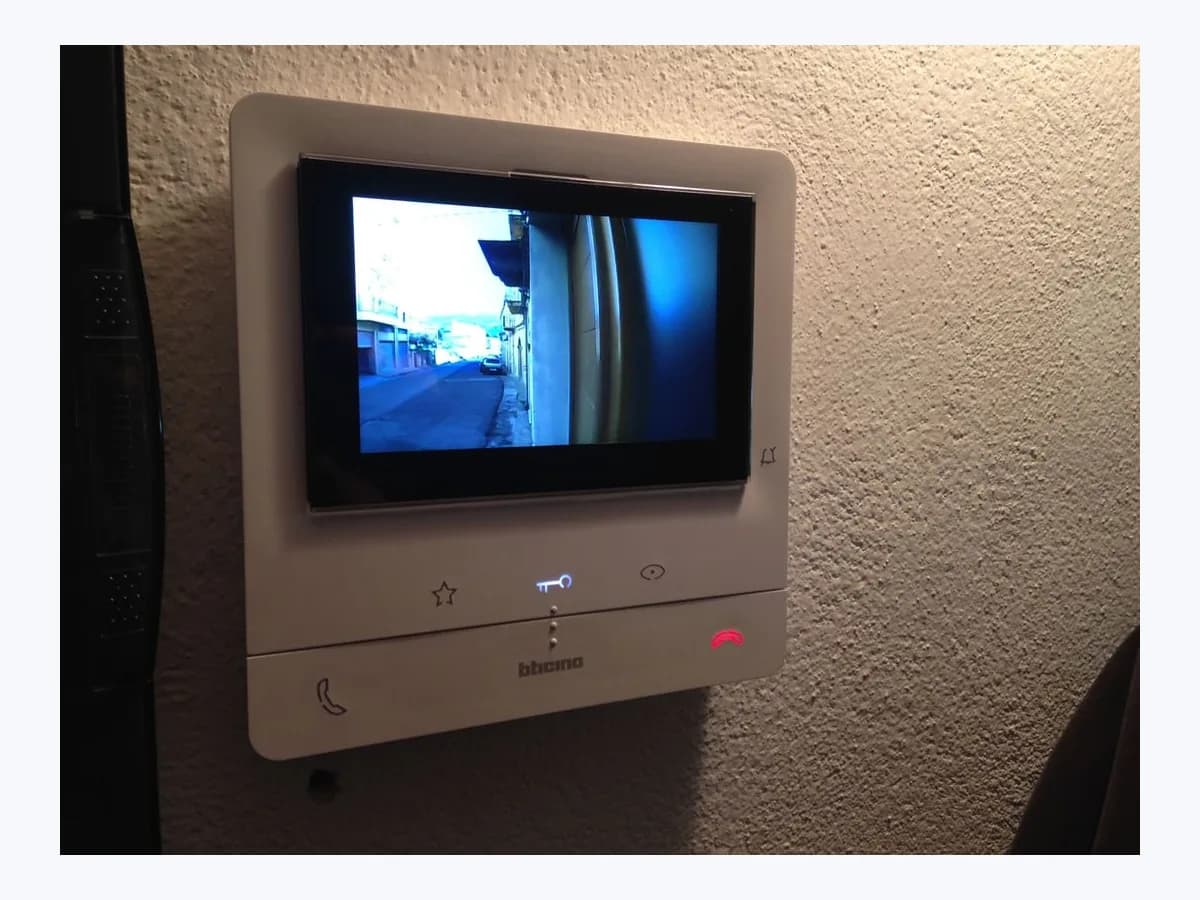
Tegui Wi-Fi LED flashes red: intercom Wi-Fi not connected
Risk level
Low
Usually safe to check without specialist tools.
Urgency
Medium
Quick answer
On a Tegui / BTicino Classe100 X16E video internal unit (ref. 344682), a flashing red Wi-Fi signal notification LED means Wi-Fi is active but not connected to a network. Check the network page with the side joystick and run Set the video internal unit Wi-Fi in the Door Entry CLASSE100X app.
Safety first
Stop and check this first
- Do not select Device reset on the Classe100 X16E when you only need to change the router or Wi-Fi password: Device reset deletes all associated accounts and home page customisations, whereas Reset the Wi-Fi network keeps your users.
- Never dismount the Classe100 X16E or touch the 2-wire SCS/BUS clamps yourself: the manual requires switching the power supply off before any work and restricts installation and maintenance to qualified personnel.
Safe checks you can perform
- Distinguish the flashing red Wi-Fi LED from the bell exclusion LED
- Inspect Device info and Wi-Fi settings using the side joystick
- Run Set the video internal unit Wi-Fi in Door Entry CLASSE100X
Leave these tasks to a qualified professional
- Do not attempt this professional task: Verify 2.4 GHz network parameters and Door Entry CLASSE100X association
- Do not attempt this professional task: Inspect 2-wire SCS bus power and rear configuration with power switched off
What a technician must be able to justify
Technician visit
These are the steps they must carry out and show you. Tick them as they work: if steps are skipped, do not accept a part swap.
These are not instructions for opening or handling the equipment yourself. They are the checks that should support a technical conclusion.
Verify 2.4 GHz network parameters and Door Entry CLASSE100X association
What they doThe technician checks the IP, net mask, gateway, DNS, MAC address and firmware version on the Classe100 X16E Device info screen, confirms a compliant 2.4-2.4835 GHz (802.11 b/g/n, WEP/WPA/WPA2) Wi-Fi signal, and completes the guided Wi-Fi setup or Device reset if an initial association was interrupted.
They must show youthe Device info screen with populated IP and firmware fields and the Wi-Fi LED off during normal operation.
In writingverified 2.4 GHz network parameters, Classe100 X16E firmware version and the outcome of the app association.
Inspect 2-wire SCS bus power and rear configuration with power switched off
What they doIf the Classe100 X16E resets or fails during start-up, qualified personnel switch the power supply off before any work on the system, verify the 18-27 Vdc 2-wire SCS/BUS supply and check configurators N, P and M as well as the line termination micro-switch.
They must show youthe N, P and M configurator values reported on the Device info page and stable unit operation after power-up.
In writingchecked 18-27 Vdc SCS bus supply, line termination switch setting and operational status of the Classe100 X16E.
Before accepting a part or repair
Nothing has been shown yet. Do not accept a part swap based on the code alone.
Follow these steps
Note: Follow the documented order. An error code identifies the affected system, but it does not prove by itself which part has failed.
Distinguish the flashing red Wi-Fi LED from the bell exclusion LED
- Who:
- you, looking at the front panel of your Classe100 X16E video internal unit in standby.
- How:
- check which icon is flashing red: the Wi-Fi signal notification LED flashes red when Wi-Fi is active without a network, whereas the bell exclusion LED flashes red when the call ringtone volume is set to the minimum exclusion level.
- Result that matters:
- confirm that the red flash comes from the Classe100 X16E Wi-Fi indicator rather than muted ringtone settings.
- If the bell exclusion LED is flashing red:
- use the side joystick to raise the ringtone volume between levels 1 and 8.
- If the Wi-Fi signal notification LED is flashing red:
- inspect the Device info and Wi-Fi settings pages next.
- Evidence to keep:
- which specific front LED icon is flashing red on the Classe100 X16E.
Evidence: Classe100 X16E User and installation manual (RA00169AC_EN)
Inspect Device info and Wi-Fi settings using the side joystick
- Who:
- you, operating the joystick on the side of the Classe100 X16E.
- How:
- from stand-by, press the joystick to wake the 5-inch display, move the joystick up or down to Device info and WI-FI settings, and press to inspect the connected Wi-Fi name, IP, net mask, gateway, DNS and firmware version.
- Result that matters:
- verify whether the Classe100 X16E is merely disabled in the Wi-Fi menu or needs network reconfiguration.
- If the Wi-Fi network shows OFF on the Enable/disable page:
- press the joystick to re-enable the authenticated Wi-Fi connection.
- If your router or password changed and the unit cannot connect:
- run the guided Wi-Fi setup in the app.
- Evidence to keep:
- network parameters displayed on the Device info screen and ON or OFF Wi-Fi status.
Evidence: Classe100 X16E User and installation manual (RA00169AC_EN)
Run Set the video internal unit Wi-Fi in Door Entry CLASSE100X
- Who:
- you, with your smartphone on the home 2.4 GHz Wi-Fi network and signed in to the Door Entry CLASSE100X app.
- How:
- open Menu > Settings > Set the video internal unit Wi-Fi in the app; on the Classe100 X16E use the joystick to open WI-FI settings > Reset the Wi-Fi network (RESET), move down to the confirmation icon and press to display the QR code and SOFT_AP temporary network, then scan the QR code and enter the home Wi-Fi password.
- Result that matters:
- update the Classe100 X16E Wi-Fi connection without deleting user accounts or touching the 2-wire bus.
- If the Wi-Fi signal notification LED turns off once data exchange finishes:
- the Wi-Fi connection is working properly.
- If association fails or the red Wi-Fi LED keeps flashing:
- ask a qualified installer to check 2.4 GHz signal conditions and unit setup.
- Evidence to keep:
- outcome of the guided Set the video internal unit Wi-Fi wizard and final LED state.
Evidence: Classe100 X16E User and installation manual (RA00169AC_EN)
Still not solved
If the error persists, stop here. See what the technician must do and show you.
Where this code applies
A code is meaningful only inside the right product and version context.
Primary scope
- System
- Networks
- Brand
- Tegui
- Product type
- Video intercoms
Known code variants
- Classe100 X16E Wi-Fi active not connected
- Classe100 X16E Wi-Fi activo pero no conectado
- Flashing red Wi-Fi LED
- LED de indicación de la señal Wi-Fi rojo parpadeante
- Led rojo intermitente Wi-Fi
- Wi-Fi signal notification LED flashes red
What it means
The official Classe100 X16E User and installation manual (RA00169AC_EN, item 344682) defines a flashing red Wi-Fi signal notification LED as Wi-Fi active but not connected to a network. The unit connects on 2.4-2.4835 GHz (802.11 b/g/n, WEP/WPA/WPA2) and pairs with the Door Entry CLASSE100X app. Other Tegui and BTicino models may use different indicators, and this flashing red LED alone never proves that the wireless module or any internal part has failed.
Warnings and stop conditions
- Mediumsource verified
Do not select Device reset on the Classe100 X16E when you only need to change the router or Wi-Fi password: Device reset deletes all associated accounts and home page customisations, whereas Reset the Wi-Fi network keeps your users.
Evidence: Classe100 X16E User and installation manual (RA00169AC_EN)
- Highsource verified
Never dismount the Classe100 X16E or touch the 2-wire SCS/BUS clamps yourself: the manual requires switching the power supply off before any work and restricts installation and maintenance to qualified personnel.
Evidence: Classe100 X16E User and installation manual (RA00169AC_EN)
Symptoms and causes
Probable causes · in order
- First app association pending or interruptedCommon
Connecting the Classe100 X16E to a home Wi-Fi network requires associating it first with the Door Entry CLASSE100X app; if that association is interrupted before completion, the unit must be reset.
Evidence: Classe100 X16E User and installation manual (RA00169AC_EN)
- Router replacement or changed home Wi-Fi passwordPossible
Replacing the home router or changing the Wi-Fi network password leaves the Classe100 X16E disconnected until Reset the Wi-Fi network and the guided app procedure are completed.
Evidence: Classe100 X16E User and installation manual (RA00169AC_EN)
- Signal quality or router settings outside requirementsPossible
Manual RA00169AC_EN notes that integration between Classe100 X16E and the app depends on Wi-Fi signal quality, home internet contract, smartphone data contract and 2.4-2.4835 GHz 802.11 b/g/n WEP/WPA/WPA2 router configuration.
Evidence: Classe100 X16E User and installation manual (RA00169AC_EN)
Virtual technician
Does Wi-Fi LED flashes red still appear after these checks?
Answer a few questions to narrow down the likely cause and the safest next action. Guidance only - it never replaces a professional.
Sources and technical references
- 1
Classe100 X16E Videoportero 2 HILOS / Wi-Fi manos libres con teleloop (344682 ST-00000468-ES)
Tegui (Legrand Group) · 2026 · official_doc
- 2
Classe100 X16E Manual de uso y mantenimiento (RA00169AC_ES)
Tegui (Legrand Group) · 2026 · official_doc
- 3
Classe100 X16E User and installation manual (RA00169AC_EN)
Tegui (Legrand Group) · 2026 · official_doc
Was this entry useful?