
- TVs
- TV set-top boxes
PANTALLA-VERDE
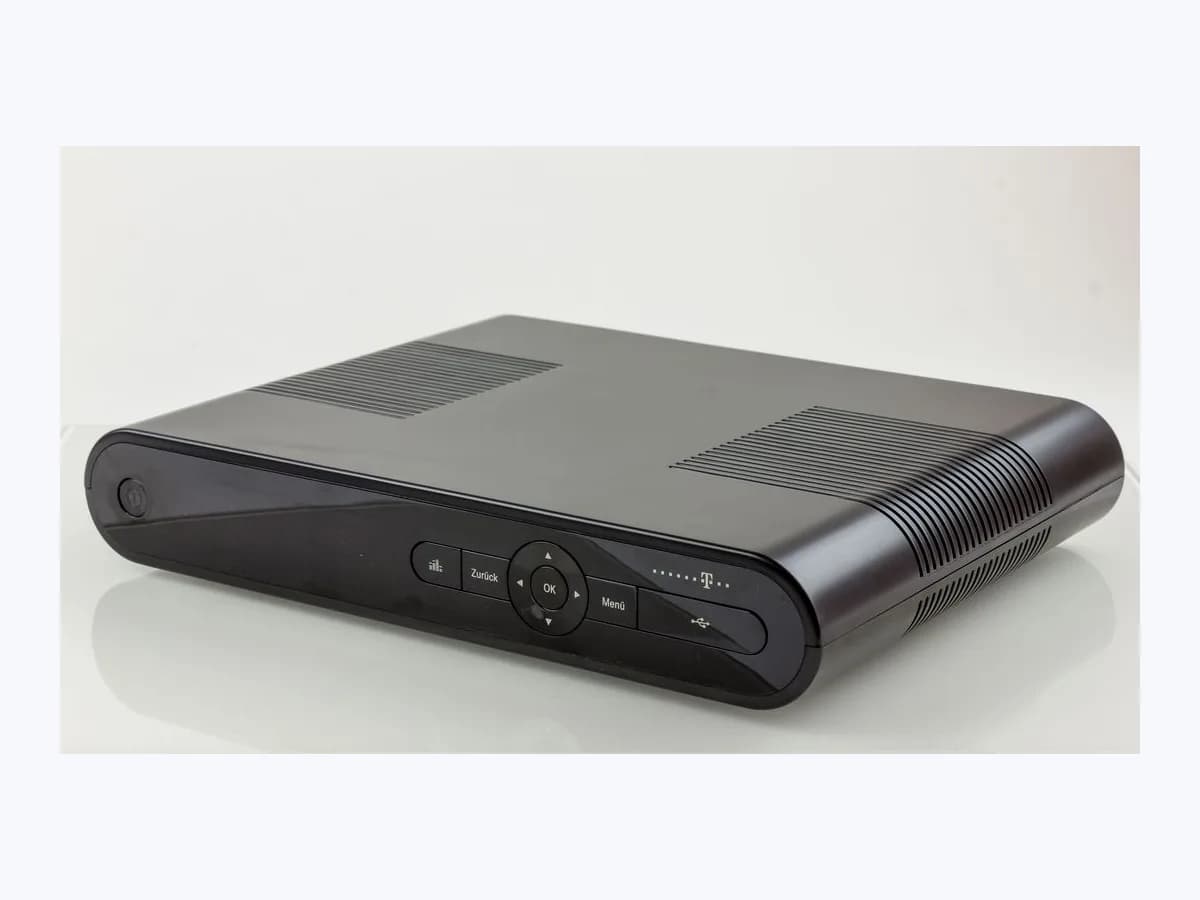
Movistar PANTALLA-VERDE on UHD decoder: green screen on HDMI
Risk level
Low
Usually safe to check without specialist tools.
Urgency
Low
Quick answer
Turning on the TV with a Movistar Plus+ UHD Decoder and seeing a green screen instead of the logo points to an HDMI handshake or UHD/HDR setting issue. Restart both devices, reseat the HDMI cable in an HDCP 2.2 port and check Screen Mode.
Safety first
Stop and check this first
- Never use splitters or adapters designed to strip HDCP 2.2 protection from the HDMI link; connect the UHD Decoder straight to a TV HDMI port that supports HDCP 2.2 or higher.
- Bear in mind that watching UHD content on the UHD Decoder requires a Movistar fibre connection, a 4K TV and the compatible HDMI cable supplied with the decoder.
Safe checks you can perform
- Power-cycle the TV and UHD decoder and reseat the HDMI cable
- Move the cable to an HDCP 2.2 HDMI input on the TV
- Check Screen Mode and HDR settings on decoder and TV
Leave these tasks to a qualified professional
- Do not attempt this professional task: Fault diagnosis through the Mi Movistar app or private area
- Do not attempt this professional task: UHD Decoder replacement if its HDMI output is faulty
What a technician must be able to justify
Technician visit
These are the steps they must carry out and show you. Tick them as they work: if steps are skipped, do not accept a part swap.
These are not instructions for opening or handling the equipment yourself. They are the checks that should support a technical conclusion.
Fault diagnosis through the Mi Movistar app or private area
What they doWhen the green screen persists after restarting, switching to an HDCP 2.2 HDMI port and checking Screen Mode, Movistar technical support checks the UHD Decoder.
They must show youwhich HDCP 2.2 HDMI inputs, cables and screen modes (such as UHD - 2160p 50 fps or 1080p) were tested.
In writingthe fault reference opened in Mi Movistar and the diagnosis of the decoder's HDMI output.
UHD Decoder replacement if its HDMI output is faulty
What they doIf Movistar technical support confirms that the UHD Decoder's HDMI port fails to negotiate video across compatible TVs and ports, the operator arranges a replacement unit.
They must show youthe Movistar Plus+ logo and interface working in UHD without a green screen on the replacement unit.
In writingthe replacement record for the UHD Decoder and proof of return for the old unit.
Before accepting a part or repair
Nothing has been shown yet. Do not accept a part swap based on the code alone.
Follow these steps
Note: Follow the documented order. An error code identifies the affected system, but it does not prove by itself which part has failed.
Power-cycle the TV and UHD decoder and reseat the HDMI cable
- Who:
- you.
- How:
- turn off both the television and the UHD Decoder (using its rear switch), wait a few seconds and switch them back on. If the green screen remains, unplug the HDMI cable at both the decoder and the TV and plug it back in firmly.
- Result that matters:
- the green screen clearing so the Movistar Plus+ logo and menu appear.
- If normal video returns after the restart or cable reseat:
- it was a one-off HDMI handshake glitch.
- If the screen is still green:
- test another HDMI port that supports HDCP 2.2.
- Evidence to keep:
- a photo of the green screen and a note of whether it happened at startup or when playing 4K content.
Evidence: Cómo solucionar los problemas de calidad de imagen en Movistar Plus+ · Descodificador UHD Movistar: guía completa de instalación
Move the cable to an HDCP 2.2 HDMI input on the TV
- Who:
- you, with your television manual.
- How:
- check your 4K TV's manual to see which HDMI inputs support HDCP 2.2 or higher and move the UHD Decoder's HDMI cable to that port; also test another HDMI port or device to rule out a faulty TV socket.
- Result that matters:
- knowing whether the issue is limited to a port without HDCP 2.2 or affects the TV input.
- If the picture works on the HDCP 2.2 port:
- keep the UHD Decoder on that input for 4K playback.
- If it fails across several HDMI inputs:
- check Screen Mode and HDR in Settings.
- Evidence to keep:
- the TV model, the HDMI ports tested and which ones list HDCP 2.2 support.
Evidence: Cómo solucionar los problemas de calidad de imagen en Movistar Plus+ · Descodificador UHD Movistar: guía completa de instalación
Check Screen Mode and HDR settings on decoder and TV
- Who:
- you, in the decoder and TV menus.
- How:
- open Ajustes on the decoder and check Modo de pantalla (which shows the active resolution, such as UHD - 2160p 50 fps) and Conf. HDR: try automatic first and, if needed, manual selection. On the TV, check the resolution (1080p or 2160p), refresh rate (60 Hz or 120 Hz), 60 fps and HDR.
- Result that matters:
- a stable resolution and HDR combination between the UHD Decoder and the television.
- If switching to automatic or a compatible manual resolution restores a clean picture:
- keep that setting.
- If no setting removes the video fault:
- contact Movistar support via the Mi Movistar app or website.
- Evidence to keep:
- the active resolution shown under Modo de pantalla and the Conf. HDR setting.
Evidence: Centro de ayuda Movistar Plus con miMovistar, Fusión o Satélite · Cómo solucionar los problemas de calidad de imagen en Movistar Plus+
Still not solved
If the error persists, stop here. See what the technician must do and show you.
Where this code applies
A code is meaningful only inside the right product and version context.
Primary scope
- System
- TVs
- Brand
- Movistar
- Product type
- TV set-top boxes
Known code variants
- descodificador Movistar 4K sin imagen HDMI
- error HDCP 2.2 descodificador Movistar
- Modo de pantalla UHD 2160p 50 fps
- Movistar 4K decoder HDMI HDCP 2.2 issue
- Movistar decoder no logo green display
- Movistar Plus green screen
- Movistar UHD decoder green screen
- pantalla en verde Movistar Plus
- pantalla verde descodificador UHD Movistar
- PANTALLA-VERDE
What it means
In Movistar's official guide to fixing picture quality issues on Movistar Plus+ and its UHD Decoder installation guide, the operator describes turning on the television and seeing a green screen instead of the Movistar Plus+ logo. It links this to four factors: a temporary HDMI handshake glitch, a loose HDMI cable, a TV HDMI input that lacks HDCP 2.2 or higher for 4K, or a mismatch in Screen Mode (such as UHD - 2160p 50 fps) and HDR settings. Other decoder or TV models and firmware versions may differ, and a green screen alone never proves that a component is faulty.
Warnings and stop conditions
- Mediumeditorial warning
Never use splitters or adapters designed to strip HDCP 2.2 protection from the HDMI link; connect the UHD Decoder straight to a TV HDMI port that supports HDCP 2.2 or higher.
Evidence: Descodificador UHD Movistar: guía completa de instalación
- Loweditorial warning
Bear in mind that watching UHD content on the UHD Decoder requires a Movistar fibre connection, a 4K TV and the compatible HDMI cable supplied with the decoder.
Evidence: Centro de ayuda Movistar Plus con miMovistar, Fusión o Satélite · Descodificador UHD Movistar: guía completa de instalación
Symptoms and causes
Probable causes · in order
- Temporary HDMI handshake glitch between TV and decoderCommon
Movistar notes that over 90% of picture problems such as a green screen or missing logo stem from a temporary state cleared by turning both units off and on or reseating the HDMI cable.
Evidence: Cómo solucionar los problemas de calidad de imagen en Movistar Plus+
- TV 4K HDMI input without HDCP 2.2 supportPossible
In the UHD Decoder installation guide, Movistar warns that on some mid-range or entry-level 4K TVs not every HDMI port supports 4K or HDCP 2.2 or higher.
Evidence: Descodificador UHD Movistar: guía completa de instalación
- Screen Mode (2160p 50 fps) or HDR configuration mismatchPossible
Movistar explains that a resolution or HDR mismatch between the decoder's Settings menu (Modo de pantalla and Conf. HDR) and the TV settings (1080p or 2160p, 60 Hz or 120 Hz, 60 fps) disrupts the picture.
Evidence: Centro de ayuda Movistar Plus con miMovistar, Fusión o Satélite · Cómo solucionar los problemas de calidad de imagen en Movistar Plus+
- Loose or faulty HDMI cableLess common
An HDMI cable that has worked loose or cannot carry the 4K UHD signal reliably between the UHD Decoder and the television prevents the logo and interface from appearing.
Evidence: Cómo solucionar los problemas de calidad de imagen en Movistar Plus+ · Descodificador UHD Movistar: guía completa de instalación
Virtual technician
Does PANTALLA-VERDE still appear after these checks?
Answer a few questions to narrow down the likely cause and the safest next action. Guidance only - it never replaces a professional.
Sources and technical references
- 1
Centro de ayuda Movistar Plus con miMovistar, Fusión o Satélite
Telefónica (Movistar) · 2026 · official_doc
- 2
Cómo solucionar los problemas de calidad de imagen en Movistar Plus+
Telefónica (Movistar) · 2023 · official_doc
- 3
Descodificador UHD Movistar: guía completa de instalación
Telefónica (Movistar) · 2024 · official_doc
Was this entry useful?