

- Gaming and consoles
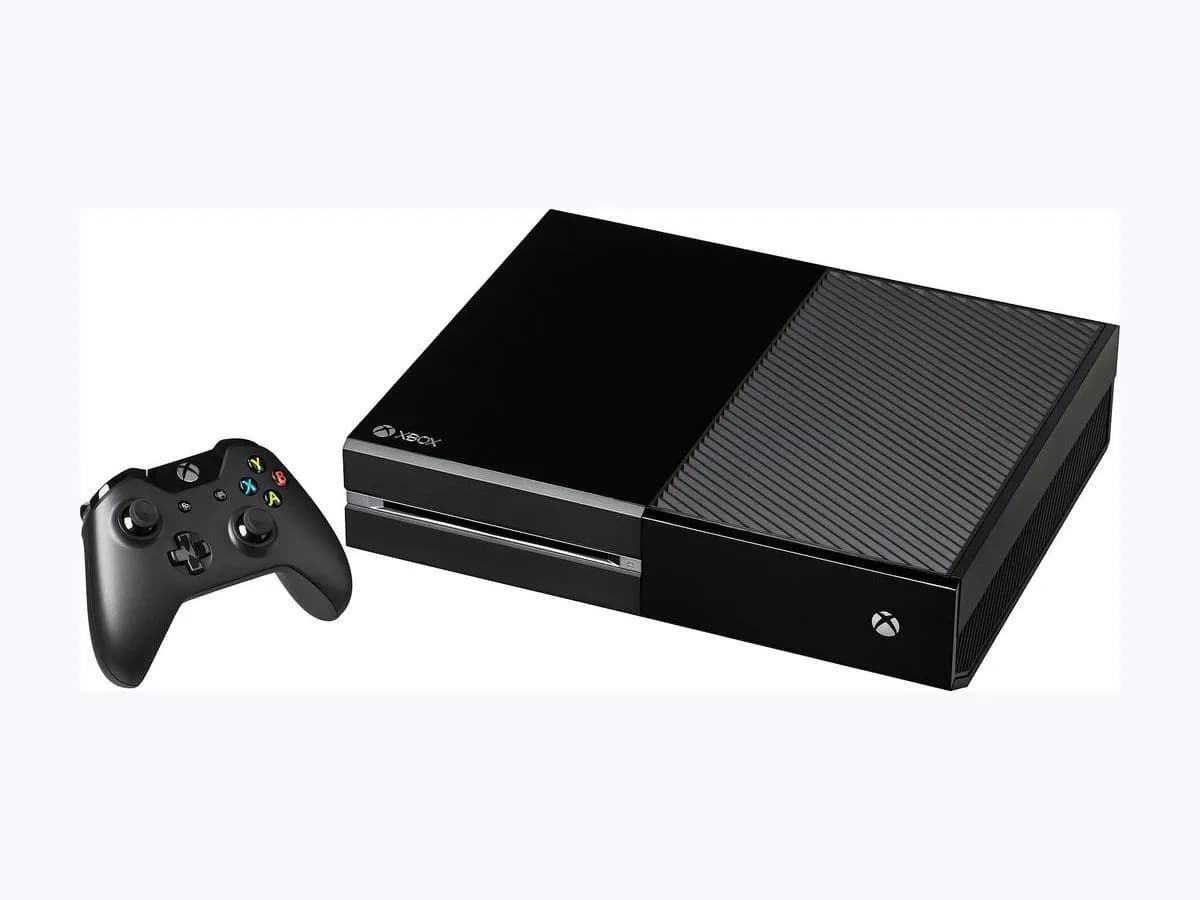
- Xbox One
0x91D7000A
Microsoft Xbox One 0x91D7000A: Blu-ray disc stopped over HDCP
Risk level
Low
Usually safe to check without specialist tools.
Urgency
Low
Quick answer
When error 0x91D7000A appears loading a Blu-ray Disc on Xbox One, eject the disc, quit the Blu-ray app from Xbox Home via Menu > Quit, restart the console from Profile & system > Power > Restart console > Restart, and test a different TV HDMI input.
Safety first
Stop and check this first
- Always use the HDMI cable included with the Xbox console or cables certified as HDMI High Speed or HDMI Certified Premium High Speed, both for direct TV connections and between an AV receiver and the TV.
Safe checks you can perform
- Eject the Blu-ray Disc and quit the Blu-ray app from Xbox Home
- Restart the Xbox One console from the guide and reinsert the disc
- Plug the console directly into a different TV HDMI input with a certified cable
Leave these tasks to a qualified professional
- Do not attempt this professional task: Inspect direct HDMI routing, cable certification, and 4K TV details
- Do not attempt this professional task: Arrange official Xbox hardware service if HDMI HDCP negotiation fails on all displays
What a technician must be able to justify
Technician visit
These are the steps they must carry out and show you. Tick them as they work: if steps are skipped, do not accept a part swap.
These are not instructions for opening or handling the equipment yourself. They are the checks that should support a technical conclusion.
Inspect direct HDMI routing, cable certification, and 4K TV details
What they doThe technician checks whether the 0x91D7000A HDCP stop or That didn't work 4K UHD error comes from the TV HDMI port, TV refresh rate mode, an inline AV receiver, or an uncertified cable.
They must show youBlu-ray Disc playback and the 4K TV details screen when the Xbox One is plugged directly into different TV HDMI inputs using an HDMI High Speed or HDMI Certified Premium High Speed cable.
In writingwhich TV HDMI inputs and certified cables were tested and whether an AV receiver was bypassed.
Arrange official Xbox hardware service if HDMI HDCP negotiation fails on all displays
What they doIf ejecting the disc, quitting the Blu-ray app, restarting the console, and testing direct certified HDMI connections on another HDCP-compliant TV do not clear 0x91D7000A, the console is referred for official service.
They must show youthe symptom persisting after Profile & system > Power > Restart console > Restart on a verified HDCP-compatible TV input.
In writingerror code 0x91D7000A and the results of direct HDMI port and cable testing without opening the console.
Before accepting a part or repair
Nothing has been shown yet. Do not accept a part swap based on the code alone.
Follow these steps
Note: Follow the documented order. An error code identifies the affected system, but it does not prove by itself which part has failed.
Eject the Blu-ray Disc and quit the Blu-ray app from Xbox Home
- Who:
- you, with your controller on the Xbox One Home screen.
- How:
- eject the Blu-ray Disc from your Xbox One console, move focus to the big Blu-ray application tile on Xbox Home, press the Menu button on your controller, and select Quit (if Quit is unavailable, the app is already closed).
- Result that matters:
- fully close the Blu-ray player session before re-establishing the HDMI handshake.
- If the Blu-ray app closes cleanly with the disc removed:
- proceed to restart the console.
- If Quit is not shown on the menu:
- the app is already closed, so continue directly to the console restart.
- Evidence to keep:
- confirmation that the disc is ejected and the Blu-ray app is closed.
Evidence: Error 0x91d7000a occurs when you try to load a Blu-ray Disc on Xbox One · Troubleshoot a 4K UHD resolution error on Xbox
Restart the Xbox One console from the guide and reinsert the disc
- Who:
- you, using the Xbox guide.
- How:
- press the Xbox button on your controller to open the guide, select Profile & system > Power > Restart console > Restart, and reinsert the Blu-ray Disc once the console finishes restarting.
- Result that matters:
- force a fresh HDMI and HDCP rights management negotiation with the TV.
- If the Blu-ray Disc loads and plays normally:
- the previous HDCP handshake was stuck.
- If Disc Stopped and 0x91D7000A appear again:
- test another TV HDMI input and check your cable.
- Evidence to keep:
- photo of the on-screen message if 0x91D7000A returns after restarting.
Evidence: Error 0x91d7000a occurs when you try to load a Blu-ray Disc on Xbox One · Troubleshoot a 4K UHD resolution error on Xbox
Plug the console directly into a different TV HDMI input with a certified cable
- Who:
- you, at the back of the TV and Xbox One console.
- How:
- plug your TV directly into your console using the HDMI cable included with your Xbox (or a cable certified as HDMI High Speed or HDMI Certified Premium High Speed) into another TV HDMI port, bypassing any AV receiver, and check the 4K TV details screen.
- Result that matters:
- rule out an AV receiver pass-through issue or a specific TV port that lacks HDCP or 4K 60 Hz support.
- If the Blu-ray Disc plays on the alternate direct HDMI port:
- the prior TV port or AV receiver blocked the signal.
- If error 0x91D7000A persists across every TV HDMI port with a certified direct cable:
- arrange hardware inspection.
- Evidence to keep:
- which TV HDMI ports and certified HDMI cables were tested.
Evidence: Error 0x91d7000a occurs when you try to load a Blu-ray Disc on Xbox One · Troubleshoot a 4K UHD resolution error on Xbox
Still not solved
If the error persists, stop here. See what the technician must do and show you.
Where this code applies
A code is meaningful only inside the right product and version context.
Primary scope
- System
- Gaming and consoles
- Brand
- Microsoft Xbox
- Product type
- Xbox One
Known code variants
- 0x91d7000a
- Detenida la reproduccion HDCP 0x91d7000a
- Disc Stopped HDCP rights management 0x91d7000a
What it means
On Microsoft Xbox Support pages for error 0x91d7000a and 4K UHD resolution errors across the Xbox One family (original Xbox One, Xbox One S, and Xbox One X), this code appears when loading a Blu-ray Disc with the on-screen message: Disc Stopped. Make sure your TV's HDMI input supports HDCP rights management. If not, try plugging your console into a different TV input. Other consoles or televisions may differ, and error 0x91D7000A alone never proves the optical disc drive or console hardware is defective.
Warnings and stop conditions
- Lowsource verified
Always use the HDMI cable included with the Xbox console or cables certified as HDMI High Speed or HDMI Certified Premium High Speed, both for direct TV connections and between an AV receiver and the TV.
Evidence: Error 0x91d7000a occurs when you try to load a Blu-ray Disc on Xbox One · Troubleshoot a 4K UHD resolution error on Xbox
Symptoms and causes
Probable causes · in order
- Stale Blu-ray application state holding a failed HDCP handshakeCommon
The Blu-ray player app on Xbox One remained open in the background after an interrupted HDMI handshake when the disc was inserted.
Evidence: Error 0x91d7000a occurs when you try to load a Blu-ray Disc on Xbox One · Troubleshoot a 4K UHD resolution error on Xbox
- TV HDMI input or AV receiver not passing HDCP rights managementPossible
The current TV HDMI port does not support or complete HDCP rights management, or an inline AV receiver fails to pass the video signal properly.
Evidence: Error 0x91d7000a occurs when you try to load a Blu-ray Disc on Xbox One · Troubleshoot a 4K UHD resolution error on Xbox
- Non-certified HDMI cable or mismatched 4K 60 Hz TV input modeLess common
The cable is not the included Xbox HDMI cord or lacks HDMI High Speed / HDMI Certified Premium High Speed certification, which can also trigger a That didn't work message when choosing 4K UHD at 60 Hz.
Evidence: Error 0x91d7000a occurs when you try to load a Blu-ray Disc on Xbox One · Troubleshoot a 4K UHD resolution error on Xbox
Virtual technician
Does 0x91D7000A still appear after these checks?
Answer a few questions to narrow down the likely cause and the safest next action. Guidance only - it never replaces a professional.
Sources and technical references
- 1
Aparece el error 0x91d7000a al intentar cargar un disco Blu-ray en la consola Xbox One
Microsoft Support · 2026 · official_doc
- 2
Error 0x91d7000a occurs when you try to load a Blu-ray Disc on Xbox One
Microsoft Support · 2026 · official_doc
- 3
Solucionar un error de resolución 4K UHD en Xbox
Microsoft Support · 2026 · official_doc
- 4
Troubleshoot a 4K UHD resolution error on Xbox
Microsoft Support · 2026 · official_doc
Was this entry useful?