

- Printers
- Inkjet printer
1470
Canon 1470 on an inkjet printer: print head cartridge not installed properly
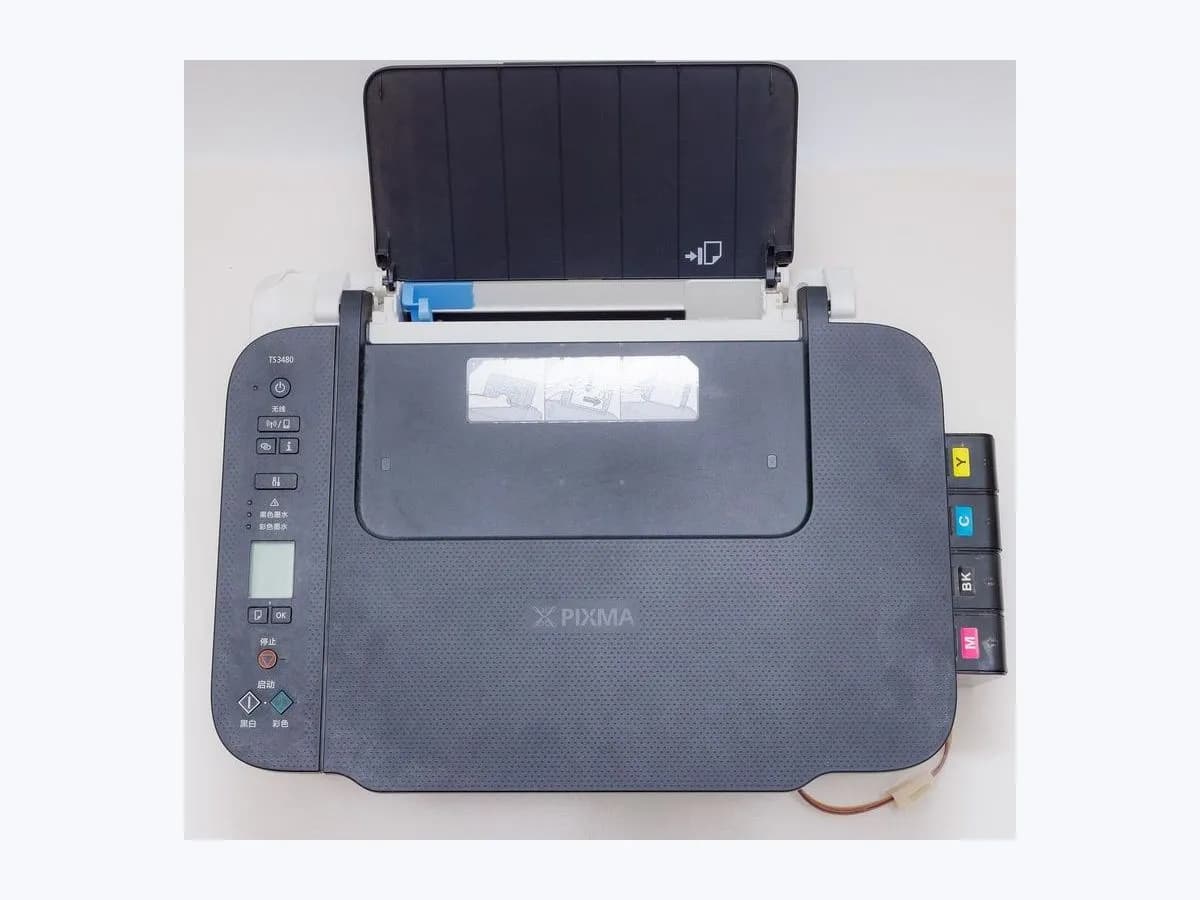
Risk level
Low
Usually safe to check without specialist tools.
Urgency
Medium
Quick answer
On PIXMA G3010 printers the print head cartridge is not installed properly. Open the scanning unit or cover, push the print head locking cover or the joint buttons until they click, then close it.
Safety first
Stop and check this first
- Use only your model's manual procedure: the cover and buttons described are those of the G3010 series.
- Do not force the cover or buttons: push only until they click into place, as Canon describes.
Safe checks you can perform
- Label and protective tape
- Locking cover or joint buttons clicked in
- Test print
Leave these tasks to a qualified professional
- Do not attempt this professional task: Print head holder review
- Do not attempt this professional task: Warranty review
What a technician must be able to justify
Technician visit
These are the steps they must carry out and show you. Tick them as they work: if steps are skipped, do not accept a part swap.
These are not instructions for opening or handling the equipment yourself. They are the checks that should support a technical conclusion.
Print head holder review
What they doIf 1470 stays with the cartridge clicked in, Canon service checks the print head holder and lock with the printer open.
They must show youthe part of the lock that does not engage or the failing test.
In writingpart replaced, reason and a test print without 1470.
Warranty review
What they doCanon service checks warranty before any work.
They must show youthe warranty status.
In writingwhether it is covered and its cost.
Before accepting a part or repair
Nothing has been shown yet. Do not accept a part swap based on the code alone.
Follow these steps
Note: Follow the documented order. An error code identifies the affected system, but it does not prove by itself which part has failed.
Label and protective tape
- Who:
- you.
- How:
- open the scanning unit or cover and check the cartridge has no orange label or protective tape left, as Canon says.
- Result that matters:
- cartridge free of shipping protection.
- If any remains:
- remove it following the manual before reinstalling.
- If none:
- go on to the lock.
- Evidence to keep:
- photo of the cartridge.
Evidence: Canon PIXMA G3010 support code 1470
Locking cover or joint buttons clicked in
- Who:
- you.
- How:
- push the print head locking cover so the cartridges are properly installed, or push the joint buttons until they click into place. Then close the scanning unit or cover.
- Result that matters:
- 1470 clears.
- If it clears:
- installation was the cause.
- If it stays:
- check whether another code such as 1471 appears and see its page.
- Evidence to keep:
- photo of the closed cover and the screen.
Evidence: Canon PIXMA G3010 support code 1470
Test print
- Who:
- you.
- How:
- print a test page after closing the cover.
- Result that matters:
- a complete print.
- If it prints well:
- nothing more is needed.
- If colours are missing:
- note it for Canon service.
- Evidence to keep:
- the test page.
Evidence: Canon PIXMA G3010 support code 1470
Still not solved
If the error persists, stop here. See what the technician must do and show you.
Where this code applies
A code is meaningful only inside the right product and version context.
Primary scope
- System
- Printers
- Brand
- Canon
- Product type
- Inkjet printer
Known code variants
- Canon 1470
- Canon print head not installed properly
- Canon support code 1470
- cartucho mal instalado Canon 1470
- código 1470 Canon
- PIXMA G 1470
What it means
In the PIXMA G3010 manual, Canon says 1470 means the print head (cartridge) is not installed properly. It asks you to open the scanning unit or cover, push the print head locking cover or the joint buttons until they click into place, and close it. It also reminds you to remove the orange label and protective tape from the cartridge before installing it. The code is about installation, not a faulty print head. On other models the same number can mean something else.
Warnings and stop conditions
- Loweditorial warning
Use only your model's manual procedure: the cover and buttons described are those of the G3010 series.
Evidence: Canon PIXMA G3010 support code 1470
- Lowsource verified
Do not force the cover or buttons: push only until they click into place, as Canon describes.
Evidence: Canon PIXMA G3010 support code 1470
Symptoms and causes
Probable causes · in order
- Locking cover or joint buttons not clicked inCommon
This is the cause Canon gives. You can tell because the error clears when you push them until they click.
Evidence: Canon PIXMA G3010 support code 1470
- Orange label or protective tape left onPossible
Canon asks you to remove them to install the cartridge. Visible when you check the cartridge.
Evidence: Canon PIXMA G3010 support code 1470
Virtual technician
Does 1470 still appear after these checks?
Answer a few questions to narrow down the likely cause and the safest next action. Guidance only - it never replaces a professional.
Sources and technical references
- 1
Canon PIXMA G3010 support code 1470
Canon PIXMA Manuals · official_doc
Was this entry useful?