

- Printers
- Inkjet printer
2901
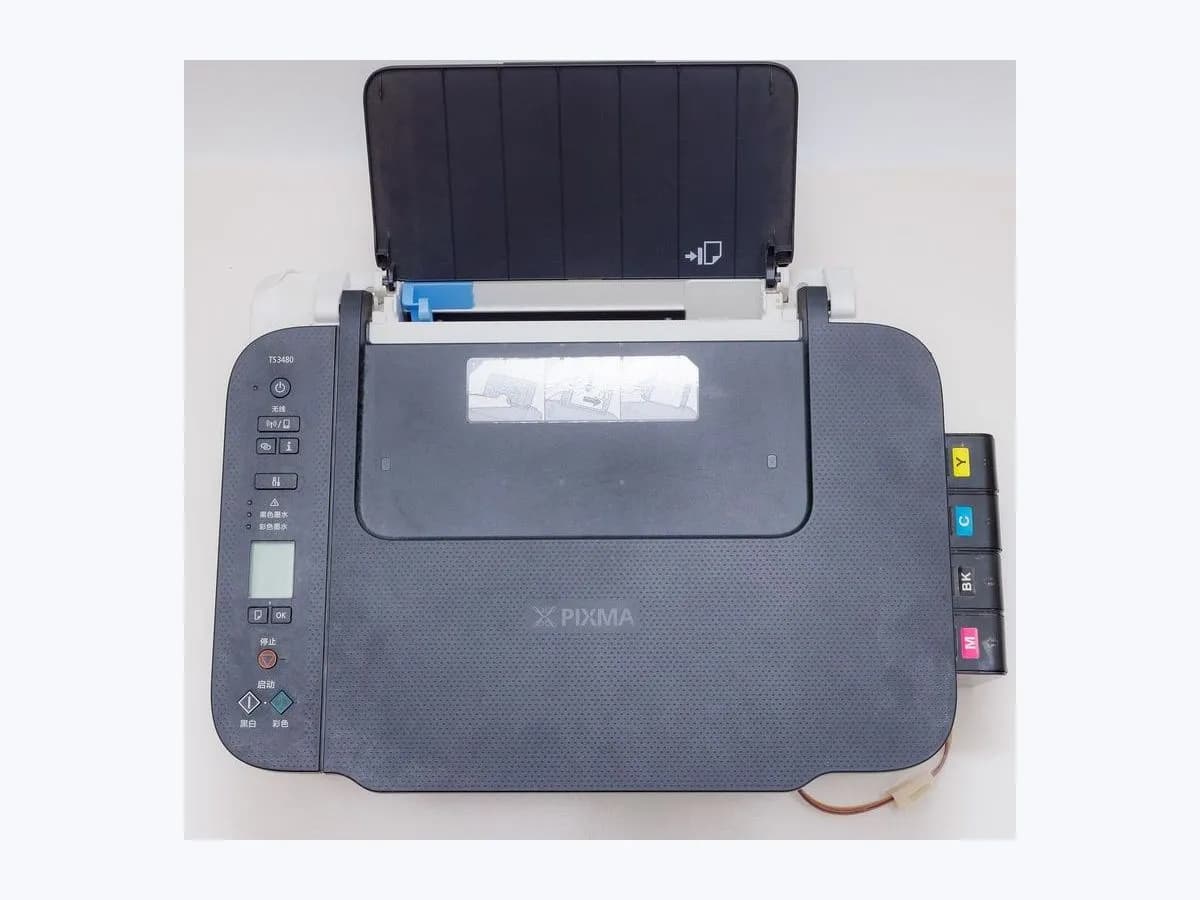
Canon 2901 on an inkjet printer: alignment sheet waiting to scan
Risk level
Low
Usually safe to check without specialist tools.
Urgency
Low
Quick answer
The print head alignment pattern has been printed and the printer is waiting to scan it. Place the sheet printed side down on the platen with its mark against the alignment mark, close the cover slowly and press Black or Color.
Safety first
Stop and check this first
- Close the document cover slowly as Canon indicates; dropping it can shift the sheet and make the scan fail.
Safe checks you can perform
- Place the alignment sheet
- Start the scan
- Check a test page
Leave these tasks to a qualified professional
- Do not attempt this professional task: Alignment check by Canon service
- Do not attempt this professional task: Print quality review
What a technician must be able to justify
Technician visit
These are the steps they must carry out and show you. Tick them as they work: if steps are skipped, do not accept a part swap.
These are not instructions for opening or handling the equipment yourself. They are the checks that should support a technical conclusion.
Alignment check by Canon service
What they doIf alignment cannot be completed after placing the sheet correctly, Canon service checks the scan of the alignment sheet and the print head adjustment.
They must show youthe alignment sheet, the scan result and a test page after their work.
In writingthe cause found, the reference of any part replaced and the date.
Print quality review
What they doIf print quality stays poor after a completed alignment, the technician checks nozzle patterns before proposing parts.
They must show youthe nozzle check pattern before and after.
In writingthe diagnosis and any part replaced with its reference.
Before accepting a part or repair
Nothing has been shown yet. Do not accept a part swap based on the code alone.
Follow these steps
Note: Follow the documented order. An error code identifies the affected system, but it does not prove by itself which part has failed.
Place the alignment sheet
- Who:
- you, no tools.
- How:
- put the printed alignment sheet on the platen, printed side down, with the mark in the upper left corner aligned with the alignment mark (TS3300).
- Result that matters:
- the sheet flat and aligned with the mark.
- If your model uses another corner:
- follow the position on your model's 2901 page.
- If the sheet is creased or marked:
- print the pattern again before scanning.
- Evidence to keep:
- photo of the sheet on the platen.
Evidence: Canon PIXMA TS3300 support code 2901
Start the scan
- Who:
- you.
- How:
- close the document cover slowly and press the printer's Black or Color button.
- Result that matters:
- the printer scans the sheet and adjusts the print head position automatically.
- If it finishes:
- alignment is done; remove the sheet.
- If a different code appears, such as 2900:
- follow that code, the scan has failed.
- Evidence to keep:
- note of the result or the new code.
Evidence: Canon PIXMA TS3300 support code 2901
Check a test page
- Who:
- you.
- How:
- print a page with text and lines after alignment.
- Result that matters:
- lines and text print straight.
- If the print looks right:
- nothing else is needed.
- If it still looks misaligned:
- repeat auto alignment once.
- Evidence to keep:
- the test page.
Evidence: Canon PIXMA TS3300 support code 2901
Still not solved
If the error persists, stop here. See what the technician must do and show you.
Where this code applies
A code is meaningful only inside the right product and version context.
Primary scope
- System
- Printers
- Brand
- Canon
- Product type
- Inkjet printer
Known code variants
- Canon 2901
- Canon 2901 alignment sheet scan
- Canon 2901 hoja de alineación escanear
- Canon support code 2901
- código 2901 Canon
- PIXMA TS3300 2901
What it means
Canon defines support code 2901 on the PIXMA TS3300 as the print head alignment pattern having been printed while the printer waits to scan the sheet. Auto alignment has two halves: the printer prints a pattern, then reads it with the platen scanner and adjusts the print head position. 2901 is the pause between them, so it is an instruction rather than a fault. On the TS3300 the corner mark goes to the upper left; other series may use another corner, so follow your own model's page.
Warnings and stop conditions
- Loweditorial warning
Close the document cover slowly as Canon indicates; dropping it can shift the sheet and make the scan fail.
Evidence: Canon PIXMA TS3300 support code 2901
Symptoms and causes
Probable causes · in order
- Alignment pattern printed and not yet scannedConfirmed
This is Canon's definition: the printer finished the first half of auto alignment and is waiting for the sheet on the platen.
Evidence: Canon PIXMA TS3300 support code 2901
- Sheet placed but scan not startedPossible
If the sheet is on the platen but the code stays, the Black or Color button has not been pressed yet, which Canon asks you to do after closing the cover.
Evidence: Canon PIXMA TS3300 support code 2901
Virtual technician
Does 2901 still appear after these checks?
Answer a few questions to narrow down the likely cause and the safest next action. Guidance only - it never replaces a professional.
Sources and technical references
- 1
Canon PIXMA TS3300 support code 2901
Canon PIXMA Manuals · 2019 · official_doc
Was this entry useful?