
- Phones and tablets
- Drones
Gimbal motor overloaded
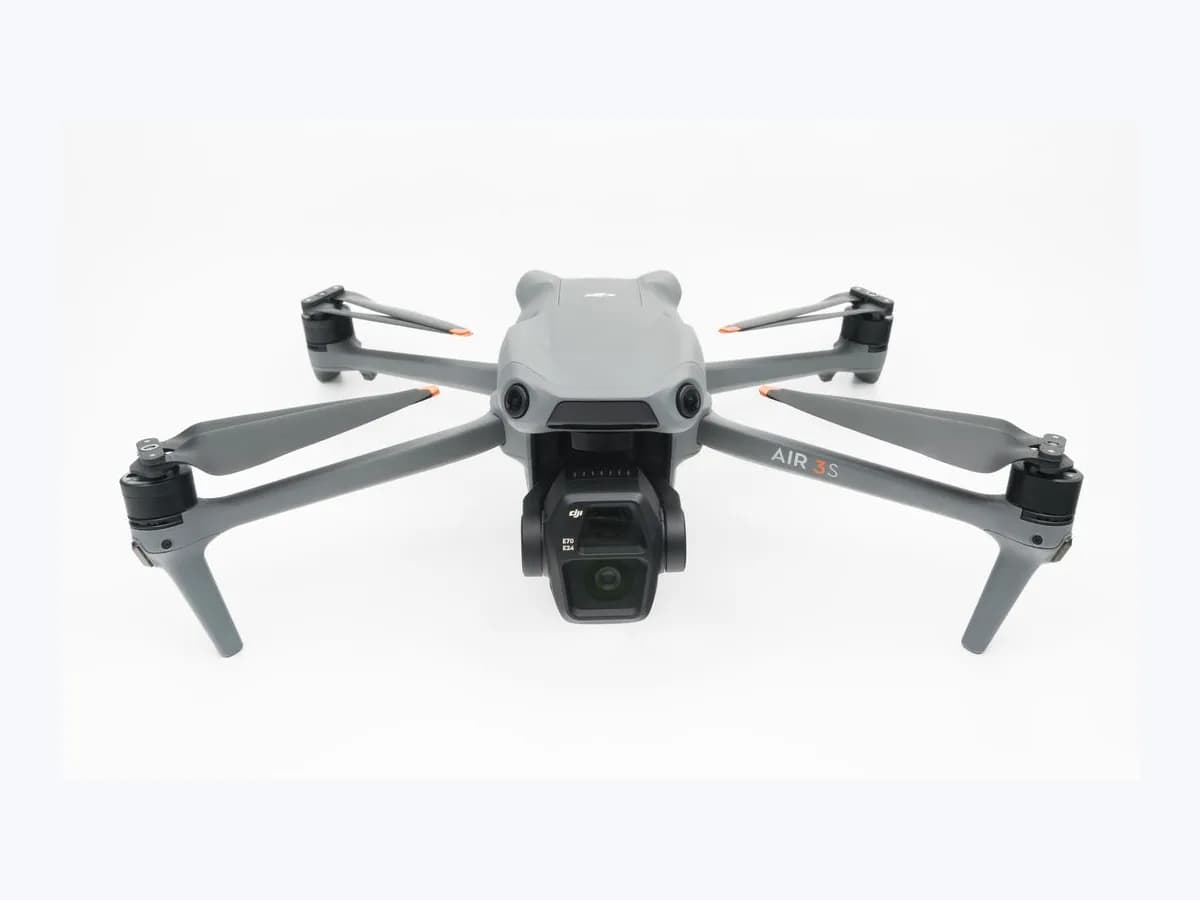
DJI drone Gimbal motor overloaded: camera gimbal obstructed
Risk level
Medium
Proceed carefully and stop if the check is unclear.
Urgency
High
Quick answer
When your DJI drone app displays Gimbal motor overloaded, remove the gimbal protector, buckle, and axis-arm protection sticker, unfold the arms, and take off any third-party filter or wide-angle lens. Push the stick gently in Sport mode and run automatic gimbal calibration on a flat surface.
Safety first
Stop and check this first
- Before using the aircraft, always remove the gimbal protector or buckle and the axis-arm protection sticker, unfold the aircraft arms, and verify on a flat surface that nothing obstructs the camera.
Safe checks you can perform
- Remove gimbal restraints and check for debris on a flat surface
- Remove third-party lenses and moderate Sport mode stick input
- Run automatic gimbal calibration in the control app or glasses
Leave these tasks to a qualified professional
- Do not attempt this professional task: Execute gimbal auto-calibration and refer persistent faults to DJI
- Do not attempt this professional task: Inspect gimbal clearance, axis stickers, and third-party optics
What a technician must be able to justify
Technician visit
These are the steps they must carry out and show you. Tick them as they work: if steps are skipped, do not accept a part swap.
These are not instructions for opening or handling the equipment yourself. They are the checks that should support a technical conclusion.
Execute gimbal auto-calibration and refer persistent faults to DJI
What they doThe professional runs automatic gimbal calibration in DJI Fly, DJI GO 4, or connected flying glasses and sends the aircraft to DJI via an Online Repair Request if the overload warning continues.
They must show youthe automatic gimbal calibration process in the applicable interface and the post-calibration app status.
In writingcontrol app or glasses path used, calibration result, and the DJI Online Repair Request reference if the issue persists.
Inspect gimbal clearance, axis stickers, and third-party optics
What they doOn a flat surface with the aircraft arms unfolded, the technician verifies that the gimbal protector, buckle, axis-arm sticker, foreign debris, and third-party filters or wide-angle lenses are removed, and checks operation outside abrupt Sport (S) mode stick inputs.
They must show youthe unobstructed gimbal with unfolded arms and the camera response without third-party accessories.
In writingany removed protector, sticker, debris, or third-party lens and whether the overload alert cleared.
Before accepting a part or repair
Nothing has been shown yet. Do not accept a part swap based on the code alone.
Follow these steps
Note: Follow the documented order. An error code identifies the affected system, but it does not prove by itself which part has failed.
Remove gimbal restraints and check for debris on a flat surface
- Who:
- you, with the camera drone on the ground prior to flight.
- How:
- remove the gimbal protector or buckle and the protection sticker on the axis arm, unfold the aircraft arms, and place the drone on a flat surface to check whether any foreign objects obstruct the gimbal and camera.
- Result that matters:
- clear physical obstructions from the camera axes before operating the aircraft.
- If removing a restraint or foreign object clears the overload warning:
- keep a record of the pre-flight check.
- If all protectors and stickers were already removed and no debris is present:
- inspect attached camera accessories next.
- Evidence to keep:
- photo of the unobstructed gimbal on a flat surface and the resulting app status.
Evidence: Gimbal Motor Overloaded Warning in the App
Remove third-party lenses and moderate Sport mode stick input
- Who:
- you, inspecting the camera payload and active flight mode on your DJI drone.
- How:
- if a third-party accessory such as a filter or wide-angle lens is installed, remove it and check whether the warning remains; if the alert appeared in Sport (S) mode, push the control stick gently.
- Result that matters:
- rule out external accessory weight or extreme Sport mode stick inputs exceeding the adjustment limit.
- If the app warning disappears after removing the accessory or easing stick input:
- note which condition triggered it.
- If the warning remains or the gimbal is skewed when powered on:
- run the automatic gimbal calibration step.
- Evidence to keep:
- removed third-party accessory details, flight mode used, and whether the overload prompt cleared.
Evidence: Gimbal Motor Overloaded Warning in the App
Run automatic gimbal calibration in the control app or glasses
- Who:
- you, with the aircraft and remote controller powered on over a flat surface.
- How:
- in DJI Fly, enter camera view and tap ... > System Settings > Control > Gimbal Calibration > Auto; in DJI GO 4, open ... > Gimbal Settings > Gimbal Auto Calibration, or in flying glasses select Settings > Controls > Gimbal Calibration.
- Result that matters:
- complete automatic gimbal calibration when the camera is skewed or calibration is requested.
- If auto calibration finishes and the gimbal levels without warnings:
- retain the calibration outcome.
- If the Gimbal motor overloaded warning persists after all documented steps:
- submit an Online Repair Request to DJI.
- Evidence to keep:
- screenshot of the completed gimbal calibration and any remaining warning in camera view.
Evidence: Gimbal Motor Overloaded Warning in the App · Aircraft Gimbal Calibration Guide
Still not solved
If the error persists, stop here. See what the technician must do and show you.
Where this code applies
A code is meaningful only inside the right product and version context.
Primary scope
- System
- Phones and tablets
- Brand
- DJI
- Product type
- Drones
Known code variants
- Advertencia de motor del estabilizador sobrecargado
- Gimbal Calibration Required
- Gimbal Motor Overloaded
- Gimbal motor overloaded warning in the app
- Motor del estabilizador sobrecargado
- Se requiere la calibración del estabilizador
What it means
DJI's official articles Gimbal Motor Overloaded Warning in the App and Aircraft Gimbal Calibration Guide cover camera drones controlled through DJI Fly, DJI GO 4, or flying glasses. They link this overload alert to unremoved transport protection, foreign debris, third-party optical accessories, or sharp stick inputs in Sport mode. Menu paths can differ across other aircraft families, and the warning by itself never proves that the gimbal motor or hardware has failed.
Warnings and stop conditions
- Mediumsource verified
Before using the aircraft, always remove the gimbal protector or buckle and the axis-arm protection sticker, unfold the aircraft arms, and verify on a flat surface that nothing obstructs the camera.
Evidence: Gimbal Motor Overloaded Warning in the App
Symptoms and causes
Probable causes · in order
- Unremoved gimbal protector, buckle, sticker, or trapped debrisCommon
DJI lists a remaining gimbal protector or buckle, an unremoved protection sticker on the gimbal axis arm, or debris sticking the gimbal as primary causes.
Evidence: Gimbal Motor Overloaded Warning in the App
- Third-party filter or wide-angle lens mounted on the cameraPossible
Mounting a third-party accessory such as a filter or wide-angle lens on the gimbal and camera can overload the gimbal motors during flight.
Evidence: Gimbal Motor Overloaded Warning in the App
- Dramatic control stick movement during Sport (S) modePossible
Moving the control stick dramatically while flying in Sport mode exceeds the gimbal adjustment limit and triggers the in-app overload warning.
Evidence: Gimbal Motor Overloaded Warning in the App
Virtual technician
Does Gimbal motor overloaded still appear after these checks?
Answer a few questions to narrow down the likely cause and the safest next action. Guidance only - it never replaces a professional.
Sources and technical references
- 1
Gimbal Motor Overloaded Warning in the App
DJI · 2026 · official_doc
- 2
Advertencia de Motor del estabilizador sobrecargado en la aplicación
DJI · 2026 · official_doc
- 3
Aircraft Gimbal Calibration Guide
DJI · 2026 · official_doc
- 4
Guía para la calibración del estabilizador de la aeronave
DJI · 2026 · official_doc
Was this entry useful?