

- Networks
- Fibre routers
WIFI-APAGADO
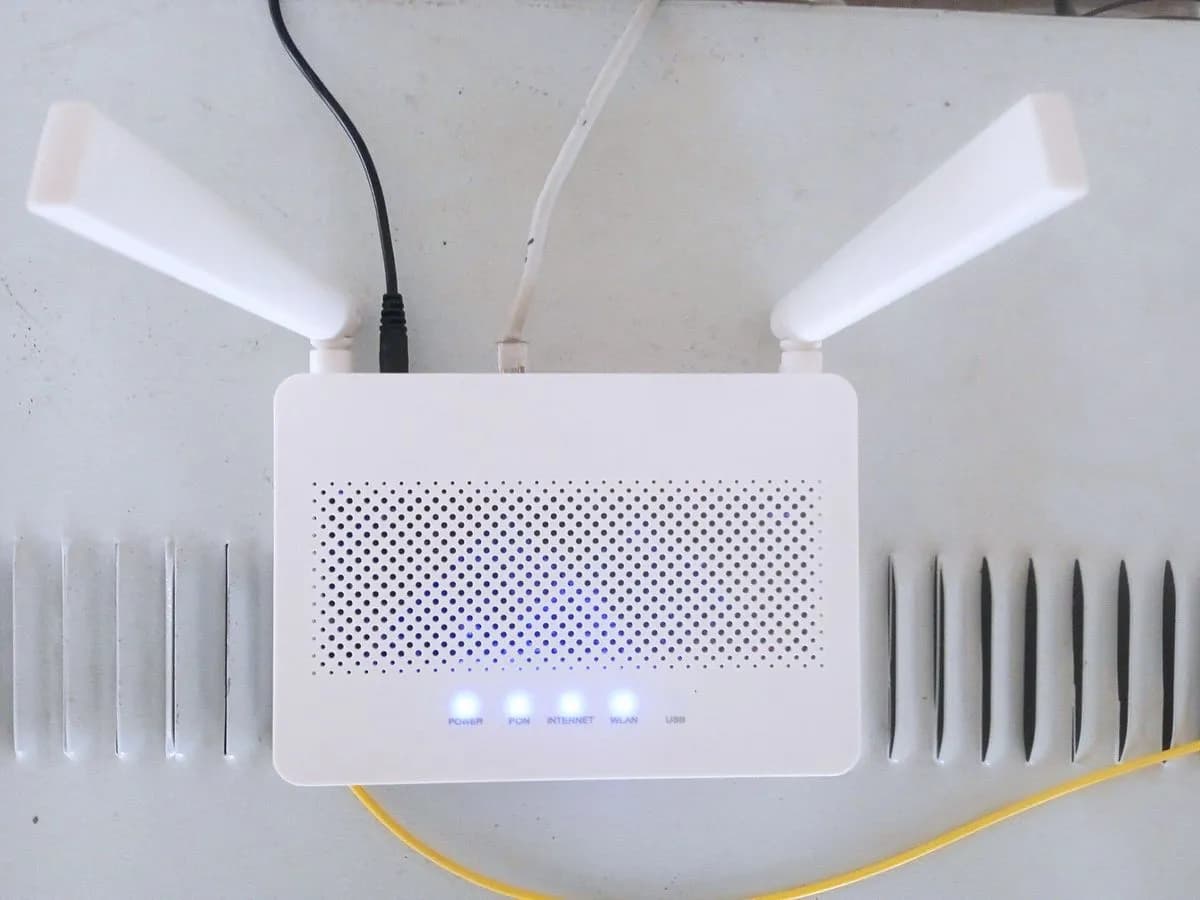
DIGI WIFI-APAGADO on ZTE fibre router: wireless band disabled
Risk level
Low
Usually safe to check without specialist tools.
Urgency
Low
Quick answer
On DIGI's ZTE fibre routers, the Wi-Fi light off (on the ZXHN F8648P) or the 2.4G and 5G lights off (on the ZXHN F6705) means the wireless interface is disabled. Press the physical Wi-Fi button or enable WLAN at http://192.168.1.1.
Safety first
Stop and check this first
- On the ZTE ZXHN F6705, if you disable the MLO feature, the manual notes that after the router reboots you only turn off SSID2 and SSID6 in Configuración WLAN SSID, keeping your main SSIDs enabled.
- On the ZXHN F8648P, holding Reset with a pin for 1 second reboots without losing settings; holding Reset for 5 seconds (on either the F8648P or F6705) restores factory defaults.
Safe checks you can perform
- Confirm that the Power indicator is lit
- Press the physical Wi-Fi button on the router to re-enable WLAN
- Turn on the 2.4 GHz and 5 GHz bands at http://192.168.1.1
Leave these tasks to a qualified professional
- Do not attempt this professional task: Remote WLAN check with DIGI customer support
- Do not attempt this professional task: ZTE router maintenance or replacement by DIGI
What a technician must be able to justify
Technician visit
These are the steps they must carry out and show you. Tick them as they work: if steps are skipped, do not accept a part swap.
These are not instructions for opening or handling the equipment yourself. They are the checks that should support a technical conclusion.
Remote WLAN check with DIGI customer support
What they doDIGI customer service (1200 from a DIGI number or 919 120 120) checks the ZTE router's wireless settings and advises if a factory reset is required.
They must show youthe status of the global WLAN switch and primary SSIDs in the router interface.
In writingthe support ticket number and the wireless settings verified with DIGI.
ZTE router maintenance or replacement by DIGI
What they doIf the Wi-Fi radio on the ZXHN F6705 or ZXHN F8648P will not turn on either via the physical button or the web interface, DIGI arranges maintenance or unit replacement.
They must show youthe router with its 2.4G/5G or Wi-Fi LEDs lit and broadcasting on both bands.
In writingthe service report and replacement router details if the unit is swapped.
Before accepting a part or repair
Nothing has been shown yet. Do not accept a part swap based on the code alone.
Follow these steps
Note: Follow the documented order. An error code identifies the affected system, but it does not prove by itself which part has failed.
Confirm that the Power indicator is lit
- Who:
- you.
- How:
- check the first LED on the front panel (Power): it should be lit solid; if it is off, check the ON/OFF switch and make sure the original power adapter from the box is firmly plugged in.
- Result that matters:
- confirming the ZTE router is powered on and only the wireless LEDs are off.
- If Power is solid and PON/Fibra and Internet are lit:
- the router is running and only Wi-Fi is disabled.
- If no LEDs are lit at all:
- check the wall socket and ON/OFF switch first.
- Evidence to keep:
- photo of the complete front panel of the DIGI router.
Evidence: Manual de usuario ZTE ZXHN F6705 (DIGI Spain) · Manual de usuario ZTE ZXHN F8648P XGS-PON ONT (DIGI Spain)
Press the physical Wi-Fi button on the router to re-enable WLAN
- Who:
- you.
- How:
- find the Wi-Fi button on the side or rear of the ZTE router and press it (for no more than 5 seconds on the ZXHN F6705) to toggle the WLAN interface back on.
- Result that matters:
- turning the wireless bands back on without needing a wired browser session.
- If the 2.4G and 5G LEDs (on the F6705) or the green Wi-Fi LED (on the F8648P) light up:
- connect to your Wi-Fi network.
- If the wireless LEDs remain off after pressing the button:
- check the web administration panel via Ethernet.
- Evidence to keep:
- photo of the front panel after pressing the Wi-Fi button.
Evidence: Manual de usuario ZTE ZXHN F6705 (DIGI Spain) · Manual de usuario ZTE ZXHN F8648P XGS-PON ONT (DIGI Spain)
Turn on the 2.4 GHz and 5 GHz bands at http://192.168.1.1
- Who:
- you.
- How:
- connect a computer with an RJ-45 Ethernet cable, sign in at http://192.168.1.1 using username user and the label password, go to Red local, WLAN, WLAN Básico, Configuración WLAN SSID, set 2.4 GHz and 5 GHz to Encendido (On) and click Aplicar.
- Result that matters:
- re-enabling any band or SSID that was switched off in the management interface.
- If the wireless LEDs light up and your SSID appears on devices:
- the issue is resolved.
- If the bands still do not turn on even after rebooting the router:
- contact DIGI customer support.
- Evidence to keep:
- screenshot of the Configuración WLAN SSID page at 192.168.1.1.
Evidence: Manual de usuario ZTE ZXHN F6705 (DIGI Spain)
Still not solved
If the error persists, stop here. See what the technician must do and show you.
Where this code applies
A code is meaningful only inside the right product and version context.
Primary scope
- System
- Networks
- Brand
- Digi
- Product type
- Fibre routers
Known code variants
- DIGI fibra no aparece red WiFi luz apagada
- DIGI fibre router no Wi-Fi light
- DIGI luz WiFi apagada
- DIGI router Wi-Fi light off
- DIGI ZTE wireless disabled light off
- luz WiFi apagada router Movistar
- luz WiFi Plus apagada Movistar
- Movistar router no WiFi light
- Movistar WiFi light off
- Movistar WiFi Plus light off
- router DIGI sin luz WiFi
- router Movistar sin WiFi luz apagada
- WIFI APAGADO Movistar HGU
- WIFI-OFF Movistar HGU
- ZTE F6705 2.4G 5G LED off
- ZTE F6705 luz 2.4G 5G apagada
- ZTE F8648P indicador Wi-Fi apagado
- ZTE F8648P Wi-Fi indicator off
What it means
In DIGI Spain's official manuals (in Spanish), an unlit Wi-Fi LED on the XGS-PON ZTE ZXHN F8648P (Table 3-1) or unlit 2.4GHz Wireless and 5GHz Wireless LEDs on the GPON ZTE ZXHN F6705 (Table 1-1) means the wireless band or interface is disabled (or the unit is powered off). When enabled, the LED stays solid or blinks green during data transfer. Different DIGI router models may use other LED layouts, and an unlit Wi-Fi LED alone never proves the ZTE hardware is defective.
Warnings and stop conditions
- Loweditorial warning
On the ZTE ZXHN F6705, if you disable the MLO feature, the manual notes that after the router reboots you only turn off SSID2 and SSID6 in Configuración WLAN SSID, keeping your main SSIDs enabled.
Evidence: Manual de usuario ZTE ZXHN F6705 (DIGI Spain)
- Mediumeditorial warning
On the ZXHN F8648P, holding Reset with a pin for 1 second reboots without losing settings; holding Reset for 5 seconds (on either the F8648P or F6705) restores factory defaults.
Evidence: Manual de usuario ZTE ZXHN F6705 (DIGI Spain) · Manual de usuario ZTE ZXHN F8648P XGS-PON ONT (DIGI Spain)
Symptoms and causes
Probable causes · in order
- Physical Wi-Fi button pressed accidentallyCommon
Both the ZXHN F8648P and ZXHN F6705 feature a physical Wi-Fi button (pressed for no more than 5 seconds on the F6705) that toggles the WLAN radio on or off.
Evidence: Manual de usuario ZTE ZXHN F6705 (DIGI Spain) · Manual de usuario ZTE ZXHN F8648P XGS-PON ONT (DIGI Spain)
- 2.4 GHz or 5 GHz band set to off in the 192.168.1.1 web panelPossible
The ZXHN F6705 manual explains that each wireless band (2.4 GHz or 5 GHz) can be switched to Apagado (Off) under Red local, WLAN, WLAN Básico, Configuración WLAN SSID.
Evidence: Manual de usuario ZTE ZXHN F6705 (DIGI Spain)
- Router powered off or disconnected from its power supplyLess common
If the Power LED is also off, the unit is not receiving power from its original 12 V adapter or the ON/OFF switch is turned off.
Evidence: Manual de usuario ZTE ZXHN F6705 (DIGI Spain) · Manual de usuario ZTE ZXHN F8648P XGS-PON ONT (DIGI Spain)
Virtual technician
Does WIFI-APAGADO still appear after these checks?
Answer a few questions to narrow down the likely cause and the safest next action. Guidance only - it never replaces a professional.
Sources and technical references
- 1
Manual de usuario ZTE ZXHN F6705 (DIGI Spain)
DIGI Spain Telecom · 2026 · manual
- 2
Manual de usuario ZTE ZXHN F8648P XGS-PON ONT (DIGI Spain)
DIGI Spain Telecom · 2021 · manual
Was this entry useful?