

- Networks
- Fibre routers
WPS-ROJO-INTERMITENTE
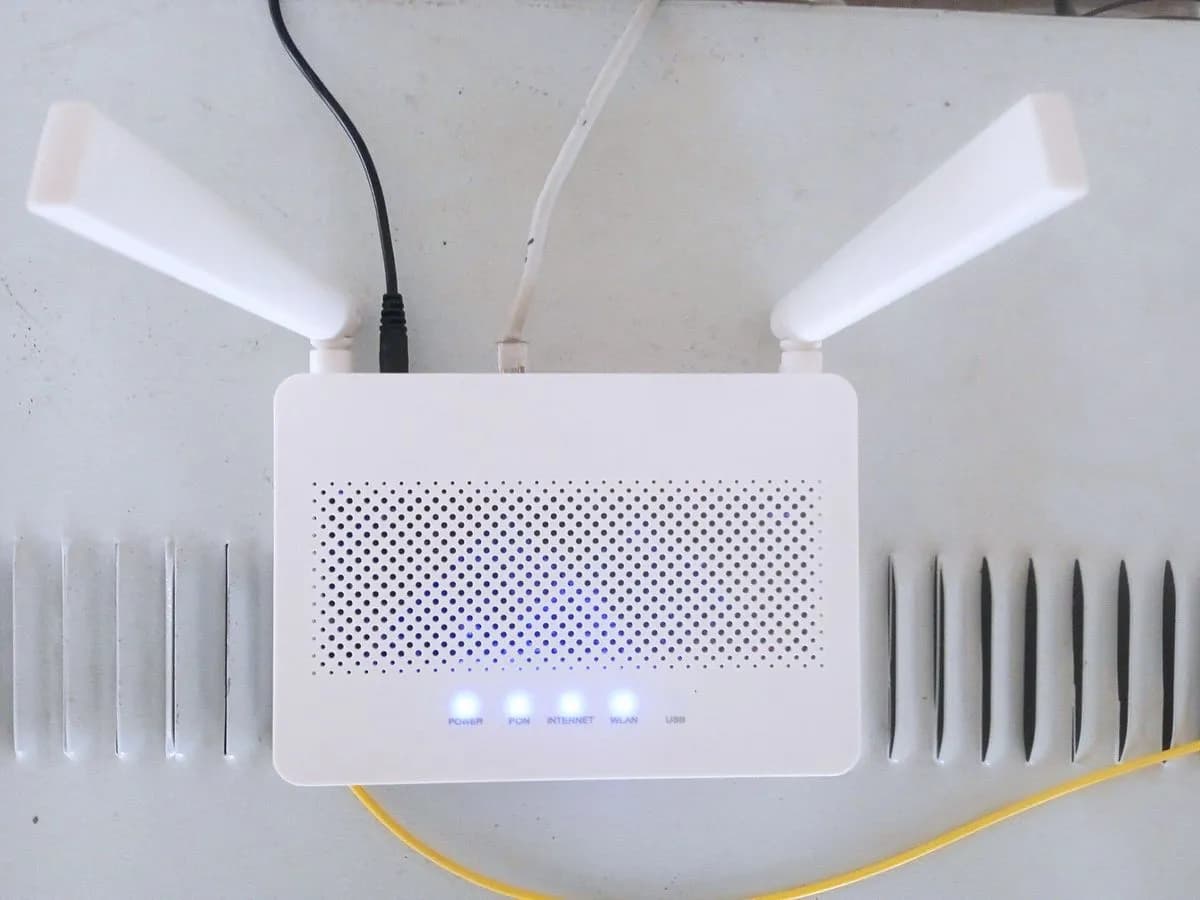
DIGI WPS-ROJO-INTERMITENTE on ZTE router: WPS pairing failed
Risk level
Low
Usually safe to check without specialist tools.
Urgency
Low
Quick answer
On DIGI's ZTE ZXHN F6705 and F8648P routers, a blinking red WPS light means WPS pairing negotiation failed or the WPS session overlapped. Wait for it to stop, pair one device at a time, or connect manually using the Wi-Fi password on the label.
Safety first
Stop and check this first
- Do not confuse the WPS button with the Reset pinhole on the underside or rear: holding Reset for 5 seconds restores the DIGI router to factory defaults.
- Never open the router covers and never look directly into the PON/FIBRA optical port to avoid eye injury.
Safe checks you can perform
- Verify that the Wi-Fi LEDs (2.4G / 5G or Wi-Fi) are lit
- Retry WPS pairing with a single device close to the router
- Connect manually using the SSID and password on the router label
Leave these tasks to a qualified professional
- Do not attempt this professional task: WLAN configuration check with DIGI customer support
- Do not attempt this professional task: Router maintenance or replacement by DIGI
What a technician must be able to justify
Technician visit
These are the steps they must carry out and show you. Tick them as they work: if steps are skipped, do not accept a part swap.
These are not instructions for opening or handling the equipment yourself. They are the checks that should support a technical conclusion.
WLAN configuration check with DIGI customer support
What they doIf devices also fail to connect using the Wi-Fi password on 2.4 GHz or 5 GHz, DIGI customer support (1200 from DIGI or 919 120 120) reviews the router's WLAN settings.
They must show youthe active SSIDs, encryption mode and whether MLO settings are affecting the wireless bands.
In writingthe support ticket reference and the WLAN configuration changes applied.
Router maintenance or replacement by DIGI
What they doIf the wireless radio or physical buttons on the ZTE ZXHN F6705 or F8648P are faulty, DIGI arranges maintenance or replacement of the unit.
They must show youworking 2.4 GHz and 5 GHz wireless broadcast and normal front LED indicators.
In writingthe technical service report and whether the ZTE router was replaced.
Before accepting a part or repair
Nothing has been shown yet. Do not accept a part swap based on the code alone.
Follow these steps
Note: Follow the documented order. An error code identifies the affected system, but it does not prove by itself which part has failed.
Verify that the Wi-Fi LEDs (2.4G / 5G or Wi-Fi) are lit
- Who:
- you.
- How:
- check the front panel of your DIGI router: on the ZXHN F6705 make sure 2.4G and 5G are solid or blinking green, and on the ZXHN F8648P check that the Wi-Fi LED is solid green.
- Result that matters:
- confirming the wireless radio is enabled before attempting WPS pairing.
- If the Wi-Fi lights are on:
- the wireless interface is active, continue to the next step.
- If they are off:
- press the Wi-Fi button (for less than 5 seconds on the F6705) to turn WLAN back on.
- Evidence to keep:
- photo of the front panel showing the Wi-Fi (or 2.4G/5G) and WPS LEDs.
Evidence: Manual de usuario ZTE ZXHN F6705 (DIGI Spain) · Manual de usuario ZTE ZXHN F8648P XGS-PON ONT (DIGI Spain)
Retry WPS pairing with a single device close to the router
- Who:
- you.
- How:
- wait until the WPS LED stops blinking red, bring a single WPS-compatible device close, and press the router's WPS button (over 0.4 s on the F6705 or 1 s on the F8648P) so it blinks yellow or green.
- Result that matters:
- preventing session overlap and completing the handshake within the pairing window.
- If the WPS light turns solid (on the F6705) or the client connects:
- WPS pairing succeeded.
- If it blinks red again:
- connect manually using the Wi-Fi password instead.
- Evidence to keep:
- note of the client device model and the WPS LED behaviour.
Evidence: Manual de usuario ZTE ZXHN F6705 (DIGI Spain) · Manual de usuario ZTE ZXHN F8648P XGS-PON ONT (DIGI Spain)
Connect manually using the SSID and password on the router label
- Who:
- you.
- How:
- select your 2.4 GHz or 5 GHz Wi-Fi network on the device and enter the password printed on the router label; if it detects the network but cannot connect, check the WPA2/WPA2-PSK security option at http://192.168.1.1 (username user).
- Result that matters:
- connecting your device to Wi-Fi without relying on WPS negotiation.
- If it connects with the password:
- the router's Wi-Fi works properly and only the WPS handshake failed.
- If no device can detect or join the Wi-Fi even after a reboot:
- contact DIGI customer support.
- Evidence to keep:
- screenshot of the WLAN SSID settings at 192.168.1.1 or the device Wi-Fi screen.
Evidence: Manual de usuario ZTE ZXHN F6705 (DIGI Spain)
Still not solved
If the error persists, stop here. See what the technician must do and show you.
Where this code applies
A code is meaningful only inside the right product and version context.
Primary scope
- System
- Networks
- Brand
- Digi
- Product type
- Fibre routers
Known code variants
- DIGI fallo emparejamiento WPS luz roja
- DIGI luz WPS roja parpadeando
- DIGI router WPS light blinking red
- DIGI router WPS negotiation failed
- DIGI WPS pairing failed red light
- router DIGI WPS rojo intermitente
- ZTE F6705 WPS red flashing
- ZTE F6705 WPS rojo intermitente
- ZTE F8648P WPS blinking red
- ZTE F8648P WPS rojo parpadeante
What it means
In DIGI Spain's official user manuals (in Spanish) for the GPON ZTE ZXHN F6705 (Table 1-1) and the XGS-PON ZTE ZXHN F8648P (Table 3-1), a blinking red WPS indicator means a session overlap was detected or WPS negotiation and pairing failed. Other DIGI router models may vary. This state only affects push-button WPS pairing and by itself never proves the router hardware is faulty.
Warnings and stop conditions
- Loweditorial warning
Do not confuse the WPS button with the Reset pinhole on the underside or rear: holding Reset for 5 seconds restores the DIGI router to factory defaults.
Evidence: Manual de usuario ZTE ZXHN F6705 (DIGI Spain) · Manual de usuario ZTE ZXHN F8648P XGS-PON ONT (DIGI Spain)
- Mediumeditorial warning
Never open the router covers and never look directly into the PON/FIBRA optical port to avoid eye injury.
Evidence: Manual de usuario ZTE ZXHN F6705 (DIGI Spain) · Manual de usuario ZTE ZXHN F8648P XGS-PON ONT (DIGI Spain)
Symptoms and causes
Probable causes · in order
- WPS negotiation timed out or failed to pairCommon
On both the ZXHN F6705 and ZXHN F8648P, the WPS LED blinks red when the WPS button is pressed but the client device does not complete registration in time.
Evidence: Manual de usuario ZTE ZXHN F6705 (DIGI Spain) · Manual de usuario ZTE ZXHN F8648P XGS-PON ONT (DIGI Spain)
- Overlapping WPS session from multiple devicesPossible
The ZTE ZXHN F6705 manual explicitly notes that blinking red on the WPS light also occurs when an overlapping session is detected because more than one device tries to pair at once.
Evidence: Manual de usuario ZTE ZXHN F6705 (DIGI Spain)
- Wireless band disabled or incompatible security modeLess common
If the 2.4 GHz or 5 GHz wireless bands are switched off or the client device requires WPA2/WPA2-PSK to be selected in the WLAN settings, wireless association will fail.
Evidence: Manual de usuario ZTE ZXHN F6705 (DIGI Spain) · Manual de usuario ZTE ZXHN F8648P XGS-PON ONT (DIGI Spain)
Virtual technician
Does WPS-ROJO-INTERMITENTE still appear after these checks?
Answer a few questions to narrow down the likely cause and the safest next action. Guidance only - it never replaces a professional.
Sources and technical references
- 1
Manual de usuario ZTE ZXHN F6705 (DIGI Spain)
DIGI Spain Telecom · 2026 · manual
- 2
Manual de usuario ZTE ZXHN F8648P XGS-PON ONT (DIGI Spain)
DIGI Spain Telecom · 2021 · manual
Was this entry useful?