
- Networks
- Fibre routers
INTERNET-BLANCO-FIJO
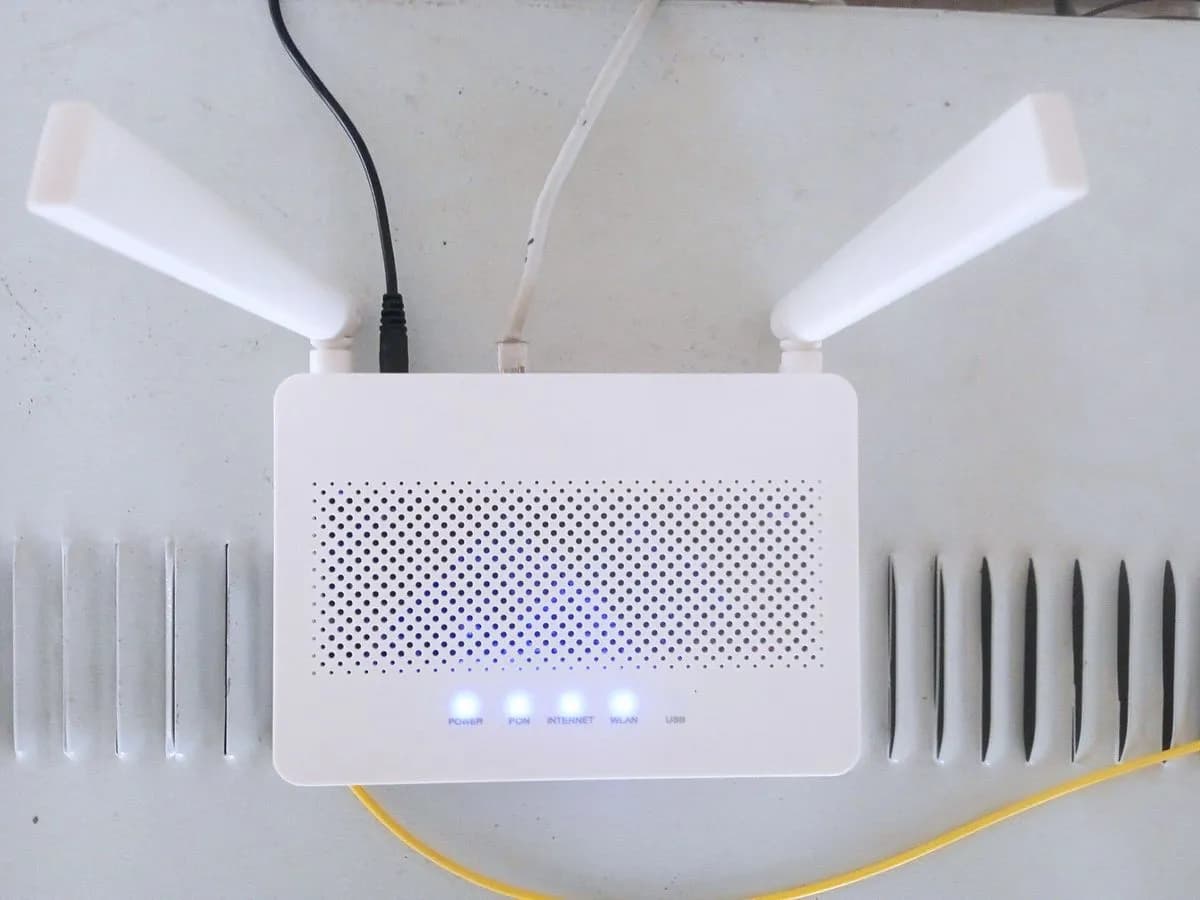
Orange INTERNET-BLANCO-FIJO on Livebox 6: no Internet password
Risk level
Low
Usually safe to check without specialist tools.
Urgency
Medium
Quick answer
On Orange's Livebox 6, a solid white Internet light means the fibre is connected but the Internet password has not been entered or is wrong. Set the Internet password from your quick guide; if you do not have it, call Orange.
Safety first
Stop and check this first
- Use only the Internet password Orange gave you for your line. Do not try passwords from other guides or change advanced router settings the guide does not mention.
Safe checks you can perform
- Confirm the light is solid white
- Enter the Internet password from the quick guide
- Ask Orange for the password if you do not have it
Leave these tasks to a qualified professional
- Do not attempt this professional task: Check of the line's Internet password
- Do not attempt this professional task: Connection test from Orange's systems
What a technician must be able to justify
Technician visit
These are the steps they must carry out and show you. Tick them as they work: if steps are skipped, do not accept a part swap.
These are not instructions for opening or handling the equipment yourself. They are the checks that should support a technical conclusion.
Check of the line's Internet password
What they doOrange customer service checks which Internet password belongs to your line and whether the Livebox 6 has it set correctly, and gives it to you if you do not have it.
They must show youconfirmation that your line's password is the one configured.
In writingthe ticket number, the date and the fix applied.
Connection test from Orange's systems
What they doIf the password is correct and the light stays solid white, Orange checks the line and router from its systems and, if needed, books a technician visit.
They must show youthe line test result and whether a visit has been booked.
In writingthe ticket number, the test result and the visit date if any.
Before accepting a part or repair
Nothing has been shown yet. Do not accept a part swap based on the code alone.
Follow these steps
Note: Follow the documented order. An error code identifies the affected system, but it does not prove by itself which part has failed.
Confirm the light is solid white
- Who:
- you, looking at the front of the Livebox 6.
- How:
- watch the Internet light for a minute and tell whether it is solid white, blinking white or green; each state has a different meaning in Orange's table.
- Result that matters:
- knowing whether the fibre is already connected and only the password is missing.
- If it is solid white:
- the fibre arrives and the next step is the Internet password.
- If it is blinking white:
- the fibre is not connected and you need to check the fibre cable, not the password.
- Evidence to keep:
- photo of the front panel with the light and the time.
Evidence: Todo lo que debes saber sobre tu router Livebox 6
Enter the Internet password from the quick guide
- Who:
- you, with the Livebox 6 quick installation guide.
- How:
- find in the quick guide the Internet password (ONT password) Orange gave you and set it in the Livebox following that guide's steps, copying it carefully.
- Result that matters:
- the Internet light changing from solid white to blinking green and then solid green.
- If it turns green:
- the password was the problem and you are now connected.
- If it stays solid white after entering it correctly:
- call Orange customer service so they check your line's password.
- Evidence to keep:
- photo of the light before and after and the date you set the password.
Evidence: Resolución de problemas comunes del router Livebox 6
Ask Orange for the password if you do not have it
- Who:
- you, calling Orange customer service.
- How:
- explain that the Livebox 6 shows a solid white Internet light and that you do not have the Internet password or the one you have does not work; have the account holder and line number ready.
- Result that matters:
- getting the correct password or having Orange check your line setup.
- If they give you the password and once set the light turns green:
- solved.
- If the correct password does not work either:
- ask them to open a fault ticket and note its number.
- Evidence to keep:
- ticket number, date of the call and what you were told.
Evidence: Resolución de problemas comunes del router Livebox 6
Still not solved
If the error persists, stop here. See what the technician must do and show you.
Where this code applies
A code is meaningful only inside the right product and version context.
Primary scope
- System
- Networks
- Brand
- Orange
- Product type
- Fibre routers
Known code variants
- livebox 6 contraseña de internet incorrecta
- livebox 6 internet blanco fijo
- livebox 6 internet light solid white
- livebox 6 internet password wrong
- livebox 6 luz internet blanca fija
- livebox clave ont password
- livebox ont password
- orange livebox luz blanca fija
- orange livebox solid white light
- orange router white light no internet
- router orange luz blanca fija sin internet
What it means
In the Livebox 6 light table, Orange gives the solid white Internet light this meaning: fibre connected, Internet password not entered or incorrect. The fibre signal arrives, but the router cannot validate access. In its troubleshooting page, Orange asks you to set the Internet password (ONT password) correctly using the quick installation guide and, if you do not have that password, to contact customer service. This text follows the Livebox 6 pages; other Livebox models use other lights and colours.
Warnings and stop conditions
- Loweditorial warning
Use only the Internet password Orange gave you for your line. Do not try passwords from other guides or change advanced router settings the guide does not mention.
Evidence: Resolución de problemas comunes del router Livebox 6
Symptoms and causes
Probable causes · in order
- Internet password not setCommon
After installing or swapping the Livebox 6, the Internet password Orange provides in the quick guide has not yet been entered in the router.
Evidence: Todo lo que debes saber sobre tu router Livebox 6 · Resolución de problemas comunes del router Livebox 6
- Wrong Internet passwordCommon
The password entered does not match your line, because of a typing error or one taken from another guide; Orange shows this with the same solid white.
Evidence: Todo lo que debes saber sobre tu router Livebox 6
- You do not have the passwordPossible
If you have neither the quick guide nor the Internet password, Orange says customer service must provide or check it.
Evidence: Resolución de problemas comunes del router Livebox 6
Virtual technician
Does INTERNET-BLANCO-FIJO still appear after these checks?
Answer a few questions to narrow down the likely cause and the safest next action. Guidance only - it never replaces a professional.
Sources and technical references
- 1
Todo lo que debes saber sobre tu router Livebox 6
Orange España · 2026 · official_doc
- 2
Resolución de problemas comunes del router Livebox 6
Orange España · 2026 · official_doc
Was this entry useful?