

- HVAC
- Smart thermostats
M26
Google Nest Thermostat M26: Matter linking unavailable
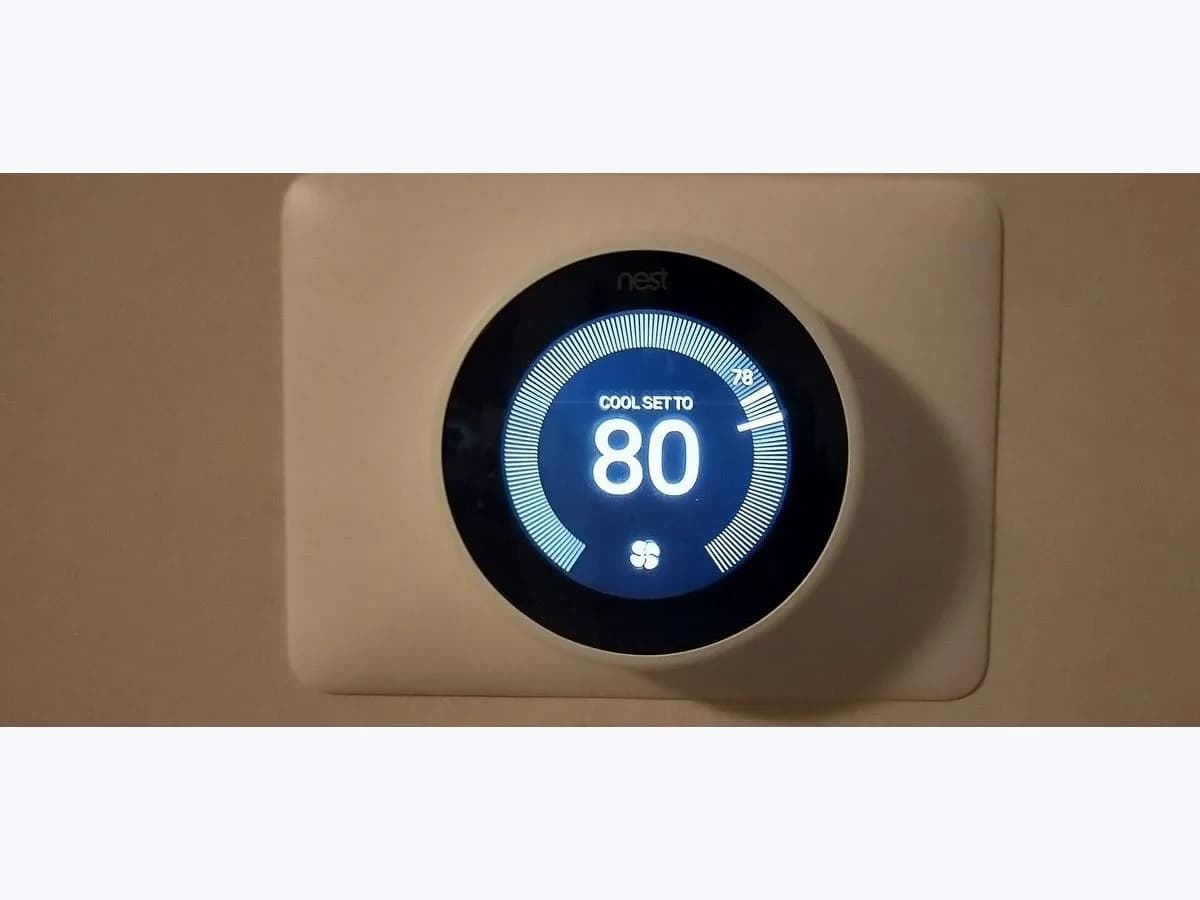
Risk level
Low
Usually safe to check without specialist tools.
Urgency
Low
Quick answer
Help code M26 means your Nest Thermostat cannot link to a third-party Matter-supported app; check the AAA battery level, confirm Wi-Fi connectivity, and verify you have not reached the 5-app Matter limit.
Safety first
Stop and check this first
- Do not install rechargeable AAA batteries in the Nest Thermostat to clear code M26: Google specifies using only 2 new 1.5 V AAA alkaline batteries.
- Troubleshooting a Matter linking error (M26) is entirely software and battery related; never disturb the HVAC baseplate wiring or boiler terminals for this code.
Safe checks you can perform
- Check battery status in the Google Home app and install new AAA alkaline batteries
- Verify internet access and reconnect the Nest Thermostat to Wi-Fi
- Confirm Google Home setup and check the 5-app Matter pairing limit
Leave these tasks to a qualified professional
- Do not attempt this professional task: Contact Google Nest customer support for persistent M26 diagnostics
- Do not attempt this professional task: Request a home network configuration check for local Matter discovery
What a technician must be able to justify
Technician visit
These are the steps they must carry out and show you. Tick them as they work: if steps are skipped, do not accept a part swap.
These are not instructions for opening or handling the equipment yourself. They are the checks that should support a technical conclusion.
Contact Google Nest customer support for persistent M26 diagnostics
What they doGoogle Nest customer support reviews your Nest Thermostat diagnostics when fresh alkaline batteries, active Wi-Fi, and fewer than 5 linked Matter apps still produce M26.
They must show youthe status shown under Settings > Battery and Settings > Device information > Wi-Fi in the Google Home app, along with the count of linked Matter apps.
In writingthe Google Nest support case number, the thermostat firmware version, and the warranty replacement or troubleshooting resolution.
Request a home network configuration check for local Matter discovery
What they doA network technician or your ISP checks whether router client isolation blocks local Matter commissioning between your phone and the Nest Thermostat.
They must show youa live local pairing test between your phone and the Nest Thermostat on the same home Wi-Fi network.
In writingthe router settings adjusted on your network and confirmation that Matter linking finishes without help code M26.
Before accepting a part or repair
Nothing has been shown yet. Do not accept a part swap based on the code alone.
Follow these steps
Note: Follow the documented order. An error code identifies the affected system, but it does not prove by itself which part has failed.
Check battery status in the Google Home app and install new AAA alkaline batteries
- Who:
- you, using the Google Home app and replacing the AAA batteries on the thermostat.
- How:
- open the Google Home app, tap Devices, select your thermostat, and open Settings > Battery; if low battery is shown, insert 2 new 1.5 V AAA alkaline batteries and never use rechargeable batteries.
- Result that matters:
- restore sufficient battery voltage so the Nest Thermostat can complete Matter commissioning.
- If the Battery screen clears the low-battery warning:
- retry linking the thermostat to your Matter app.
- If code M26 still appears with 2 fresh 1.5 V AAA alkaline batteries installed:
- proceed to check Wi-Fi.
- Evidence to keep:
- screenshot of Settings > Battery in Google Home and the date you installed new AAA cells.
Evidence: Troubleshoot Nest thermostat help codes
Verify internet access and reconnect the Nest Thermostat to Wi-Fi
- Who:
- you, testing home Wi-Fi on another device and in the Google Home app.
- How:
- confirm with another device at home that Wi-Fi internet is working and Nest service is available; if the thermostat disconnected, go to Google Home > Devices > your thermostat > Settings > Device information > Wi-Fi.
- Result that matters:
- reconnect the Nest Thermostat to your home Wi-Fi network and Google Nest cloud service.
- If the Nest Thermostat shows online in Google Home:
- repeat the Matter linking process in the third-party app.
- If Wi-Fi is connected and Nest servers are online but M26 persists:
- check Google Home setup and the 5-app cap.
- Evidence to keep:
- screenshot of Settings > Device information > Wi-Fi showing an active connection.
Evidence: Troubleshoot Nest thermostat help codes
Confirm Google Home setup and check the 5-app Matter pairing limit
- Who:
- you, reviewing the smart home apps linked to your thermostat.
- How:
- make sure the Nest Thermostat is already added to your home in the Google Home app first, and verify that fewer than 5 Matter-supported apps are currently paired (unlink an unused Matter app if you hit the limit of 5).
- Result that matters:
- ensure the thermostat is initialized in Google Home and has an open slot within the 5-app Matter limit.
- If pairing with the third-party Matter-supported app succeeds without returning M26:
- your Matter link is ready to use.
- If all four requirements are met and help code M26 still appears:
- contact Google Nest customer support.
- Evidence to keep:
- list of linked Matter apps and a screenshot of the M26 message.
Evidence: Troubleshoot Nest thermostat help codes
Still not solved
If the error persists, stop here. See what the technician must do and show you.
Where this code applies
A code is meaningful only inside the right product and version context.
Primary scope
- System
- HVAC
- Brand
- Google Nest
- Product type
- Smart thermostats
Known code variants
- Código M26
- Error M26
- M26 code
- M26 Nest Thermostat
- Matter linking is currently unavailable for this device
- Nest Thermostat M26
- No se ha podido vincular este dispositivo a Matter en este momento
What it means
On Google's official Nest thermostat help codes page, section M26 applies exclusively to the Nest Thermostat model (other models such as the Nest Learning Thermostat or Nest Thermostat E use different hardware and menus). It appears when the thermostat cannot connect to a third-party Matter-supported app or shows that Matter linking is currently unavailable for the device. Code M26 alone never proves that the thermostat radio or board is faulty: it usually points to low AAA batteries, lost Wi-Fi, missing Google Home setup, or having 5 Matter apps already paired.
Warnings and stop conditions
- Loweditorial warning
Do not install rechargeable AAA batteries in the Nest Thermostat to clear code M26: Google specifies using only 2 new 1.5 V AAA alkaline batteries.
Evidence: Troubleshoot Nest thermostat help codes
- Mediumeditorial warning
Troubleshooting a Matter linking error (M26) is entirely software and battery related; never disturb the HVAC baseplate wiring or boiler terminals for this code.
Evidence: Troubleshoot Nest thermostat help codes
Symptoms and causes
Probable causes · in order
- Low AAA battery voltage in the Nest ThermostatCommon
When the Nest Thermostat batteries are low, the device blocks pairing with external Matter-supported apps until you install 2 fresh 1.5 V AAA alkaline batteries.
Evidence: Troubleshoot Nest thermostat help codes
- Wi-Fi network unavailable or temporary Nest server outageCommon
Linking the thermostat to another Matter-enabled app requires both an active home Wi-Fi internet connection and an online Google Nest server status.
Evidence: Troubleshoot Nest thermostat help codes
- Thermostat not added to the Google Home app firstPossible
Google requires the Nest Thermostat to be added and set up in the Google Home app before you can link it to any third-party Matter-supported application.
Evidence: Troubleshoot Nest thermostat help codes
- Maximum limit of 5 Matter-supported apps already reachedLess common
The Nest Thermostat can only be paired with up to 5 Matter-supported apps at the same time; attempting to add a sixth app triggers help code M26.
Evidence: Troubleshoot Nest thermostat help codes
Virtual technician
Does M26 still appear after these checks?
Answer a few questions to narrow down the likely cause and the safest next action. Guidance only - it never replaces a professional.
Sources and technical references
- 1
Troubleshoot Nest thermostat help codes
Google · 2026 · official_doc
- 2
Códigos de error de los termostatos Nest y solución de problemas
Google · 2026 · official_doc
Was this entry useful?