
- Networks
- Wi-Fi routers
INTERNET-AMBAR
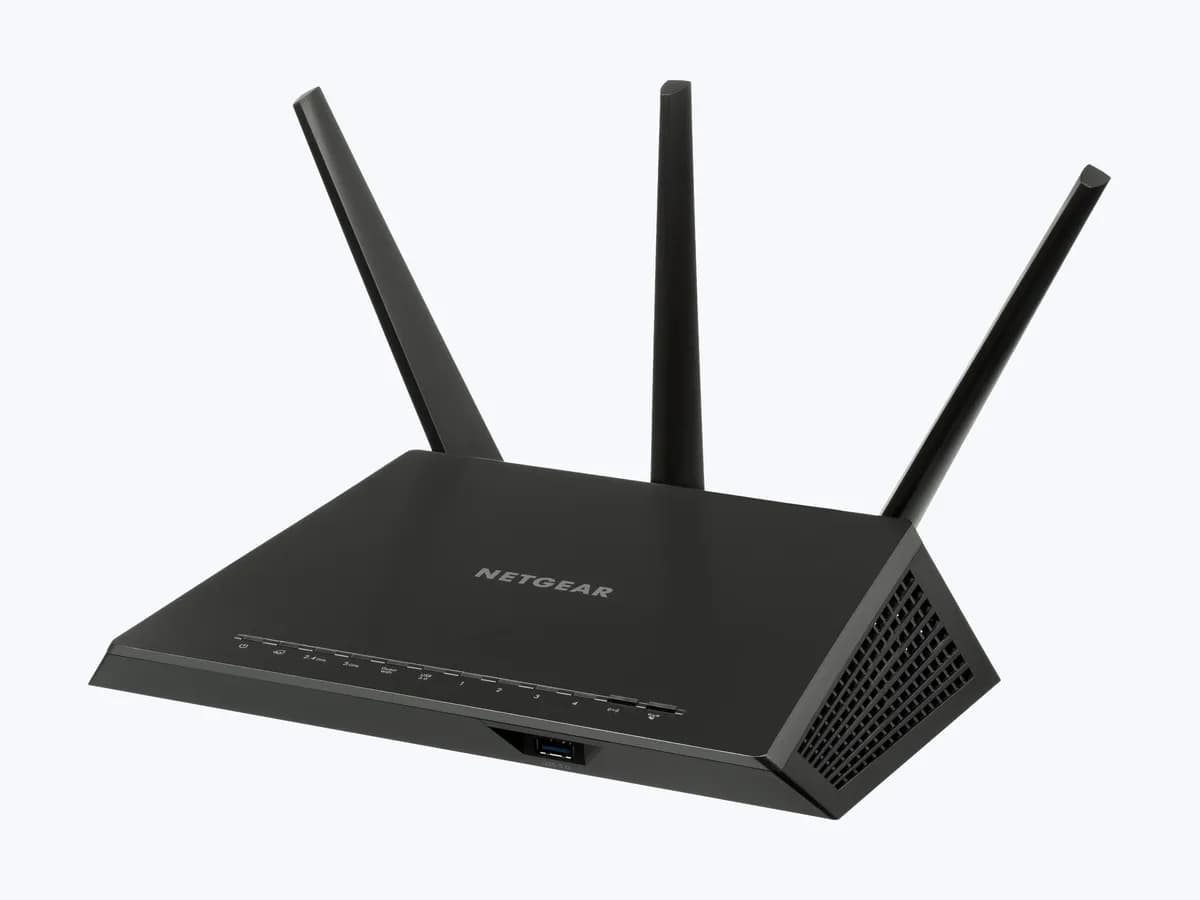
NETGEAR Internet LED amber on Nighthawk router: link not ready
Risk level
Low
Usually safe to check without specialist tools.
Urgency
Medium
Quick answer
On NETGEAR Nighthawk routers, a solid amber Internet LED means the router detects the cable to the modem but the internet connection is not ready (ready is white or green). Power cycle the network in NETGEAR's order and check the modem.
Safety first
Stop and check this first
- A factory reset deletes your network name, Wi-Fi password and other settings: write them down first.
- If your modem has a backup battery, NETGEAR says you must remove it to turn the modem off completely during the power cycle.
Safe checks you can perform
- Full network power cycle in order
- Modem straight to a computer
- Cables and router firmware
- Log in to the router and check the connection
Leave these tasks to a qualified professional
- Do not attempt this professional task: Line check by the provider
- Do not attempt this professional task: Connection type details
What a technician must be able to justify
Technician visit
These are the steps they must carry out and show you. Tick them as they work: if steps are skipped, do not accept a part swap.
These are not instructions for opening or handling the equipment yourself. They are the checks that should support a technical conclusion.
Line check by the provider
What they doIf a device wired straight to the modem cannot browse, the provider checks the line, the modem and the cables coming into the home.
They must show youthe line test result and the modem status.
In writingthe incident number, the cause and the date.
Connection type details
What they doThe provider confirms whether your line uses Dynamic IP, Static IP or PPPoE and gives you the details needed to set it up in the router.
They must show youyour line's connection type and the parameters.
In writingthe connection type and the details given, with the date.
Before accepting a part or repair
Nothing has been shown yet. Do not accept a part swap based on the code alone.
Follow these steps
Note: Follow the documented order. An error code identifies the affected system, but it does not prove by itself which part has failed.
Full network power cycle in order
- Who:
- you.
- How:
- turn off every device on the network, wait 2 minutes, turn on the modem first and wait about 5 minutes until its lights are stable; then turn on the router and after that the other devices.
- Result that matters:
- the router's Internet LED turning white (green on older routers).
- If it turns white or green:
- the router had started before the modem was connected.
- If it stays amber:
- check whether the modem has internet on its own.
- Evidence to keep:
- note of the restart time and the final LED colour.
Evidence: How do I power cycle my home network?
Modem straight to a computer
- Who:
- you, with a computer that has a network port.
- How:
- connect a device directly to the modem with an Ethernet cable and open a web browser to see whether you have internet.
- Result that matters:
- knowing whether the fault is in the provider's modem or line or in the NETGEAR router.
- If it cannot browse either:
- contact your provider; there may be an outage or cable damage.
- If it browses:
- reconnect the modem to the router, power cycle both and log in to the router to check it.
- Evidence to keep:
- note of the test and time, and the incident number if you call the provider.
Evidence: What should I do if my network is offline?
Cables and router firmware
- Who:
- you.
- How:
- check that every cable is secure, especially the one from the modem to the router's Internet port, and download the latest firmware from NETGEAR's support site.
- Result that matters:
- ruling out a loose cable or an old firmware version.
- If after securing the cable or updating, the LED turns white:
- solved.
- If it stays amber:
- check the settings by logging in to the router.
- Evidence to keep:
- note of the firmware version before and after.
Evidence: I recently lost my Internet connection; how do I get my connection back?
Log in to the router and check the connection
- Who:
- you, from a computer connected to the router.
- How:
- go to www.routerlogin.net with your admin credentials and check the internet connection type; some providers require Static IP or PPPoE with a user name and password.
- Result that matters:
- confirming the router uses the connection type your provider requires.
- If the type did not match:
- correct it with your provider's details.
- If you cannot log in to the router:
- NETGEAR has a separate guide to regain access.
- Evidence to keep:
- screenshot of the configured connection type, with no passwords visible.
Evidence: What should I do if my network is offline? · I'm getting an Internet not connected error when I try to install my NETGEAR router using the Nighthawk or Orbi app; what do I do?
Still not solved
If the error persists, stop here. See what the technician must do and show you.
Where this code applies
A code is meaningful only inside the right product and version context.
Primary scope
- System
- Networks
- Brand
- NETGEAR
- Product type
- Wi-Fi routers
Known code variants
- NETGEAR Internet LED amber
- NETGEAR luz Internet ámbar
- NETGEAR R7000 Internet LED amber
- NETGEAR R7000 led Internet ámbar
- NETGEAR router orange Internet light
- Nighthawk Internet light amber
- Nighthawk luz ámbar Internet
- Nighthawk no internet amber light
- Nighthawk sin Internet luz ámbar
- router NETGEAR luz naranja Internet
What it means
In NETGEAR's official guide to its router LEDs (Nighthawk R7000, R8000, RAX50, RAX120 and others), a solid amber Internet LED means the router has detected an Ethernet cable connection to the modem; solid white or green means the internet connection is ready and off means no cable. NETGEAR lists an amber Internet LED among the issues a full network power cycle can resolve. If the modem has no internet either, the problem is usually the provider or the line cables. Icons vary by model.
Warnings and stop conditions
- Loweditorial warning
A factory reset deletes your network name, Wi-Fi password and other settings: write them down first.
Evidence: I recently lost my Internet connection; how do I get my connection back?
- Lowsource verified
If your modem has a backup battery, NETGEAR says you must remove it to turn the modem off completely during the power cycle.
Evidence: How do I power cycle my home network?
Symptoms and causes
Probable causes · in order
- The modem has not connected to the provider yetCommon
NETGEAR says to power on the modem first and wait about 5 minutes for it to connect to the provider before powering on the router.
Evidence: How do I power cycle my home network?
- Provider outage or damaged line cablesCommon
If a device wired straight to the modem cannot browse either, NETGEAR points to a provider outage or damage to the cables that bring the internet into your home.
Evidence: What should I do if my network is offline?
- Router configured incorrectlyPossible
If the modem has internet but the router does not, NETGEAR says the router may be configured incorrectly, for example with a different connection type from the provider's.
Evidence: What should I do if my network is offline?
- Loose cable or old firmwarePossible
NETGEAR's steps to get the connection back include checking that each cable is secure and updating the router firmware.
Evidence: I recently lost my Internet connection; how do I get my connection back?
Virtual technician
Does INTERNET-AMBAR still appear after these checks?
Answer a few questions to narrow down the likely cause and the safest next action. Guidance only - it never replaces a professional.
Sources and technical references
- 1
What do the LEDs on my NETGEAR router mean?
NETGEAR · 2025 · official_doc
- 2
How do I power cycle my home network?
NETGEAR · 2025 · official_doc
- 3
I recently lost my Internet connection; how do I get my connection back?
NETGEAR · 2025 · official_doc
- 4
What should I do if my network is offline?
NETGEAR · 2025 · official_doc
- 5
¿Qué debo hacer si la red no tiene conexión?
NETGEAR · 2025 · official_doc
Was this entry useful?