
- Networks
- Wi-Fi routers
Internet not connected
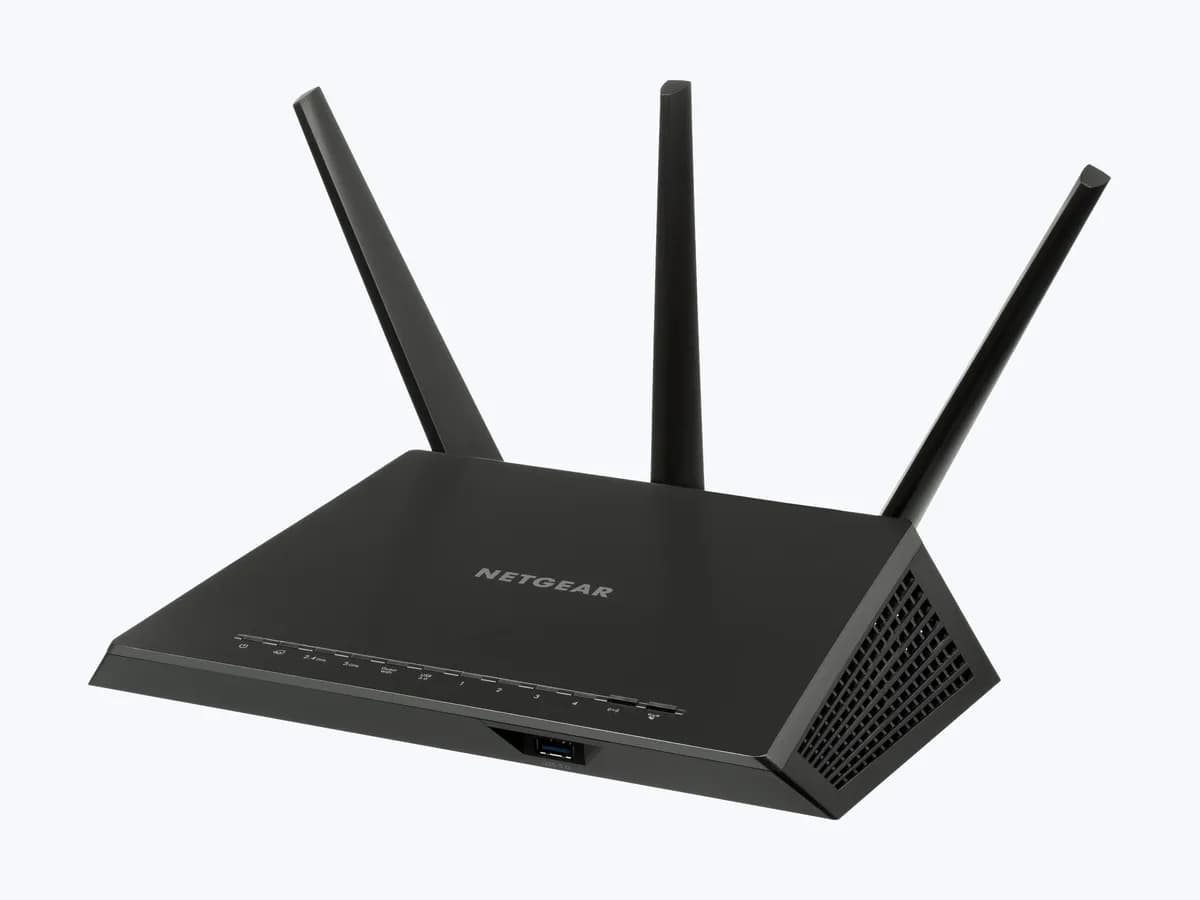
NETGEAR Internet not connected on Wi-Fi router: setup error
Risk level
Low
Usually safe to check without specialist tools.
Urgency
Medium
Quick answer
If the Nighthawk app displays an 'Internet not connected' error while installing your NETGEAR router, power-cycle your home network in sequence (modem first, then router) and tap Advanced Setup if your ISP requires Static IP or PPPoE.
Safety first
Stop and check this first
- If your cable or voice modem has a backup battery, only remove the battery via its user-accessible compartment during the 2-minute power cycle; never open the sealed casing of the router or modem.
- Do not attempt to configure L2TP or PPTP WAN connections inside the Nighthawk mobile app, as NETGEAR states you must use the router web interface for those protocols.
Safe checks you can perform
- Check the router Internet LED and Ethernet cable connection
- Power-cycle your modem and NETGEAR router in exact sequence
- Select Static IP or PPPoE under Advanced Setup in the app
- Use the router web interface if your ISP requires L2TP or PPTP
Leave these tasks to a qualified professional
- Do not attempt this professional task: Verify WAN connection type and modem provisioning with your ISP
- Do not attempt this professional task: Diagnostic review with NETGEAR Support
What a technician must be able to justify
Technician visit
These are the steps they must carry out and show you. Tick them as they work: if steps are skipped, do not accept a part swap.
These are not instructions for opening or handling the equipment yourself. They are the checks that should support a technical conclusion.
Verify WAN connection type and modem provisioning with your ISP
What they doIf sequential power-cycling does not resolve the error or you do not know whether your connection requires DHCP, Static IP, PPPoE, L2TP or PPTP, contact your ISP to confirm your line settings and modem status.
They must show youthat the modem has an active broadband link and provide the exact WAN protocol and credentials required.
In writingthe ISP ticket reference and the confirmed WAN connection type and addressing parameters.
Diagnostic review with NETGEAR Support
What they doIf your modem has a verified internet connection and you have entered the exact WAN settings in the Nighthawk app or web interface, but the router still reports 'Internet not connected', contact NETGEAR Support.
They must show youthe router Internet LED behavior and the WAN status page from the router web interface.
In writingthe NETGEAR support case number and hardware diagnostic or warranty replacement outcome.
Before accepting a part or repair
Nothing has been shown yet. Do not accept a part swap based on the code alone.
Follow these steps
Note: Follow the documented order. An error code identifies the affected system, but it does not prove by itself which part has failed.
Check the router Internet LED and Ethernet cable connection
- Who:
- you.
- How:
- inspect the Internet LED on your NETGEAR router: off means no Ethernet cable is connected between the router and modem, solid amber means the Ethernet cable is detected without internet yet, and solid white or green means the connection is ready.
- Result that matters:
- confirm physical Ethernet link detection between the modem and router.
- If the Internet LED is off:
- seat the Ethernet cable firmly between the modem and the router Internet port.
- If the LED stays solid amber and the app shows the error:
- perform the sequential network power cycle.
- Evidence to keep:
- photo of the Power and Internet LEDs on your NETGEAR router.
Evidence: What do the LEDs on my NETGEAR router mean? · How do I power cycle my home network?
Power-cycle your modem and NETGEAR router in exact sequence
- Who:
- you.
- How:
- turn off all connected devices and your router, power off your cable or DSL modem (removing any backup battery), and wait 2 minutes; turn on the modem first and wait at least 5 minutes until its ISP LEDs are stable, then turn on your NETGEAR router and retry the Nighthawk app.
- Result that matters:
- allow the modem to establish a clean ISP link before handing an IP lease to the NETGEAR router.
- If the router Internet LED turns solid white or green and setup proceeds:
- complete the app installation.
- If the 'Internet not connected' screen returns:
- tap Advanced Setup on that screen.
- Evidence to keep:
- note of the 2-minute power-off wait and 5-minute modem sync wait before powering the router.
Evidence: How do I power cycle my home network? · I'm getting an Internet not connected error when I try to install my NETGEAR router using the Nighthawk or Orbi app; what do I do?
Select Static IP or PPPoE under Advanced Setup in the app
- Who:
- you.
- How:
- on the 'Internet not connected' screen in the Nighthawk app, tap Advanced Setup to open the Advanced Network Setup screen, and select either PPPoE (entering your ISP username and password) or Static IP (entering the ISP-provided IP details).
- Result that matters:
- configure the non-DHCP WAN connection type required by your internet provider.
- If the router connects after entering PPPoE or Static IP details:
- finish the setup wizard.
- If you are unsure of the connection type or your ISP uses L2TP/PPTP:
- check with your ISP or use the web GUI.
- Evidence to keep:
- screenshot of the Advanced Network Setup screen in the Nighthawk app.
Evidence: I'm getting an Internet not connected error when I try to install my NETGEAR router using the Nighthawk or Orbi app; what do I do?
Use the router web interface if your ISP requires L2TP or PPTP
- Who:
- you.
- How:
- if your ISP confirms that your broadband line uses an L2TP or PPTP WAN connection, exit the Nighthawk app installer and set up the router through the NETGEAR router web interface in a browser.
- Result that matters:
- complete WAN configuration for L2TP or PPTP protocols not supported in the mobile app.
- If the web interface completes WAN setup and the Internet LED turns white or green:
- setup is complete.
- If the router still cannot connect with verified ISP settings:
- contact your ISP or NETGEAR Support.
- Evidence to keep:
- screenshot of the WAN configuration page in the router web interface.
Evidence: I'm getting an Internet not connected error when I try to install my NETGEAR router using the Nighthawk or Orbi app; what do I do?
Still not solved
If the error persists, stop here. See what the technician must do and show you.
Where this code applies
A code is meaningful only inside the right product and version context.
Primary scope
- System
- Networks
- Brand
- NETGEAR
- Product type
- Wi-Fi routers
Known code variants
- app Nighthawk no detecta Internet
- error Internet no conectado al instalar router NETGEAR
- Error Internet not connected en app Orbi
- Internet no conectado al instalar Orbi
- Internet not connected error Orbi app
- Internet not detected NETGEAR Orbi setup
- Internet not detected Orbi
- NETGEAR Internet not connected
- NETGEAR Internet not connected error
- NETGEAR Nighthawk R7000 RAX50 Internet not connected
- NETGEAR router setup Internet notdetected
- Nighthawk app Internet not connected
- Nighthawk RAX50 R7000 Internet not connected
- Orbi app Internet not connected error
What it means
According to official NETGEAR Support (Knowledge Base articles 000061842, 19755 and 24244 covering WiFi 5 and WiFi 6 routers such as R6700, R7000, R7800, R8000, RAX10, RAX40, RAX50, RAX80, RAX120 and RAX200; other models may vary), getting an 'Internet not connected' error during Nighthawk or Orbi app setup means the router has not established an active internet session with your ISP. This usually happens because the modem needs a full power cycle to bind to the router, or because your ISP requires PPPoE, Static IP, L2TP or PPTP. This message alone never proves that your NETGEAR router is defective.
Warnings and stop conditions
- Loweditorial warning
If your cable or voice modem has a backup battery, only remove the battery via its user-accessible compartment during the 2-minute power cycle; never open the sealed casing of the router or modem.
Evidence: How do I power cycle my home network?
- Loweditorial warning
Do not attempt to configure L2TP or PPTP WAN connections inside the Nighthawk mobile app, as NETGEAR states you must use the router web interface for those protocols.
Evidence: I'm getting an Internet not connected error when I try to install my NETGEAR router using the Nighthawk or Orbi app; what do I do?
Symptoms and causes
Probable causes · in order
- Modem and network hardware need a sequential power cycleCommon
NETGEAR states in articles 000061842 and 19755 that your networking hardware often needs a full restart (including removing any modem backup battery) to establish a connection with your ISP.
Evidence: How do I power cycle my home network? · I'm getting an Internet not connected error when I try to install my NETGEAR router using the Nighthawk or Orbi app; what do I do?
- ISP requires PPPoE credentials or a Static IP addressCommon
According to article 000061842, if power-cycling does not resolve the error, your ISP may require an ISP-provided PPPoE username and password or a fixed Static IP address.
Evidence: I'm getting an Internet not connected error when I try to install my NETGEAR router using the Nighthawk or Orbi app; what do I do?
- Ethernet cable unplugged or router turned on before modem syncedPossible
In articles 19755 and 24244, NETGEAR explains that an off Internet LED means no Ethernet cable is detected between router and modem, while turning on the router before waiting 5 minutes for the modem to sync prevents connection.
Evidence: What do the LEDs on my NETGEAR router mean? · How do I power cycle my home network?
- ISP uses L2TP or PPTP WAN connection types unsupported by the appLess common
NETGEAR notes in article 000061842 that the Nighthawk app does not support L2TP or PPTP WAN connection types, requiring setup through the router web interface instead.
Evidence: I'm getting an Internet not connected error when I try to install my NETGEAR router using the Nighthawk or Orbi app; what do I do?
Virtual technician
Does Internet not connected still appear after these checks?
Answer a few questions to narrow down the likely cause and the safest next action. Guidance only - it never replaces a professional.
Sources and technical references
- 1
What do the LEDs on my NETGEAR router mean?
NETGEAR · 2025 · official_doc
- 2
How do I power cycle my home network?
NETGEAR · 2025 · official_doc
Was this entry useful?